A vector animation editor gets more useful in two ways: by making something possible that was not possible before, and by cutting steps out of work you already do every day. Both speed a project up, but only the first changes what you can put in it.
The latest SVGator updates do both. Text alignment and links on individual groups add things the editor could not do before, while the library, color, and image changes take steps out of what it already handled.
Table of contents
- Save to library now takes two clicks
- Color coding with hex shorthand
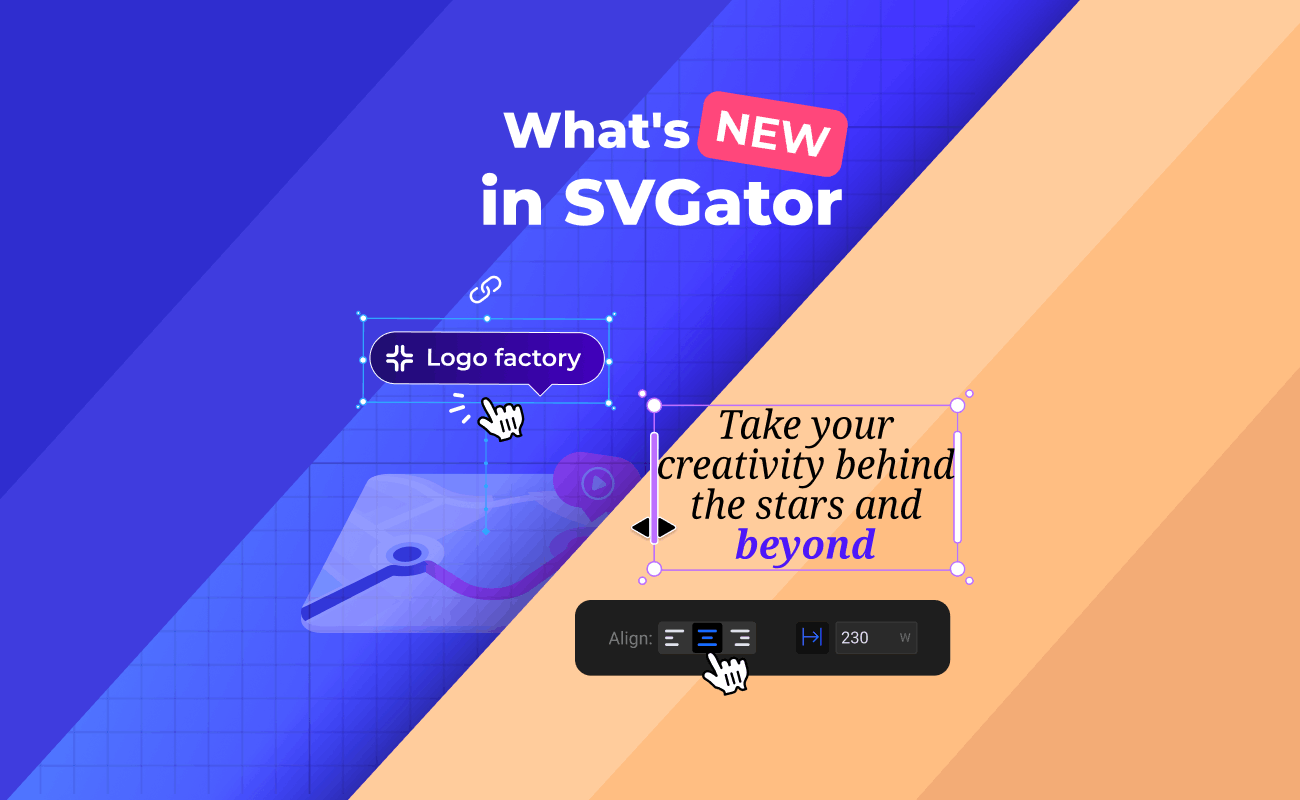
- Text alignment options for animated text
- Link creation inside the editor
- Replace image without rebuilding the layer
- Final thoughts
Key takeaways
- Every group can now carry its own hyperlink, and single elements are converted into one when you add a link.
- Text blocks have alignment options for the first time, plus a keep width while typing setting
- Saving a whole project to the library takes two clicks from My projects.
- Replace image swaps the artwork inside a layer while the element keeps its place in the layer order.
- The hex field completes a shorthand, so typing 0 fills in 000000, and eight-character values now set color and opacity in one entry.
Save to library now takes two clicks
Your library holds elements you want to use again. That covers static artwork and finished animations, since an animation saved as a new element comes back with its keyframes attached, not just its shapes.
Saving a whole project there is now two clicks, and it starts from My projects rather than from inside the editor. Click the three-dot options menu on the project, then Save to library. Everything in the project goes across at once, with no opening it and selecting the contents first.
Reuse runs through the Library panel. Open a new project, go to the panel, refresh it, and click the saved item to drop it on the canvas. From there it behaves like any other element, so you can rescale it, restyle it, or edit its existing keyframes without rebuilding the motion. The full workflow is covered in the Save to Library tutorial.
Color coding with hex shorthand
The hex field now completes a color value from a shorthand. Type 0 and it fills in 000000 for black. Type 81 and it fills in 81818181. You enter only what varies and the field repeats it across the remaining characters.
The field also takes eight-character values now, which it did not before. The last two characters carry the alpha, so a color and its opacity go in as one entry rather than a color followed by a separate opacity adjustment. Type FF000080 and you get red at 50% opacity. Change those last two characters to FF and the same red comes in fully opaque.
Text alignment options for animated text
Text blocks now have alignment options. There were none before, so lines in a multi-line block had to be positioned by hand.
A keep width while typing option sits alongside them. It holds the text box at its set width instead of letting the box stretch as you type, so the text wraps and the block keeps the dimensions you gave it.
Both matter for animated text specifically. When lines stagger in one after another, or letters scale up from a shared baseline, an alignment that is a few pixels out is visible in a way it would not be on a static layout.
Link creation inside the editor
Right-click a group or an element and choose Set hyperlink. Links always attach to a group, so starting from a single element creates one for you. You then set the destination and where the link opens, the same tab or a new one.
One animation can hold several links. Picture three products in a single graphic, each one sending the viewer to a different page. That opens up a set of jobs a single-link file could not do:
- Product animations where each item routes to its own page
- Landing page graphics with more than one call to action
- Interactive ads, where the animation is the ad unit and the click has to reach the right page
- Animated navigation or menu graphics with per-item destinations
Links survive export because the anchor element is part of the SVG specification. Your file stays one file, with no player library or extra script needed to make regions clickable.
Replace image without rebuilding the layer
Select the image, open Image options in the properties panel on the right, and choose Replace image. Exchanging the links between two images gets you the same result.
The element itself stays, which is the point. Its position in the elements list holds, along with its place in the layer order, so anything built around that layer stays intact and you swap only the artwork inside it.
This shows up on the projects that change after they are built. A client sends an updated product photo, a logo gets refreshed mid-campaign, or one animation gets rebuilt across several ad sizes with different imagery in each. Each of those used to mean handling the file twice. The impact is biggest on animation templates, where the motion is already built and each new version comes down to swapping the artwork inside it.
Final thoughts
Each of these updates removes steps from the setup work around an animation rather than changing what you can animate. They are live in the editor now, so the quickest way to judge them is to open a project in SVGator and run through the ones that touch your workflow. The changelog tracks what ships next.
| Update | Before | Now |
| Save to library | Open the project, select everything, then Save to library | Two clicks |
| Color entry | The full six-character hex code, every time, with no eight-character support | Shorthand completes the code, so 0 fills in 000000, and eight-character values set color and opacity together |
| Text alignment | No alignment options on text blocks | Alignment options, plus keep width while typing |
| Links | One hyperlink for the whole file, set in the export panel | Links set in the editor, on individual groups |
| Image replacement | Add the new image to its folder, then delete the original | Replace image, from the properties panel |