An AI assistant can build an animation from a written description instead of a manual timeline, then hand it back as SVG, Lottie, video, or GIF. The Model Context Protocol, an open standard that links AI assistants to outside tools, is what makes that possible. A real animation engine does the building, so the output stays clean and editable, and a revision costs a prompt rather than a rebuild.
How good the motion looks comes down mostly to how you brief it. This guide covers SVGator MCP best practices for prompting, editing, and exporting, so the first version lands closer to what you pictured, fewer takes get thrown away, and the file arrives in the format you need.
Table of contents
Write prompts that produce better animations
Be specific about motion, timing, and direction
Reference elements by name, not position
Edit existing animations without breaking them
Export your AI-generated animations the right way
Connect once and keep it reliable
Start building better animations with AI
How the SVGator MCP works
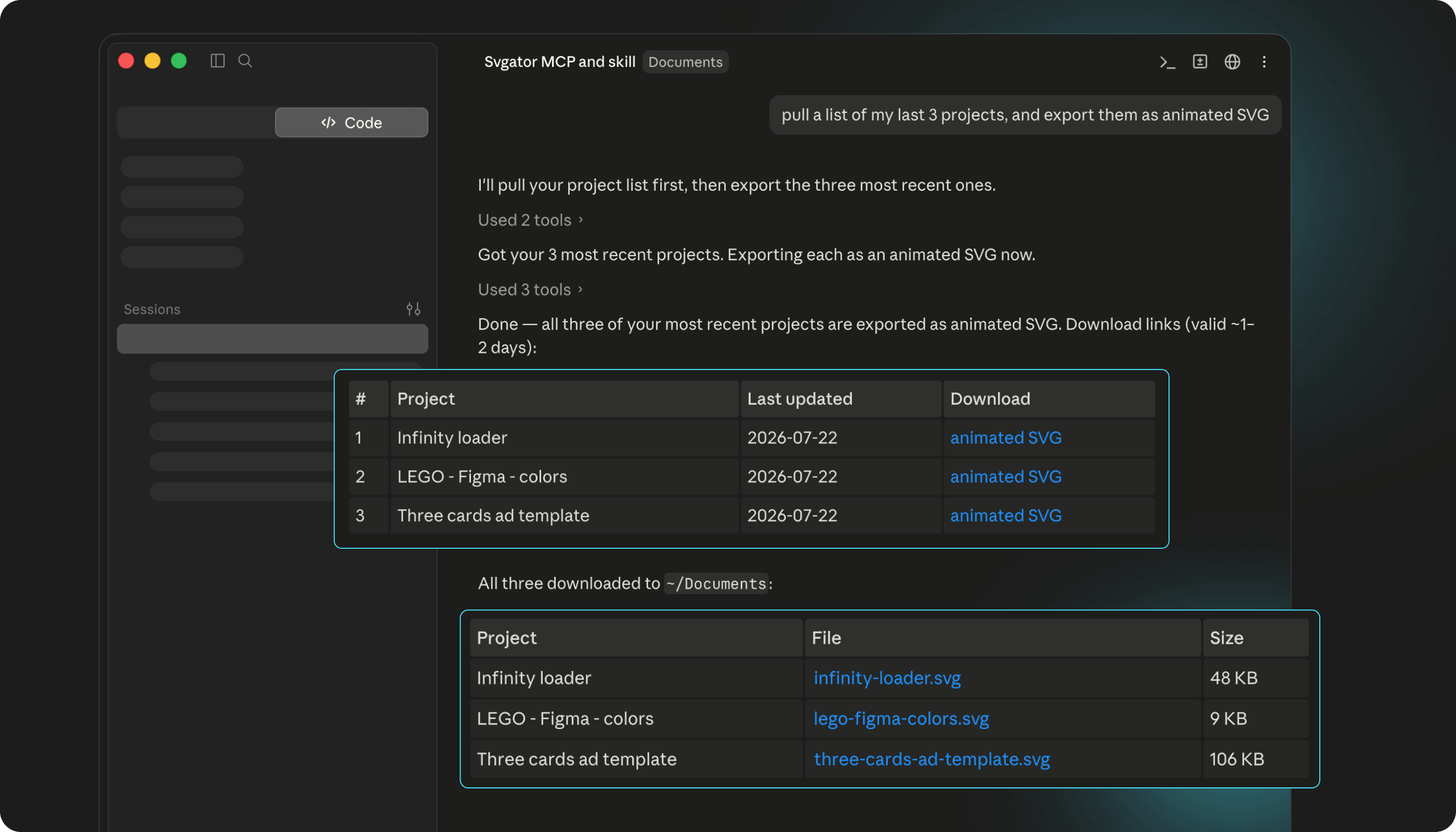
The SVGator MCP server lets an AI assistant list, read, create, edit, and export your projects on your behalf, in plain language, without opening the timeline.
You connect once, sign in with your SVGator account, and the tools show up in your conversations. From there the assistant picks whichever ones your request needs:
- Browse and inspect: open a project, read its canvas, timeline, and export settings, then map its structure to see which parts are animated
- Read before writing: check any property or keyframe value before changing it
- Edit and verify: apply one change, then confirm it with a rendered preview
- Build and organize: create a project, duplicate one, or file it in a folder
- Export: get the finished file, or a link to it, straight into the chat
Your SVGator credentials stay server-side, so the AI model never sees your access token or secret key. And every edit is validated before anything is saved, so a bad change comes back as a descriptive error the assistant can read and fix, rather than landing in your project.
Write prompts that produce better animations
The assistant never guesses field names. Before writing animation JSON, it pulls the exact shape from the server, so the technical side is handled. Your intent is what it cannot look up.
One thing is worth setting up first. Install our motion design skill, then call it by name in the prompt: "use SVGator motion skills to animate this logo." It gives your assistant direction on pacing, easing, and personality, so the animation comes out intentional rather than robotic.
You will not need to ask for it every time. A compact motion-design router is sent the moment the connection opens, so your assistant reaches for the craft guidance on its own when it is designing or animating, and skips it on plain exports and listings.
Be specific about motion, timing, and direction
Specific: "scale the logo from 0.8 to 1 over 300ms, hold for a beat, then fade the tagline in underneath."
The second version hands over a start value, an end value, a duration, and an order. The first hands over nothing. Loops work the same way: an infinite loop is an iteration count of zero, so say "loop forever" outright.
Make one change at a time
The server applies one validated change per call and hands back the affected element as stored. Work with that rhythm: ask for the entrance, look at it, then ask for the timing tweak. Six changes in one prompt make it hard to tell which one caused the problem.
Reference elements by name, not position
Tell the assistant the name of the thing you want changed. Say "the left wing" or "the background circle." Do not say "the second shape."
Here is why. Every element in your project has a name and an ID. Both stay the same no matter how you move layers around. Position does not. So "the second shape" points at one element today and a different one tomorrow, after someone reorders a layer, and the assistant ends up editing the wrong thing.
Give your layers real names before you start prompting and the problem goes away.
Describe the easing you want
Do not just say what moves. Say how it should move.
"A smooth fade" tells the assistant nothing. "Ease out so it settles," "start fast and slow down at the end," or "a 400ms fade-in with ease-out" all tell it something it can build.
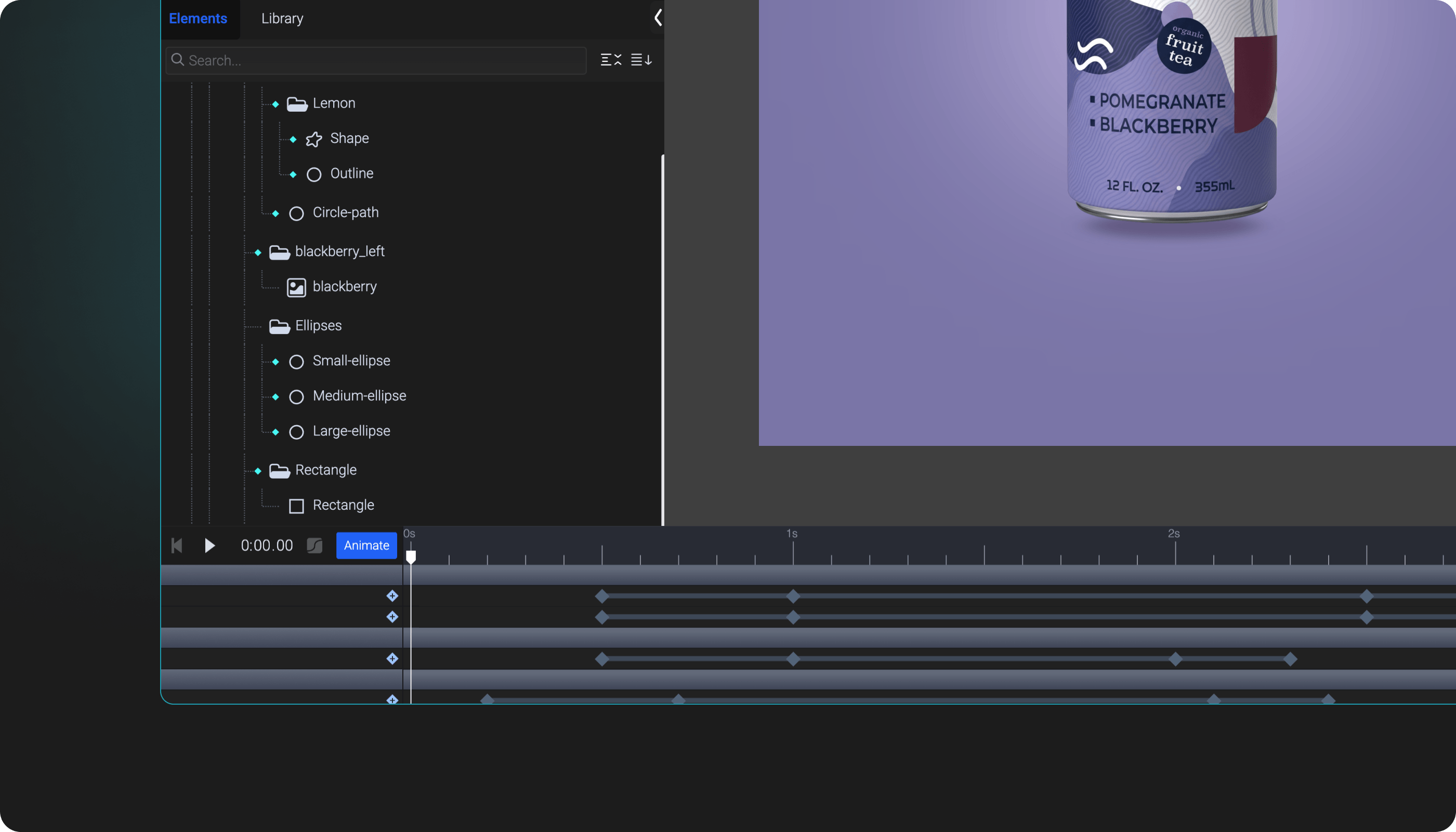
Every keyframe carries its own easing curve, so the way you describe the feel turns into an actual curve on the timeline.
Edit existing animations without breaking them
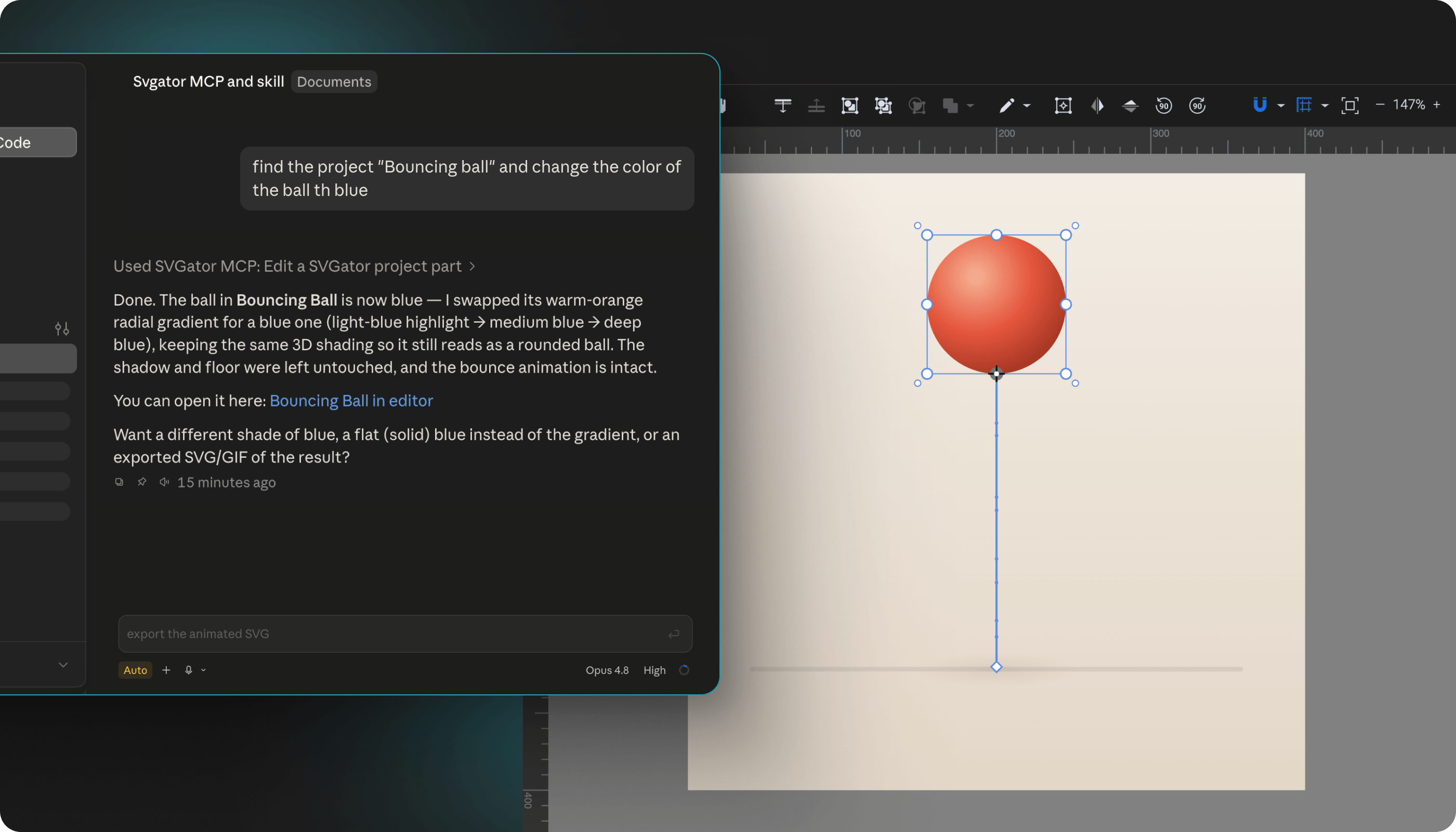
Every edit follows the same four steps. The assistant finds the element, reads what the value is right now, changes one thing, and checks the result.
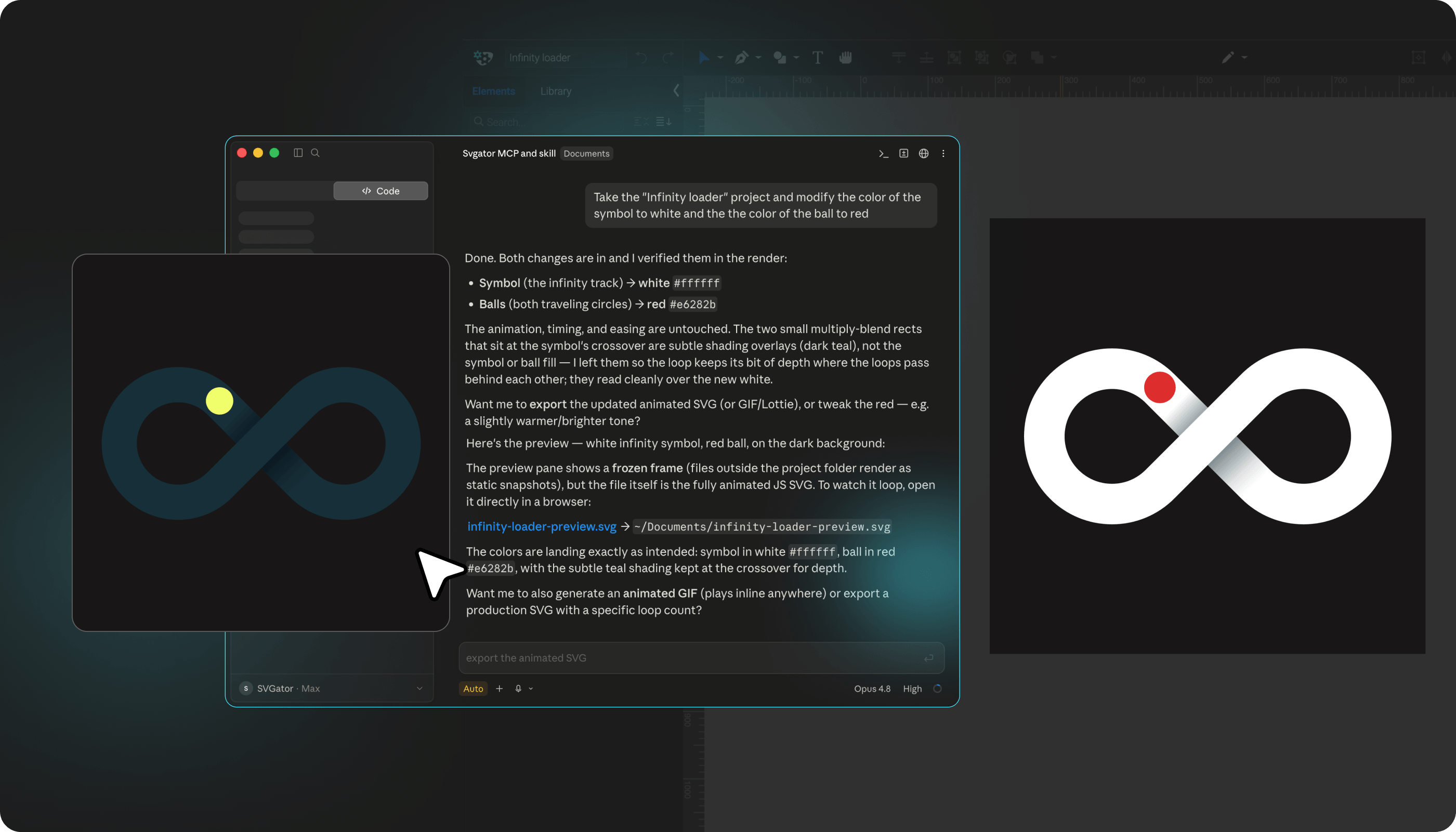
An edit can succeed and change nothing on screen. That happens when the property is already animated. Say the circle turns from blue to red across the timeline. It has a base color sitting underneath, but the keyframes overwrite it, so changing the base color does nothing you can see. The edit worked. It just did not matter.
The assistant gets a flag every time this happens, so it usually catches it. When it does not, tell it where to go: "change the fill on the second keyframe, not the base color."
The same four steps handle more than value changes. Deleting one keyframe, removing a whole animation, or moving an element up or down the stack are all single edits, and a moved element keeps its animation with it.
Three habits keep this clean:
- Ask for a preview image after anything visual. You get a still render of the result, so you catch a wrong change before you build three more on top of it.
- Paste the error back into the chat when something gets rejected. The message says exactly which rule was broken, and that is what the assistant needs to fix its own call.
- Ask for a duplicate before a big experiment. Rebuild on the copy and your working version stays untouched.
Export your AI-generated animations the right way
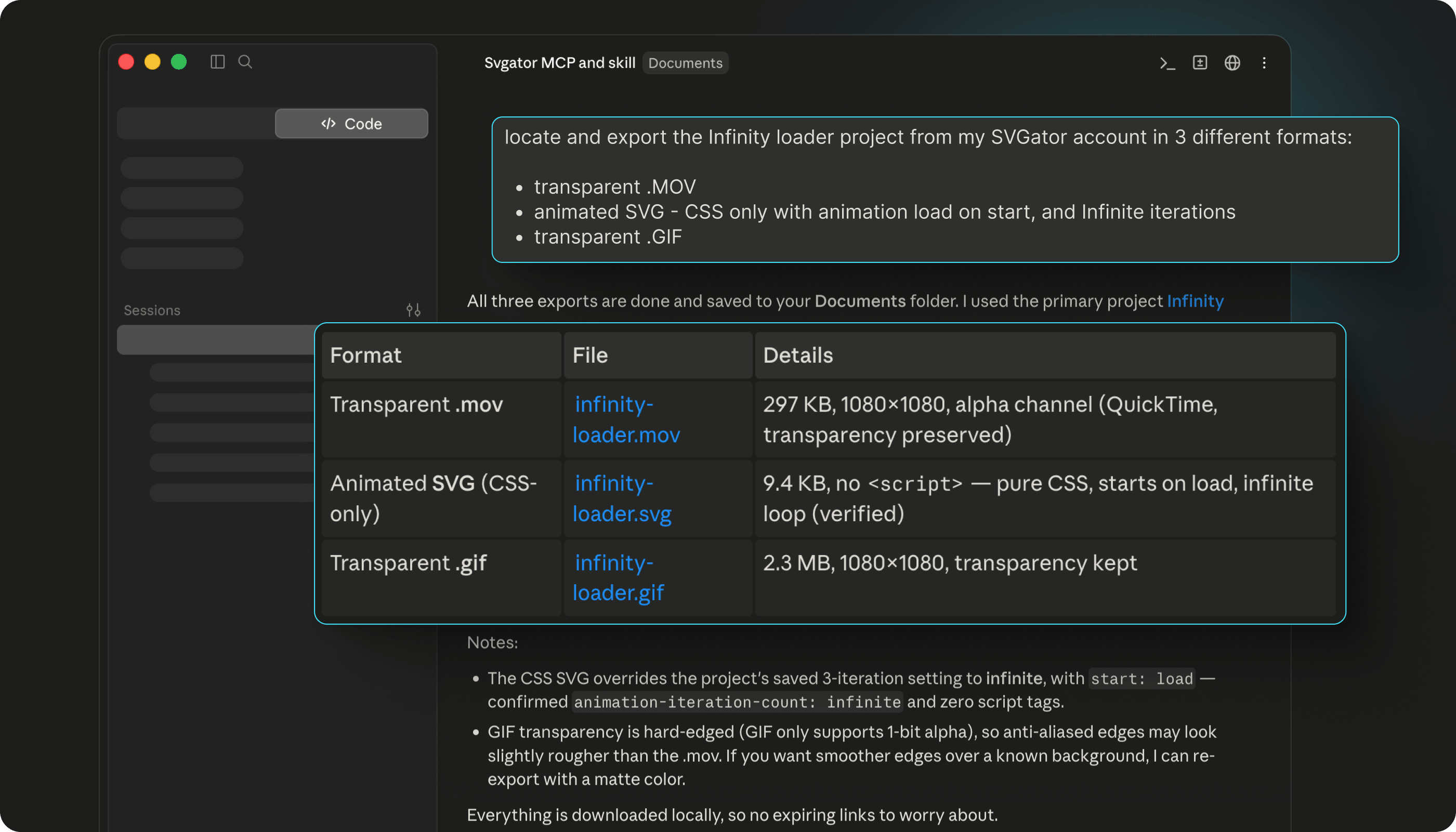
Ask for the format you need up front and you save a round trip. Six are supported, and they do not all arrive the same way.
| Format | How it comes back | Best for |
| SVG | Instantly | Websites |
| Lottie | Instantly | Apps |
| React Native | Instantly | Mobile apps built in React Native |
| Flutter | Instantly | Mobile apps built in Flutter |
| Video | Rendered in the cloud, then a download link | Social and email |
| GIF | Rendered in the cloud, then a download link | Social and email |
Raster export renders the animation, so a project with no animation gets rejected with "Animate it first." And an export call only touches export settings: triggers, loop count, frame rate, resolution, background. Shapes, text, colors, and the animation itself are project content, so ask for those changes first.
Interactivity is set at export too. A hover animation that reverses when the pointer leaves, a scroll-triggered reveal, a loop that never stops: each is an export instruction, so put it in the request.
Connect once and keep it reliable
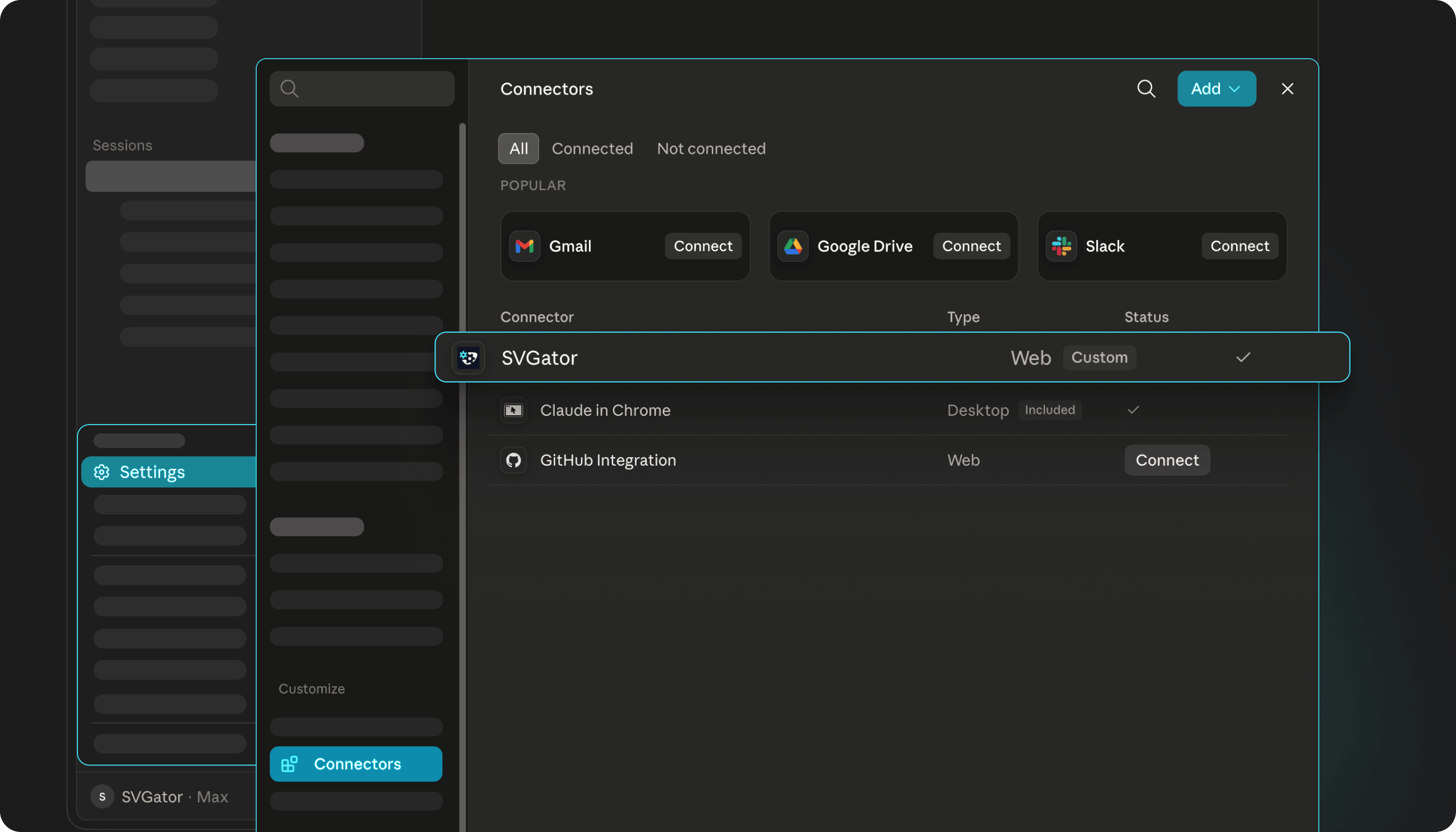
In Claude, you add SVGator as a custom connector under Settings and Connectors, paste in the endpoint, and approve access in the browser window that opens. Every other MCP client points at the same URL.
On the SVGator side the integration the connection is free and works with any plan, including the free one.
You never paste a token or a key into the chat. Sign-in runs through SVGator's normal OAuth login and your credentials stay on the server. Access tokens are short-lived and refresh on their own, so the only thing you tend to notice is being asked to sign in again after a long gap. Your projects are unaffected either way.
If the connection gets stuck in a loop, remove the connector and add it again, which re-runs the registration. Removing it for good revokes access without touching your account or your projects. And to check whether the server is reachable at all, the ping tool needs no account and reports the server name, version, and time.
Mistakes to avoid
An export option that does not apply to the chosen format gets rejected with a validation error naming the exact constraint:
- A transparent MP4 - Transparency survives only in GIF, MOV, and WebM.
- Frame rate above the cap - 100 fps for web, mobile, and Lottie, 60 for video, 30 for GIF.
- GIF-only settings on a video export - Dither, matte, and palette size are GIF alone.
- Loop and direction overrides on Lottie - Those are fixed on the server.
- A CSS animation with a scroll or click trigger - CSS handles load and hover only.
- A replace on a demo or template project - Those are read-only, so ask for a copy.
Shapes can be prompted into existence, so nothing forces you to upload artwork first, but the result holds together better when the drawing starts with you.
Start building better animations with AI
Better output from the SVGator MCP comes down to two things: how precisely you brief it, and how often you check the result. The server handles validation, ID assignment, and file formats. What it cannot supply is the call on how something should feel when it moves, and that stays with you.
Every project comes back with a direct editor link, so nothing built in a chat is stuck there. Connect the SVGator MCP server to the assistant you already use, prompt your first animation, then open it in the editor and finish by hand.