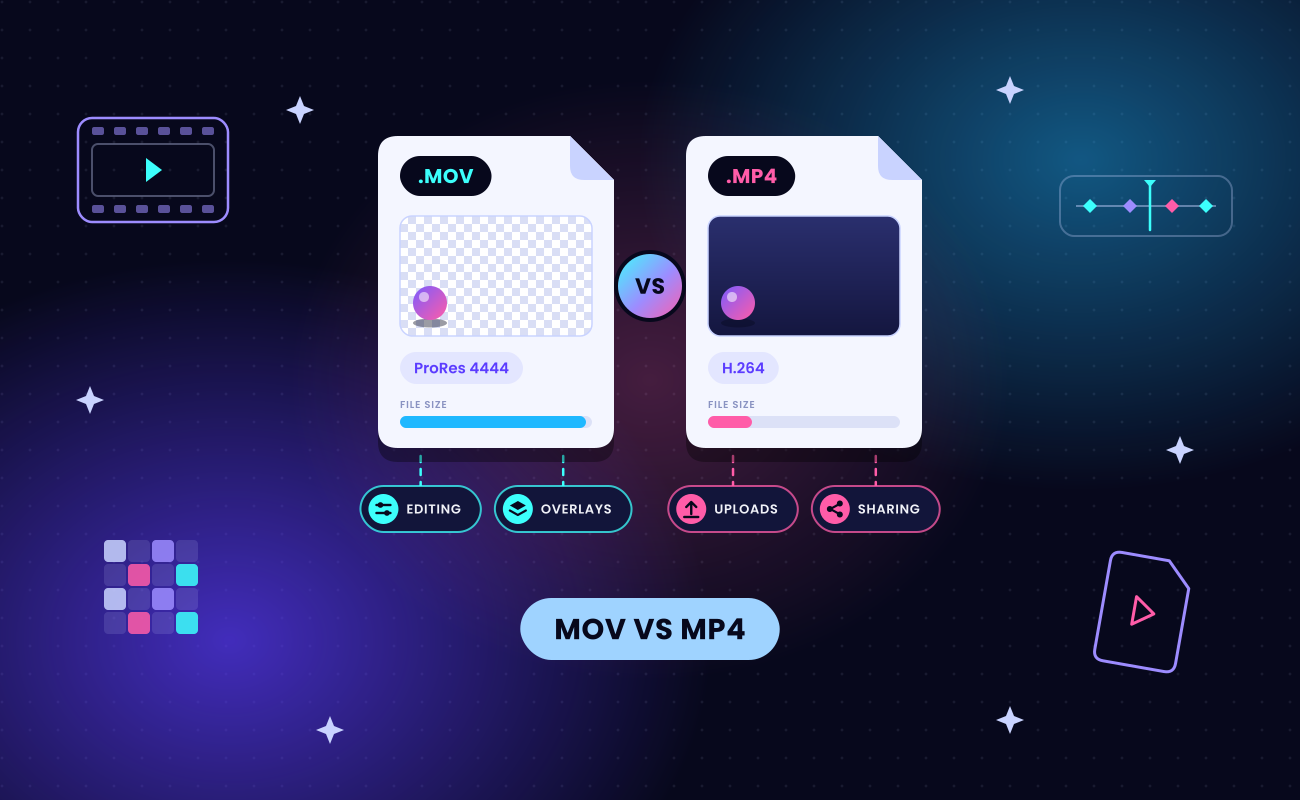
MOV and MP4 are both containers, so the extension alone never decides video quality. A container is a file format that keeps the video, audio and metadata tracks together, and the codec, the method used to compress the video inside it, sets quality and file size.
Pick the file by the job:
- Editing, grading and archiving: a MOV holding Apple ProRes, Apple's family of editing codecs
- Uploading, sharing and delivery: an MP4 with H.264, the most widely used delivery codec
- A recipient whose setup you can't see: the H.264 MP4
- Transparent overlays: a MOV with ProRes 4444 for editing apps, or a WebM with VP9 for web pages, since MP4 can't carry transparency in practice
The table below adds WebM, an open web video container, as a third column for video with an alpha channel.
Key takeaways
- MOV and MP4 are both containers, so the codec inside (Apple ProRes, H.264 or HEVC) sets quality and file size, and the same codec at the same bitrate gives the same picture in either file.
- Edit, grade and archive in a MOV that holds ProRes. Upload, share and deliver an MP4 with H.264, the pairing YouTube recommends and the safest file when you can't see the recipient's setup.
- ProRes 4444 runs at about 330 Mbps at 1080p and 29.97 fps (Apple), about 41 times YouTube's recommended 8 Mbps for a 1080p upload, which adds up to about 2.5 GB per minute of footage.
- MOV with ProRes 4444 carries an alpha channel for editing apps and WebM with VP9 carries one for web pages in Chrome and Firefox, while an H.264 MP4 plays with a solid background. Safari still doesn't show VP9 transparency, so sites serve Safari HEVC with alpha inside a .mov file.
- A MOV that won't play on Windows often holds HEVC, the iPhone's default codec, which a PC without HEVC support can't decode. VLC, Microsoft's HEVC Video Extensions or a conversion to an H.264 MP4 fixes it, and the iPhone's Most Compatible setting records H.264 instead.
- Rewrapping an H.264 or HEVC MOV into an MP4 copies the frames unchanged, a ProRes MOV has to be re-encoded first, and renaming .mov to .mp4 changes only the extension.
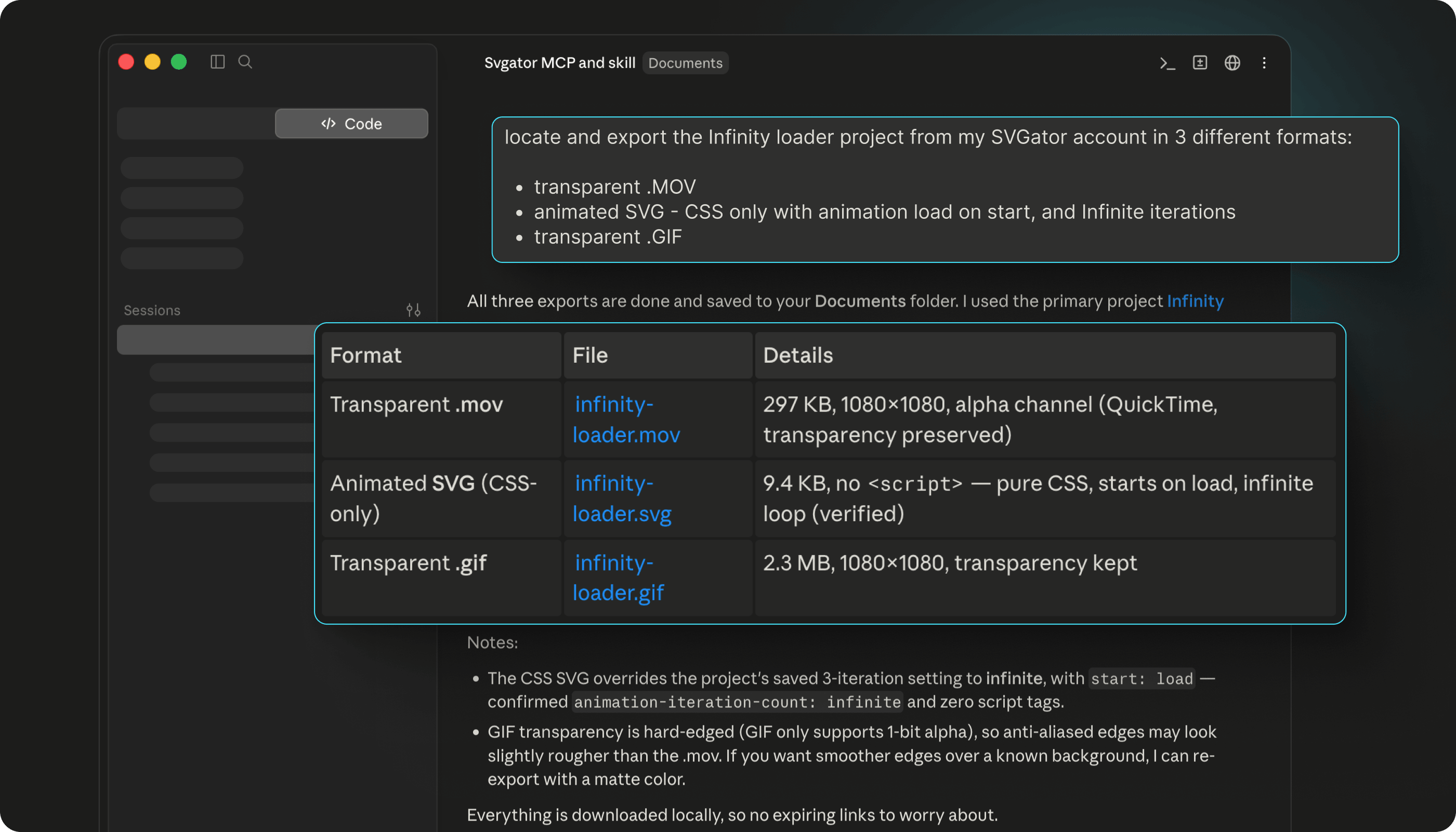
- In SVGator you build an animation once as an SVG and export it as an H.264 MP4, a ProRes MOV or a VP9 WebM, the last two with transparency. Video export up to 4K at 60 fps is on the Pro plan.
What is the difference between MOV and MP4?
MOV and MP4 differ in who defines them and which codecs they accept, while the video stored inside can be identical. Each container keeps separate tracks for video, audio, subtitles and metadata.
The codec in each track handles compression, so the container decides what can go in and the codec decides how it looks. Both formats can hold H.264 and HEVC, which means a .mov and an .mp4 can carry the same picture, frame for frame.
The two formats are related by design. MP4 derives from the ISO base media file format, which grew out of Apple's QuickTime File Format.
MDN's guide to media containers adds that the two still differ enough that one can't always stand in for the other. Codec support is where the gap shows up in daily work: Apple ProRes belongs in MOV and is not used inside MP4.
What is a MOV file?
A MOV file is a video saved in Apple's QuickTime File Format, with the .mov extension. MDN describes QuickTime as a legacy container that macOS recording software still produces, and notes that its support sits mainly on Apple devices, which is why it is no longer widely used on the internet. What sits inside a MOV depends on where the file came from:
- Editing apps such as Final Cut Pro write MOV files with Apple ProRes.
- iPhone recordings land as MOV files with HEVC (H.265), a newer delivery codec that compresses more than H.264, or with H.264.
MOV also stores multiple audio tracks and timecode, which editors use to sync and line up footage. The format still works outside Apple devices: YouTube accepts MOV uploads, and VLC plays MOV files on Windows.
What does MP4 stand for?
MP4 stands for MPEG-4 Part 14, an international standard published as ISO/IEC 14496-14. Per MDN, the original MPEG-4 file format arrived in 1999, and the Part 14 version followed in 2003. Inside an MP4, the standard delivery pairing is H.264 or HEVC video with AAC audio.
MDN lists MP4 support in all browsers. An H.264 MP4 also plays on phones and smart TVs, in the built-in players on Windows and macOS, and in editing apps such as Premiere Pro and Final Cut Pro. An MP4 that holds HEVC is the exception, because older Windows PCs may not play it without extra codec support.
Is there a quality difference between MOV and MP4?
The container adds no quality difference between MOV and MP4. The same codec at the same bitrate, meaning the amount of data the video uses per second of playback, gives the same picture in either file.
FFmpeg's documentation describes stream copy as moving a stream's packets into a new file "without decoding, filtering, or encoding" them. A video copied from a MOV into an MP4 that way keeps identical frames.
MOV files look better in practice when they hold ProRes, which keeps far more data per second than a delivery codec. Apple calls ProRes 422 HQ "visually lossless": compressed, but with no difference a viewer can see in normal viewing. Apple adds that ProRes 422 HQ stays visually lossless after repeated rounds of decoding and re-encoding.
Neither container is lossless or lossy by itself. Lossless compression keeps every bit of the original, while lossy compression discards data the eye is unlikely to notice, which is how delivery codecs keep files small.
Here's where the common codecs land:
- ProRes: compressed yet visually lossless, and the highest-quality choice for a master file at its full data rate
- HEVC and H.264: lossy, and the codecs inside an iPhone MOV
A sunset animation saved as an MP4, with faint color bands in the gradient sky
Are MOV files larger than MP4?
A MOV is larger than an MP4 when it holds ProRes, and about the same size when it holds the same H.264 or HEVC stream as the MP4. File size follows codec and bitrate, whatever the extension says.
Published data rates show the scale:
- ProRes 4444: about 330 Mbps at 1920x1080 and 29.97 fps, per Apple's ProRes page (published March 2025)
- 1080p YouTube upload: 8 Mbps at 24 to 30 fps, per YouTube's recommended upload settings (checked November 2026)
- 4K YouTube upload: 35 to 45 Mbps at 24 to 30 fps, on the same YouTube page
ProRes 4444 therefore carries about 41 times the data per second of a 1080p upload (330 ÷ 8). At 330 Mbps, a ProRes 4444 file grows by about 41 MB every second (8 bits per byte), or about 2.5 GB per minute of footage. ProRes is built for fast decoding while you edit, so it gives up file size in exchange for speed and image data.
A rewrap from MOV to MP4 keeps the size about the same, since the frames don't change. Re-encoding a ProRes MOV to H.264 shrinks it, as the conversion section below explains.
Which is better, MOV or MP4?
Neither MOV nor MP4 wins for every job, so pick the file by what it has to do next.
- Editing and color grading: export a MOV with ProRes for editing apps such as Final Cut Pro and Adobe Premiere Pro. Apple built ProRes for fast editing at high data rates, and it stays visually lossless through repeated re-encoding. DNxHD and DNxHR are an alternative editing codec family for the same job.
- Uploading to YouTube or social platforms: export an MP4 with H.264, the combination YouTube recommends.
- Archiving a master: keep a ProRes MOV as the master and an H.264 MP4 as the delivery copy. Plan the storage first, since 1080p ProRes 4444 runs about 2.5 GB per minute.
- Sending to a client: send an MP4 with H.264 when you can't see the client's setup, because it plays on phones, smart TVs, Windows and macOS. Send a ProRes MOV only when the client will edit or grade the footage, and ask before you send it.
- Embedding on a website: serve an MP4 with H.264 and fast start, which places the file's index at the start so playback begins before the whole file downloads. Add a WebM source next to it in the HTML video element, the pairing SVGator's video export guide suggests. For a vector animation, an animated SVG can replace the video file altogether.
- MOV on web pages: a poor pick for general playback, since MDN limits its browser support to older Safari versions and browsers with Apple's old QuickTime plugin. The one exception is a transparent HEVC .mov served to Safari, covered in the next section.
- Adding an overlay with an alpha channel: export a MOV with ProRes 4444 for an editing app, or a WebM with VP9 for a web page. MP4 has no practical route for this job, as the next section shows.
Those entries add up to MP4's advantages over MOV: wider playback support, compact H.264 files and dependable web playback. MOV keeps the lead wherever someone will edit, grade or composite the footage later.
Does YouTube take MOV or MP4?
YouTube accepts MOV and MP4 uploads alike, and its list of supported file formats also includes WebM, ProRes, DNxHR and HEVC. For the best result, YouTube's recommended upload settings (checked November 2026) specify:
- Container: MP4, with no edit lists
- Fast start: the moov atom, the file's index, at the front of the file
- Video: H.264, progressive scan, High Profile, 4:2:0
- Audio: AAC-LC, Opus or Eclipsa Audio, stereo, at 48 kHz
For 1080p at 48 to 60 fps, the same page raises the recommended bitrate to 12 Mbps.
YouTube's partner specification states that "YouTube always re-encodes videos to optimize their playback quality." Upload the best file your connection can handle, since a ProRes MOV is accepted but takes longer to send. For Instagram and TikTok, upload an MP4 with H.264.

Which video format supports transparency: MOV, MP4 or WebM?
MOV and WebM can carry transparency, and MP4 in practice cannot, which is why an overlay exported as an H.264 MP4 comes back with a solid background. Transparency lives in an alpha channel, extra per-pixel information that lets a video play over other footage or a web page. The codec decides here too.
For editing apps, export a MOV with ProRes 4444. Apple names ProRes 4444 and 4444 XQ as the only ProRes codecs that support alpha channels, with a mathematically lossless alpha channel of up to 16 bits. Lower thirds, logo stings and any overlay placed on footage in an editor belong in this format.
For web pages, a VP9 WebM with alpha plays over the page in Chrome and Firefox. Safari handles regular WebM files, yet it still doesn't show VP9 transparency. Sites that need the effect in Safari serve HEVC with alpha inside a .mov file, listed first among the video element's sources so Safari picks it.
AV1, the newer open codec, has no alpha channel of its own. On a web page, a vector animation can stay an animated SVG, which shows the page through wherever no shape is drawn and needs no video file at all.
SVGator exports both alpha-capable formats, each with its own job:
- MOV (Apple ProRes): for editing apps, since SVGator's guide lists the ProRes MOV as not streamable and not suited to embedding in websites
- WebM (VP9): for web pages
Opaque exports render at 4:2:0, and exports with an alpha channel render at 4:4:4 with 16 bits of alpha. Neither export carries an audio track.
To export with transparency:
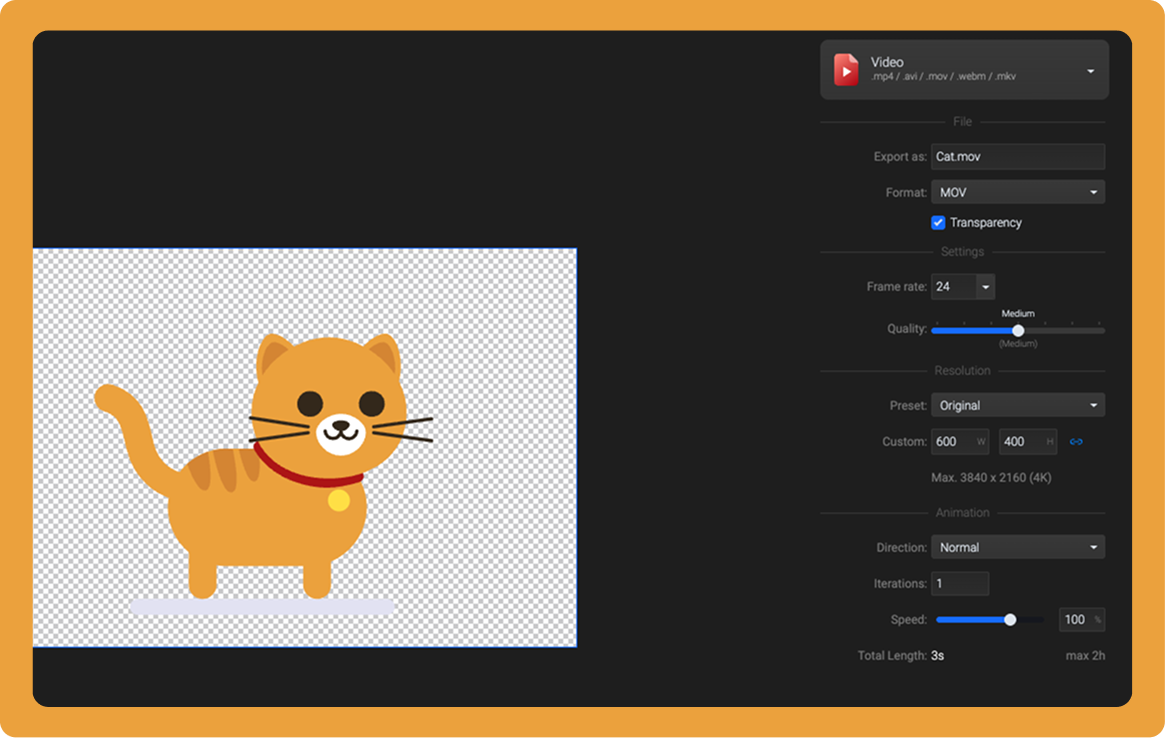
- Set the project background to transparent.
- Export MOV or WebM.
- Keep the transparency option checked.
Video export up to 4K at 60 fps is on the Pro plan, and the steps for turning an animation into a video overlay are on the SVGator SVG to video page.
Why can't I play MOV files on Windows?
When a MOV file won't play on Windows, check the codec before blaming the container. iPhone footage records as HEVC by default, and a PC without HEVC support can't decode it. Apple's HEVC guide explains that HEVC compresses better than H.264 at the same visual quality, and that media imported from an iPhone to a PC might be converted to H.264.
The old QuickTime player is no fix either. Apple ended support for QuickTime for Windows in early 2016 (per MDN). MDN also notes that Windows Media Player handles QuickTime 2.0 files and earlier on its own, while later versions need third-party additions.
Try these fixes in order:
- Check the codec with MediaInfo, or in the Get Info panel in Finder on a Mac.
- Play the file in VLC media player, which opens MOV files on Windows.
- Add HEVC support through Microsoft's HEVC Video Extensions.
- Convert the file to an H.264 MP4 with a rewrap or a re-encode, covered in the next section.
To record iPhone footage that plays on PCs without HEVC support, open Settings > Camera > Formats and choose Most Compatible, which records H.264 instead of HEVC. No file plays on every device, and an H.264 MP4 comes closest, which keeps it the safe default when you can't test the recipient's setup.
Does converting MOV to MP4 reduce quality?
Converting MOV to MP4 loses no quality when you rewrap the file, which means copying the existing tracks into a new container without compressing them again. Re-encoding, also called transcoding, decodes the video and compresses it again, so quality, size and colors can change.
A ProRes MOV has to be re-encoded, to H.264 or HEVC, before it becomes an MP4. For a MOV that already holds H.264 or HEVC, this FFmpeg command copies the streams into an MP4 without re-encoding them: ffmpeg -i input.mov -c copy output.mp4
FFmpeg's documentation warns that a stream copy can still fail when the target container needs information the source file doesn't have. In that case, a re-encode is the fallback.
Renaming .mov to .mp4 changes the extension, and nothing inside the file gets converted. Apple's guide to converting MOV to MP4 on a Mac treats the rename as valid only after you confirm the file holds H.264, and says the resolution and file size stay the same. With HEVC or ProRes inside, players differ: one may open the renamed file while another refuses it.
For a re-encode, free tools such as VLC and FFmpeg can produce an H.264 MP4 on Windows 11 and macOS. On a Mac, iMovie exports an MP4 through Share > Export File, where a lower Quality setting or resolution shrinks the file. Apple points to Final Cut Pro or Compressor when you need more control over the export.
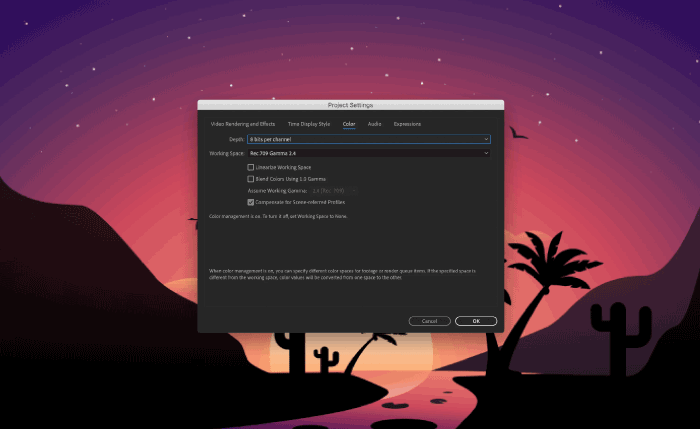
Re-encoding an HDR or 10-bit iPhone clip to 8-bit H.264 can shift or wash out its colors, so compare the result with the original before you send it.
The same rewrap works in reverse for H.264 and HEVC. Converting an MP4 to ProRes, on the other hand, makes the file larger without adding any detail, because ProRes can't restore data that H.264 already discarded. A container change leaves the picture as it was, and only a re-encode can alter it.
Final thoughts
Pick MOV or MP4 by the codec inside and the job the file has to do next:
- Still being edited: ProRes in a MOV
- Leaving your hands: H.264 in an MP4
- Background has to disappear: a ProRes 4444 MOV for editing apps, or a VP9 WebM for web pages
When a file misbehaves, check the codec first, and rewrap before you re-encode.
If your video starts life as an animation, SVGator lets you build it once as an SVG and export each version from the same project:
- MP4 (H.264): for uploads and sharing
- MOV (Apple ProRes): for editing apps, with optional transparency
- WebM (VP9): for transparent web playback
- Animated SVG: for web pages, with no video file needed at all
Every video render goes up to 4K at 60 fps. When you need a video version, export your animated SVG to MP4, MOV or WebM straight from the project.
Animating an isometric rocket launch on the SVGator timeline