Every plugin on this list passed four tests. It removes a task you repeat every week, it states its free-tier limit and pricing model, its Figma Community listing shows a recent update, and its output stays editable in Figma or ships to developers. We read each listing on November 2, 2026. SVGator takes the #1 spot because it hands developers production-ready animation files built from your own Figma designs, and it says where its free plan stops. If you install only five plugins, start with this stack:
- SVGator: animation files developers can ship, made from your Figma frames
- Iconify: one search across open-source icon sets
- Unsplash: stock photos under the Unsplash License
- Content Reel: realistic text, images and icons for your layouts
- Stark: contrast and typography checks before handoff
The other 13 picks are grouped by the job they do, from images and wireframes to accessibility, design systems and code handoff. Where Figma's own tools now handle that job natively, the entry says so.
Key takeaways
- SVGator ranks #1 because its plugin turns your own Figma designs into animated SVG or Lottie files that developers download or copy without an SVGator account. The Free plan exports unlimited static SVG; animated SVG and Lottie export start on Starter at $20/mo billed yearly.
- Every pick passed four tests: it removes a weekly task, states its free-tier limit, shows a recent Figma Community listing update, and produces output that stays editable or ships to developers. Listings were read on November 2, 2026, and user counts don't set the order.
- Figma now handles some plugin jobs natively. Figma Motion, in open beta, exports MP4, GIF, SVG and WebM and added Lottie and dotLottie export on September 30, 2026, while Figma's AI removes backgrounds and names layers, the jobs of Remove BG and Rename It.
- Free tiers stop at different points: Autoflow allows 50 flows per file, html.to.design allows 10 imports every 30 days, Blush keeps SVG export on its paid plan, and Remove BG needs a remove.bg account.
- On a zero budget, Design Lint, Beautiful Shadows, Iconify and Unsplash cover daily work: Design Lint needs no account, Beautiful Shadows is MIT licensed, and Unsplash photos fall under the Unsplash License.
- Before you run a plugin, check three things on its Community listing: the outside domains it declares under network access, the account it needs, and its last update date. ProtoPie sunset ProtoPie Genie on September 9, 2026.
What makes a Figma plugin the best?
Each pick passed four tests:
- It removes a weekly task. Icons, placeholder content, flow arrows and contrast checks come up in every project.
- Its free tier has a stated limit. Examples include 50 flows per file, 10 imports every 30 days, or static SVG only.
- Its listing was updated recently. The Figma Community listing shows when the plugin last changed.
- Its output stays editable or ships. Layers you can keep editing, or code, CSS, SVG or Lottie files for developers.
Entries also flag background removal, layer renaming and timeline animation, which Figma now does natively.
The order follows what a plugin ships to production. SVGator ranks first because it turns your own Figma designs into animation files developers can copy from the Figma file, and it lists its plan limits in the open. Numbers 2 to 18 help you move around inside each group and carry no rank. ProtoPie Genie is missing because ProtoPie sunset it on September 9, 2026.
Source: each plugin's Figma Community listing, read November 2, 2026. Figma counts unique runs, so these figures aren't active users, and they don't set the order. *Listing dates from November 22 to 25, 2024 may mark a Figma platform migration, so they don't confirm a plugin release.
Figma plugins for motion design, animated SVG and Lottie
Pick SVGator for custom animation from your own Figma designs, LottieFiles for ready-made Lottie animations, and Figma Motion for a native motion pass.
1. SVGator
The SVGator Figma plugin lets you animate your Figma designs in SVGator and insert the production-ready file back into Figma.
- Top pick for: UI, icon, logo and loader animations that developers ship as one file.
- Output: animated SVG, an SVG file that carries its own CSS or JavaScript animation and plays in the browser with no player library, so the file stays light. Lottie (a JSON animation format that apps and websites play with a Lottie player), React Native and Flutter follow. Developers download or copy the code of those files, with no SVGator account.
- Free tier: the plugin works with SVGator's Free plan and its unlimited static SVG exports. Animated SVG and Lottie export start on Starter at $20/mo billed yearly; pulling a file follows your plan's export rights.
- Limits: animations show as static SVG in the Figma editor, with GIF or MP4 previews in Present mode. Interactivity doesn't appear in those previews, and click Refresh in the plugin
- Pick something else if: you want ready-made animations (LottieFiles, #2) or a native pass (Figma Motion).
2. LottieFiles
LottieFiles adds Lottie animations from a listed library of more than 800,000 free and premium ones.
- Use it for: adding a ready-made Lottie animation to a mockup.
- Free tier: free and premium animations.
- Skip it if: the animation has to come from your own Figma frames (SVGator, #1).
Figma does this natively now. Figma Motion, Figma's built-in timeline for animating frames on the canvas, is in open beta. It exports MP4, GIF, SVG or WebM, and a product update on September 30, 2026 added Lottie and dotLottie export. dotLottie is a compressed format that packages one or more Lottie animations. To keep editing a Figma Motion animation, upload its animated SVG (up to 7 MB) to the Figma Motion to SVGator tool. Keyframes, easing and delays carry over, gradient-to-gradient changes don’t convert yet, and the tool needs a sign-in.
What are good Figma plugins for images, icons and mockups?
Iconify handles icons, Unsplash photos, Blush illustrations, Remove BG cutouts and Mockuuups Studio device mockups. When an icon, logo or loader has to move, start with SVGator (#1, above) and see how SVG animations work inside Figma. The five picks below cover static assets.
3. Iconify
Iconify brings popular open-source icon sets and emoji into one plugin, with "250+ icon sets, over 400k icons" listed in November 2026.
- Use it for: one search across open-source icon sets.
- Free tier: not sold through Figma, and no limit is stated.
- Skip it if: the icon has to animate (SVGator, #1).
4. Unsplash
Unsplash inserts Unsplash photos straight into your designs.
- Use it for: realistic photos in mockups and presentations.
- Free tier: the Unsplash License allows commercial and personal use; an Unsplash+ subscription adds non-watermarked, full-resolution images.
- Pick this instead if: you need illustrations (Blush, #5).
5. Blush
Blush adds illustrations you can use in personal and commercial projects on its free plan.
- Use it for: illustrations in your layouts and presentations.
- Free tier: a forever-free plan; SVG export, layer control and print resolution need the paid plan.
- Skip it if: you need SVG illustrations and won't pay for a plan.
6. Remove BG
Remove BG removes image backgrounds in one click through the remove.bg API.
- Use it for: one-click cutouts without leaving Figma.
- Free tier: you need a remove.bg account for the plugin.
- Figma does this natively now: Figma's AI can remove backgrounds right on the design canvas, so you can pass on the plugin if you already use that feature.
7. Mockuuups Studio
Mockuuups Studio is a mockup generator with more than 5,100 mockups.
- Use it for: placing app and web screens in device frames for reviews.
- Free tier: a curated free collection; Premium, with a free trial, adds the full library, unlimited exports and a commercial license.
- Skip it if: you need a commercial license and don't plan to pay for Premium.
Figma plugins for wireframing with real content and user flows
Wireframes read better with real text and images, and with user flows drawn for you. Two plugins cover both jobs.
8. Content Reel
Content Reel pulls text strings, images and icons into your layouts from one palette.
- Use it for: filling wireframes with realistic content.
- Free tier: not sold through Figma, and no limit is stated.
- Pick this instead if: you need only placeholder text: Lorem Ipsum by divRIOTS (1,221,592 Community users, updated October 2026).
9. Autoflow
Autoflow draws flow arrows for user flows and diagrams, in a hand-drawn or minimalist style.
- Use it for: mapping a user flow across frames without drawing each arrow by hand.
- Free tier: free up to 50 flows per file; the paid version adds unlimited flows per file.
- Skip it if: you need an interactive prototype, since Autoflow draws flow diagrams.
Figma plugins for accessibility checks and WCAG annotations
Accessibility is part of shipping a finished file. Contrast and type checks belong in the design, so the screens developers receive already pass them. Stark (#10) runs both checks and writes the notes into the file. WCAG, the Web Content Accessibility Guidelines, is the standard that sets those contrast and readability rules.
10. Stark
Stark fixes color contrast and typography issues and adds WCAG annotations for design-to-dev handoff.
- Use it for: checking contrast and leaving WCAG notes developers can read.
- Free tier: free to start.
- Pick this instead if: you want a lighter contrast checker, such as the Contrast plugin.
Figma plugins for design systems, design tokens and tidy files
A file your team can hand off needs shared values, a style on every layer and readable layer names. Design tokens are named values for colors, spacing and type that design and code share.
11. Tokens Studio
Tokens Studio manages design tokens in Figma, with a free version and a Pro plan.
- Use it for: keeping colors, spacing and type in sync between design and code.
- Setup: mapping your existing styles to tokens takes setup time before it pays off.
- Skip it if: you need a check you can run today with no setup (Design Lint, #12).
12. Design Lint
Design Lint finds and fixes errors in your designs, starting with layers that are missing styles.
- Use it for: a style check before handoff.
- Free tier: free, with no logging in or signing up for an account.
- Pick this instead if: your problem is layer names (Rename It, #13).
13. Rename It
Rename It renames layers in batches.
- Figma does this natively now: Figma's AI can name your layers with a single prompt.
- Skip it if: Figma's AI renaming covers your files; keep the plugin for rule-based batch renames.
Figma plugins for web design, AI drafts and code handoff
A web design starts from a live site or an AI draft and ends as code. html.to.design and UX Pilot start the page. Anima, Builder.io and Beautiful Shadows turn it into code and CSS, and SVGator hands off the animated parts.
Interactive landing page animation made by Pallet Ross
Figma plugins that import websites and draft UI with AI
You can start a page by importing a live site or by generating a first draft from a prompt.
14. html.to.design
html.to.design converts any website into fully editable Figma designs.
- Use it for: redesigns that start from a live site.
- Free tier: up to 10 imports every 30 days; the PRO plan offers unlimited imports under fair use.
- Skip it if: the page doesn't exist yet (UX Pilot, #15).
15. UX Pilot
UX Pilot generates UI designs, design systems, wireframes and components for desktop and mobile from a prompt.
- Use it for: a first draft of a new screen.
- Free tier: free to start.
- Worth knowing: treat the output as a draft and review it before you build on it.
Figma plugins that hand off designs as code and CSS
For the animated parts of a page, such as hero animations, loaders and micro-interactions, SVGator (#1) gives developers animated SVG or Lottie files to download or copy, with no SVGator account. For static layouts, the three picks below write code and CSS.
16. Anima
Anima exports Figma designs to HTML, React or Vue code with CSS, Tailwind CSS or Styled Components.
- Pricing: see Anima's pricing page.
- Worth knowing: review generated code before it ships.
- Pick this instead if: you also want to turn screens into AI apps and prototypes (Builder.io, #17).
17. Builder.io
Builder.io exports designs to responsive code or turns Figma screens into AI apps and prototypes.
- Use it for: turning screens into responsive code or a working prototype.
- Pricing: see Builder.io's pricing page.
- Skip it if: you need only shadow styles as CSS (Beautiful Shadows, #18).
18. Beautiful Shadows
Beautiful Shadows creates smooth, layered shadows and outputs valid box-shadow CSS styles.
- Use it for: shadows developers paste straight into a stylesheet.
- Free tier: MIT licensed and open source on GitHub.
- Skip it if: you need full-page code (Anima, #16).
Are Figma plugins safe to use?
Figma plugins are small apps that add features to Figma and FigJam, and each one runs inside Figma and declares the outside domains it contacts. Before you run a plugin, check three things on its listing:
- Network access: the list of outside domains a plugin declares it will contact. Iconify's listing names the Iconify API, which the plugin calls to retrieve icons.
- Accounts: Remove BG needs a remove.bg account and Design Lint needs none. SVGator needs an account for designers, while developers pulling its files don't.
- Upkeep: plugins get retired. ProtoPie sunset ProtoPie Genie on September 9, 2026, and a vendor roundup still ranks it, so check the listing date before you install. A date from late November 2024 may reflect a Figma platform migration, so weigh it alongside the rest of the listing.
How do you install a Figma plugin?
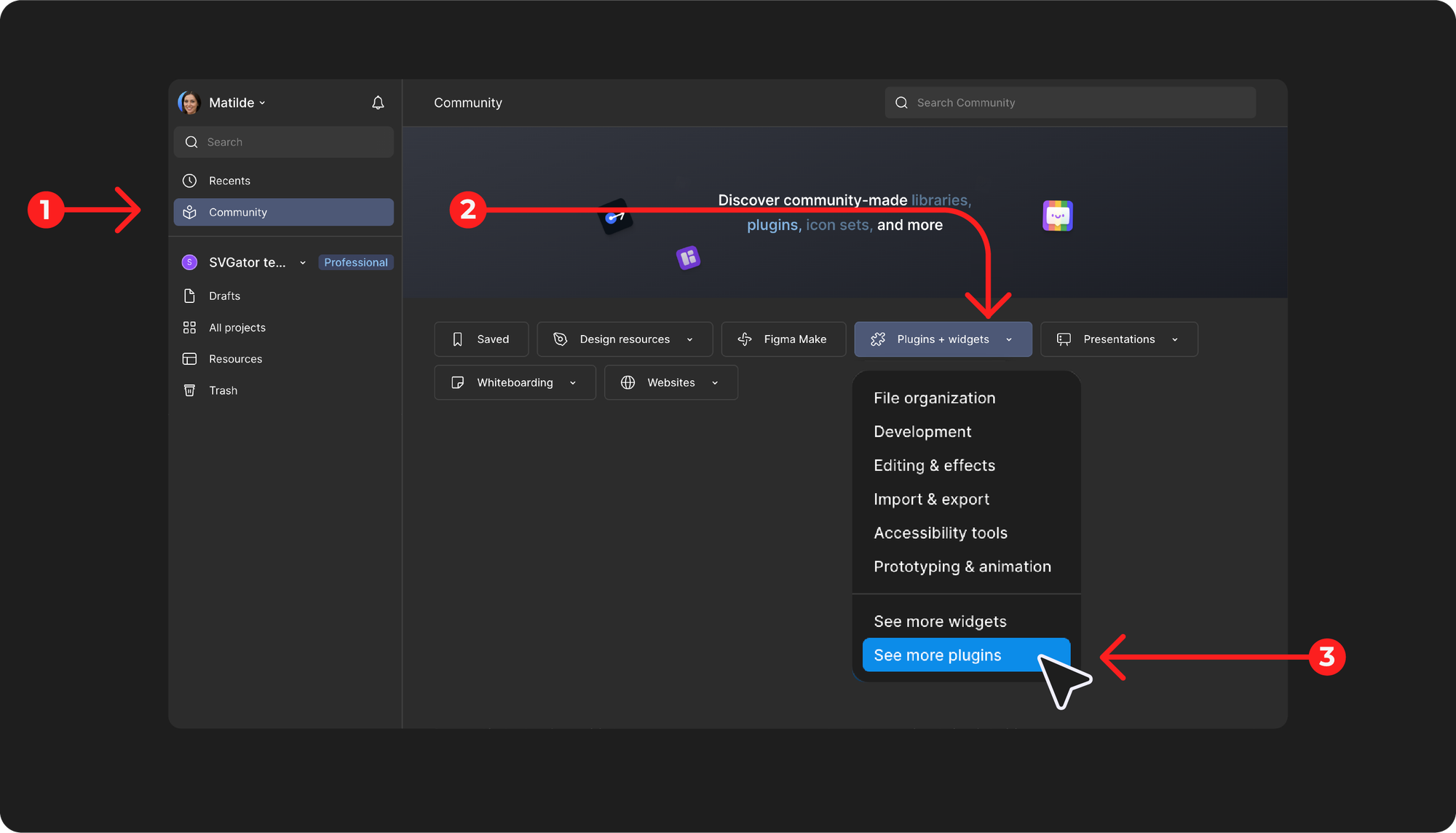
You install a Figma plugin from its Figma Community page in three steps:
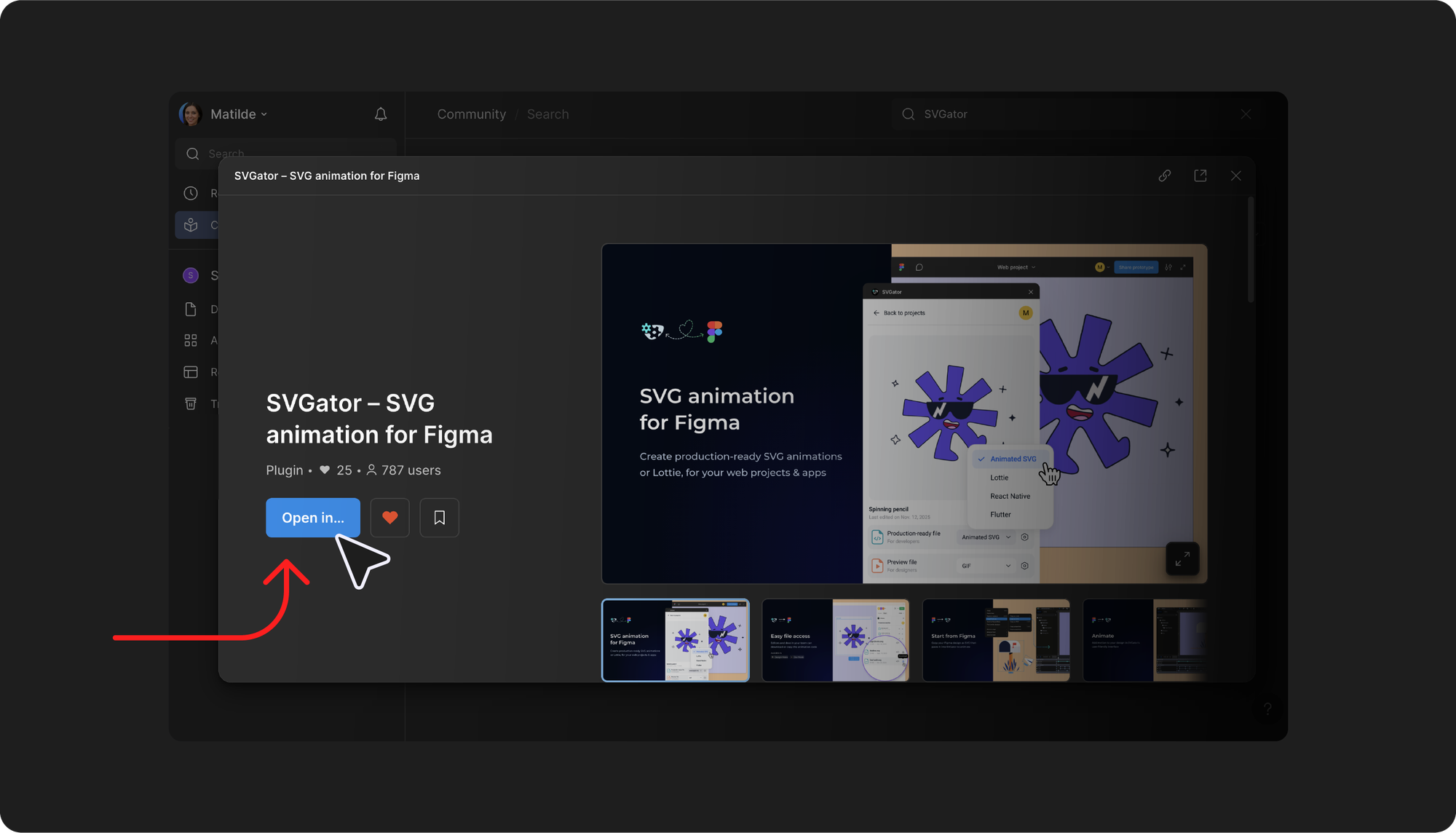
- Open the plugin's Community page, such as the SVGator plugin listing, or search Figma Community for its name.
- Choose to open the plugin in a file, then run it.
- Find it again later from the Actions menu or under Plugins. A plugin that needs an account, such as SVGator, asks you to connect it on first run.
For SVGator setup, read our best practices for the SVGator Figma plugin.
Which Figma plugins improve workflow for each design role?
Find your role and install that stack. The numbers point back to each entry.
On a zero budget, start with the picks whose free tier covers daily work: Design Lint, Beautiful Shadows, Iconify, Unsplash, and Autoflow under 50 flows per file.

Conclusion
Install the five-plugin starter stack, add picks by job, and check each listing's update date and free limit before you add more.
For motion, install the SVGator plugin and animate your first Figma design on the Free plan, which exports unlimited static SVG. When a developer needs the animated SVG or Lottie file, the Starter plan adds both exports. Or start with the free plan and see where your first animation takes you.