Black Friday and Cyber Monday are two of the busiest online shopping days of the year, and sale promos compete for attention in the same inboxes, feeds, and storefronts. Ready-made templates give holiday campaigns a starting point that can keep up with discounts that change from one day to the next.
Table of contents
- What are sale templates?
- Sale template examples
- Benefits of animated templates
- How to use templates with the SVGator MCP
- Final thoughts
Key takeaways
- In an editable animated template, a mid-week change such as a discount extended into Cyber Monday, a sold-out product, or a noon flash sale takes one text edit in a single project, and the animation keeps its timing.
- Vertical 9:16 (1080x1920) templates fit Stories, Reels, and TikTok, portrait 4:5 (1080x1350) and square 1:1 (1080x1080) fit feed posts, and horizontal 16:9 (1920x1080) fits website banners and video ads.
- The same animated design exports as animated SVG for website banners and landing pages, GIF for email newsletters, MP4 for social media posts and ads, and Lottie for iOS and Android apps.
What are sale templates?
Sale templates are editable designs made to promote discounts, limited-time offers, and promo codes. The layout, typography, and animation are already in place, so creating a promo comes down to changing the text, colors, and product images.
Black Friday is the Friday after Thanksgiving in the US, and Cyber Monday is the Monday that follows. The five days from Thanksgiving to Cyber Monday are known as Cyber Week.
Sale templates come in a few standard sizes:
- Vertical 9:16 (1080x1920) for Instagram Stories, Reels, and TikTok
- Portrait 4:5 (1080x1350) and square 1:1 (1080x1080) for feed posts
- Horizontal 16:9 (1920x1080) for website banners and video ads
Sale template examples
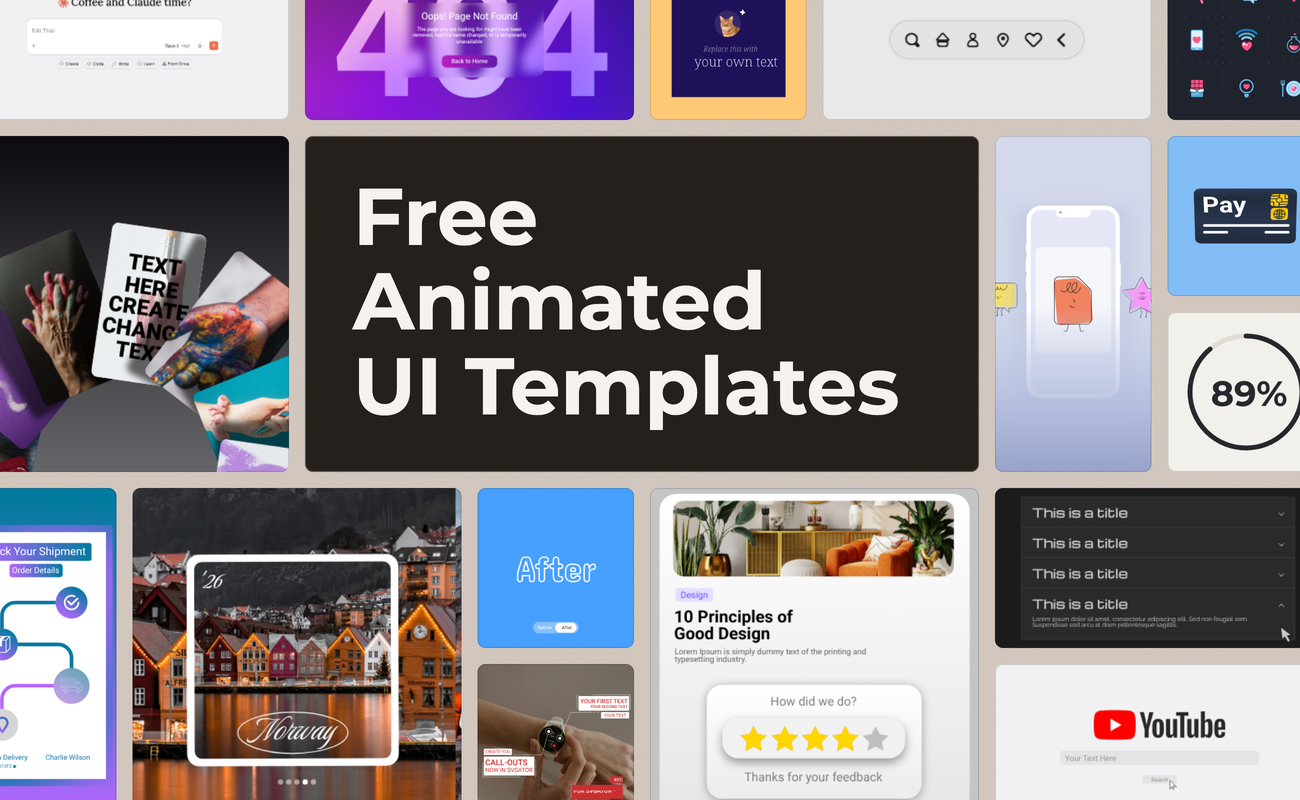
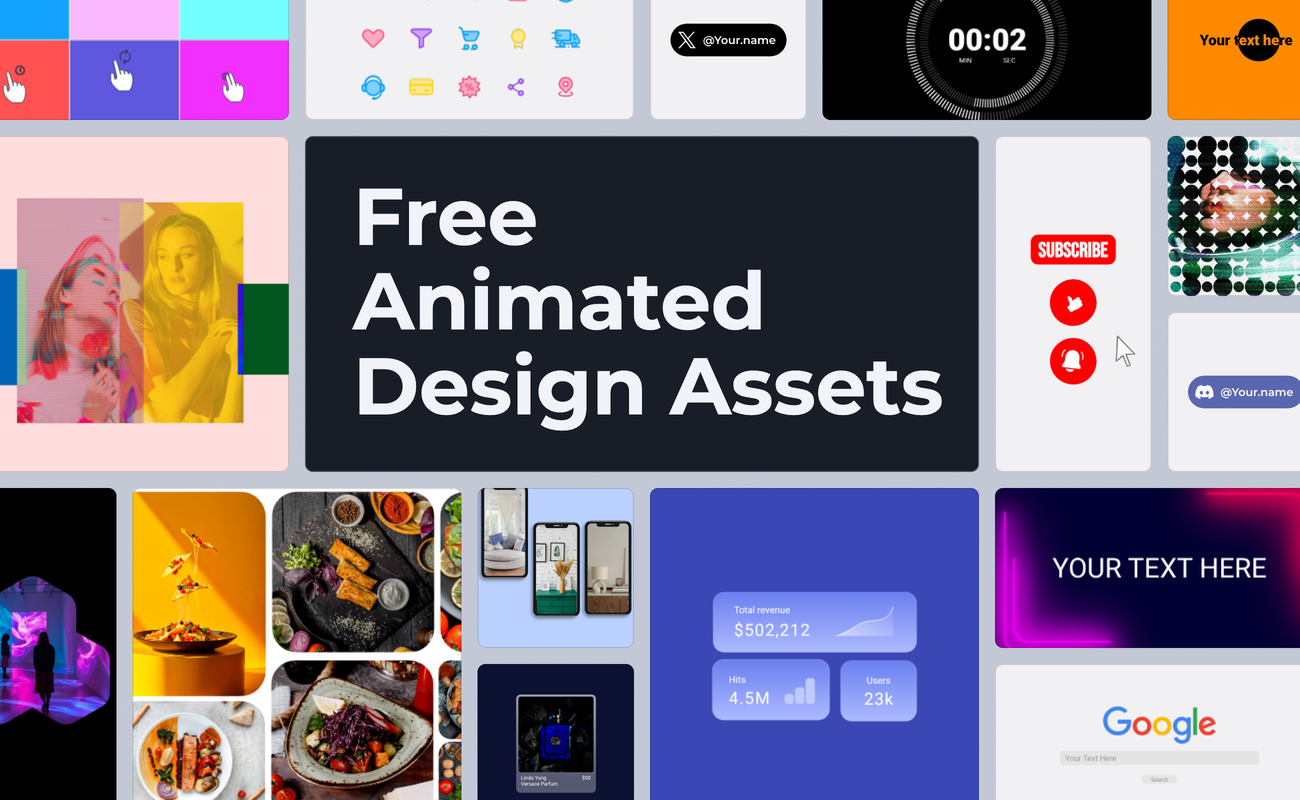
The examples below cover Black Friday deals, Cyber Monday offers, and promos for other sales throughout the year. Every design opens as an editable project. More seasonal and promo designs are in the animated ad templates collection.
Benefits of animated templates
Animated templates help a sale promo catch the eye, go live sooner, stay accurate as offers change, and reach several channels from one design.
Grab attention
Motion draws the eye in a feed full of static images. A discount that pops in or a badge that swings gives shoppers a reason to stop on the offer. Animated sale templates put that motion on the details that lead to a purchase: the offer, the promo code, and the call to action.
Launch campaigns faster
A template arrives with the layout, type, and timing already worked out. The production work shrinks to replacing the copy, then swapping in brand colors and product images. That leaves time to prepare teaser, launch-day, and last-chance versions of one promo before the sale starts.
Update offers quickly
Black Friday deals change during the week. A discount gets extended into Cyber Monday, a product sells out, or a flash sale starts at noon. In an editable animated template, each update is a text change in one project, and the animation keeps its timing.
Export for any channel
One animated design can cover several channels once you export it in the format each one supports:
- Animated SVG for website banners and landing pages
- GIF for email newsletters
- MP4 video for Reels, Stories, and social ads
- Lottie for iOS and Android apps
How to use templates with the SVGator MCP
The SVGator MCP server connects AI assistants such as Claude and ChatGPT to your SVGator account through the Model Context Protocol (MCP). Once it's connected, you can search the template library, copy a template, edit it, and export the result with chat prompts.
Connect the SVGator MCP
Add SVGator as a connector in your AI assistant with the server URL https://mcp.svgator.com/mcp, then sign in and approve access in the browser window that opens. In Claude, the connector is under Settings > Connectors, either in the directory or as a custom connector.
Duplicate the template
Library templates are read-only, so the next step is a copy. Ask the assistant to duplicate the template you picked. The copy becomes a regular project in your account, with a link that opens it in the editor.
Edit with a prompt
Describe each change in plain language. Prompts for common sale edits:
- "Change the headline to Cyber Monday deals."
- “Change the discount to 50% off.”
- "Change the button text to Shop now."
- "Make the background navy and the badge yellow."
The server checks each edit before saving it and rejects invalid values with an error, so the project stays intact. To adjust timing or easing by hand, open the copy in the editor.
Export the animation
Ask for the format and settings each channel needs, for example:
- "Export an animated SVG that plays on hover."
- "Export it as a 1080x1920 MP4 for Instagram Stories."
- "Export a GIF with a transparent background."
SVG and Lottie exports return a download link right away. Video and GIF exports render in the background, and the assistant shares the download link once the render finishes.
Final thoughts
Sale campaigns run in stages. The first teaser goes out days before Black Friday, and the last-chance reminder lands on Cyber Monday night. Choosing a few templates early keeps the visuals consistent across the whole week. With SVGator, every version stays an editable project, so next year's sale starts from work that's already done.