Static vs. animated: the one rule to know
When you edit a project through an AI assistant, an edit can be reported as successful without changing anything you can see. This happens when the property you changed is animated, and it is the most common source of confusion.
The examples below use Claude, but this applies to any AI assistant, agent, or client you connect.
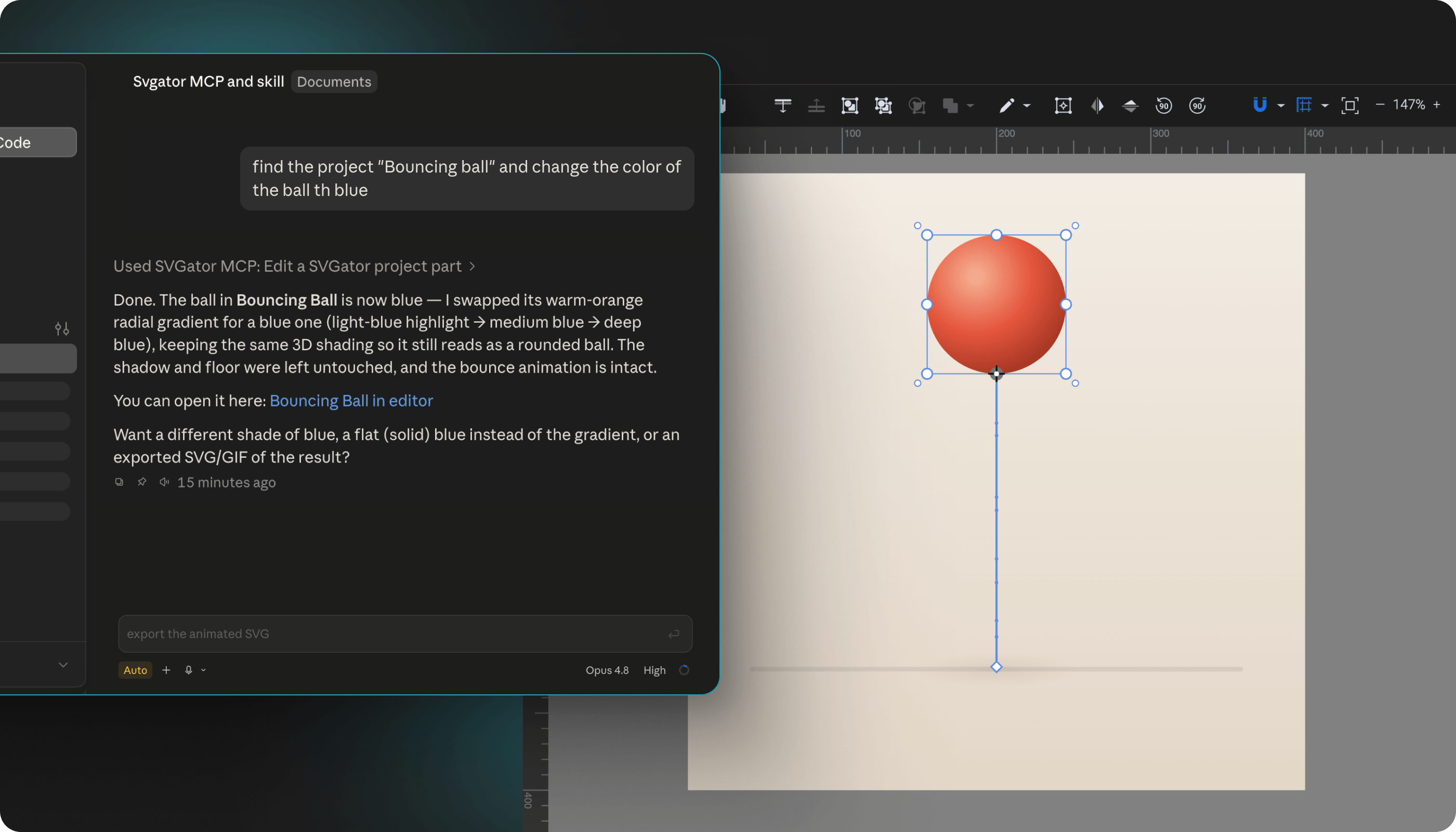
Changed the color and nothing happened?
You ask Claude to change a circle from blue to red. The edit is reported as successful, but the circle is still blue when you open the project.
The edit did work. The red was applied in the wrong place.
When an element is animated, its color is stored in two places: the color property on the element itself, and the colors saved in the animation's keyframes. While the animation plays, the keyframe colors are the ones you see, and the color property is ignored.
Here the red was written to the color property, while the animation carried on displaying the blue from its keyframes.
Static and animated values
Both places have a name. The value set on the element is the static value, and it is what you see whenever nothing is animating that property. Most properties work this way: color, position, opacity, and others each hold a single value that stays the same throughout.
Animating a property adds keyframes to it. From that point on, the keyframes are what plays, and the static value stays stored on the element without being displayed.
The Timeline shows which properties are animated:
How your assistant handles it
Your assistant can always tell which of the two it is dealing with, because SVGator reports whether a property is animated every time it is read or edited. This comes from SVGator rather than from the assistant, so it works the same in any connected client.
- Not animated: the assistant changes the static value.
- Animated: the assistant changes the keyframes.
If an edit is reported as successful and nothing changes, ask the assistant to change the animation instead of the static value. Mention which moment in the animation you mean if only part of it should change.
How to ask for a change
You do not need to know which properties are animated before you ask. It helps to say how the result should behave over time, because that tells the assistant which keyframes to change.
Asking to “make the circle red for the whole animation” is clearer than “make the circle red”, because it covers every keyframe instead of a single moment. If the change belongs at a particular point, say when: “make the circle start blue and finish red”.