Find and browse your projects
Before you can change or export anything, the assistant needs to know which project you mean. It can list what you have, narrow it down by name, and tell you what is inside a project, all from the chat.
Browse your projects
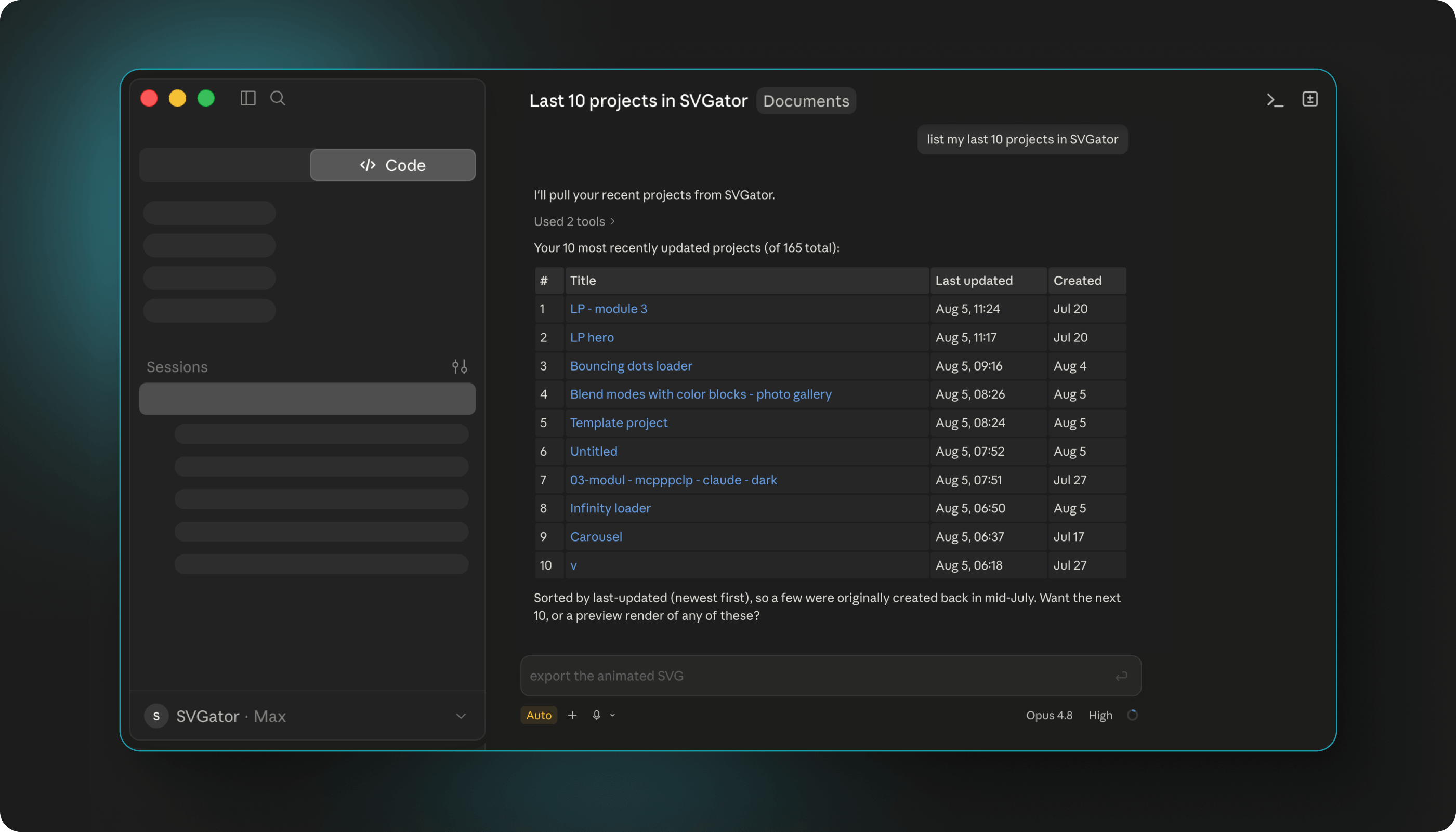
Ask the assistant to list your SVGator projects and it returns them newest first, with the title of each one and when it was last updated.
Every project also comes with a direct link into the SVGator editor, so you can open any of them and keep working by hand whenever you want.
If you are part of a team, the assistant can list a specific team's projects instead of your own.
Search for the one you need
A long library is easier to handle with a search. Ask for projects with a particular word in the title, and the assistant filters the list down to matches.
If you are not sure of the exact name, ask for the most recent ones and work backwards from there. The assistant can also tell you how many projects match, so you know whether to keep narrowing the search or go through what came back.
Check a project's settings
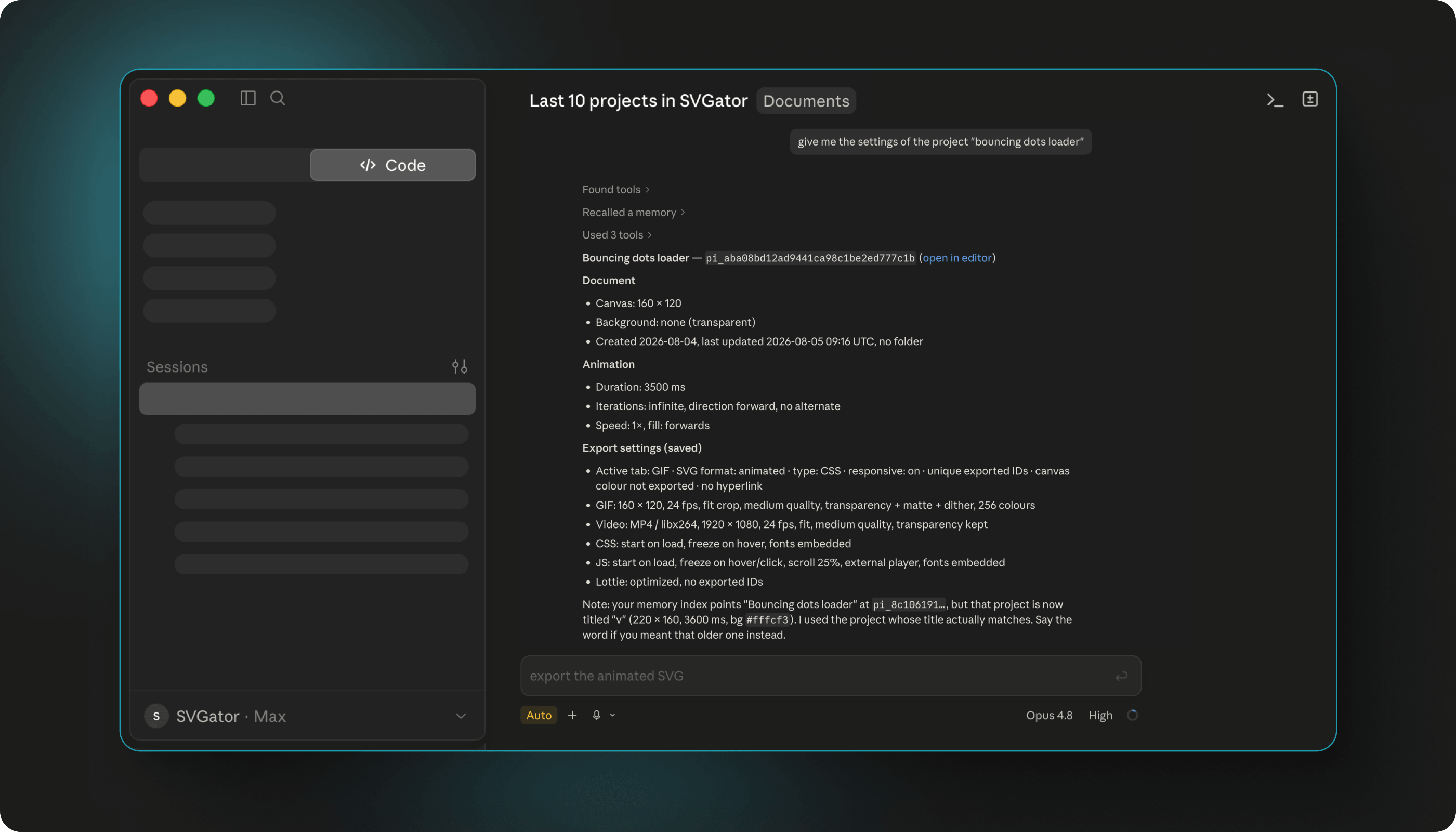
Once you have picked a project, you can ask about its setup before making any changes. The assistant can tell you the project's canvas size, its saved export settings, and when it was created and last updated.
Ask about the animation itself, and it can tell you how long it runs, how many times it repeats, and in which direction, along with the canvas background color.
Inspect what is inside
To see how a project is built, ask what elements it contains. The assistant maps the structure and tells you what is there, how the elements are grouped, and which of them are animated.
From there you can ask about specific details, like the current fill of one shape or the timing of a particular keyframe, and the assistant reads that exact value from the project.
If nothing comes back
If the assistant cannot reach your projects, ask it to ping the SVGator server. That check works even when it is not signed in, so it tells you quickly whether the server is reachable or the connection needs attention.
When the answer is that your session expired, sign in to SVGator again and your projects are right there, untouched.