Troubleshooting & common errors
Most of what goes wrong falls into a handful of cases, and none of them put your projects at risk. Here is what each one means and what to do about it.
An edit worked, but nothing changed
This is the one people meet most often. You ask for a color change, the assistant says the edit went through, and the animation looks exactly as it did before.
The property you changed is animated, and the animation overrides the plain value underneath it. The edit did land, it just cannot be seen while the animation plays.
The server flags this whenever a value is read or edited, so it is always detectable and the assistant normally handles it for you. If it does slip through, ask the assistant to change the keyframes rather than the plain value, and say which moment in the animation you mean if only part of it should change.
The assistant says a request was not valid
Sometimes an edit or an export comes back rejected instead of finished. That is the server checking the request before it changes anything, and turning down one it cannot carry out.
Nothing is saved when this happens, so the project stays exactly as it was. The message names the exact problem, which is usually enough for the assistant to correct itself and try again.
On exports it is often a setting that does not fit the format, like a GIF-only option asked for on a video, or a frame rate above what that format allows. Adjust the part it named and ask again.
A video or GIF export says to animate it first
Video and GIF are rendered frame by frame, so there has to be an animation to render. If the project is still a static design, the export cannot run.
Add the animation first, either by asking the assistant or by opening the project in the SVGator editor, then export again.
A download link stopped working
Exported files come back as links, and the links do not last forever.
A video or GIF download link is valid for about five minutes. If it lapses, you do not need to render again: ask the assistant to check that render once more and it will hand you a fresh link.
For the other formats, the link lasts about one to two days. Once that passes, just ask for the export again.
Note: if a render seems stuck, the assistant can tell you its status and how far along it is. A render that comes back as failed can be run again, and if it keeps failing, open the project in the editor and check that it plays correctly there.
An element cannot be found after it was added
When the assistant adds a new element to a project, the server gives that element its own identifier, which may not be the one the assistant first proposed.
The assistant works from the identifier it gets back, so this is handled for you. If a follow-up change to a brand new element does not seem to find it, ask the assistant to look at the project again and it will pick the element up under its current identifier.
A project cannot be overwritten
Demo and template projects are read-only, so they cannot be rewritten. Changing a project also needs edit rights on it.
If you want to work from a read-only project, ask the assistant to create a new project from it. You get your own copy to change, and the original stays as it is.
Note: rewriting a whole project replaces what is stored, and there is no check for someone else having changed it in the meantime. If you share a project with a team, it is worth making sure nobody else is working on it at the same time.
The connection expired or stopped responding
The connection refreshes quietly in the background, but the session does not last forever. When it ends, the assistant asks you to sign in to SVGator again. Approve it and you carry on where you were.
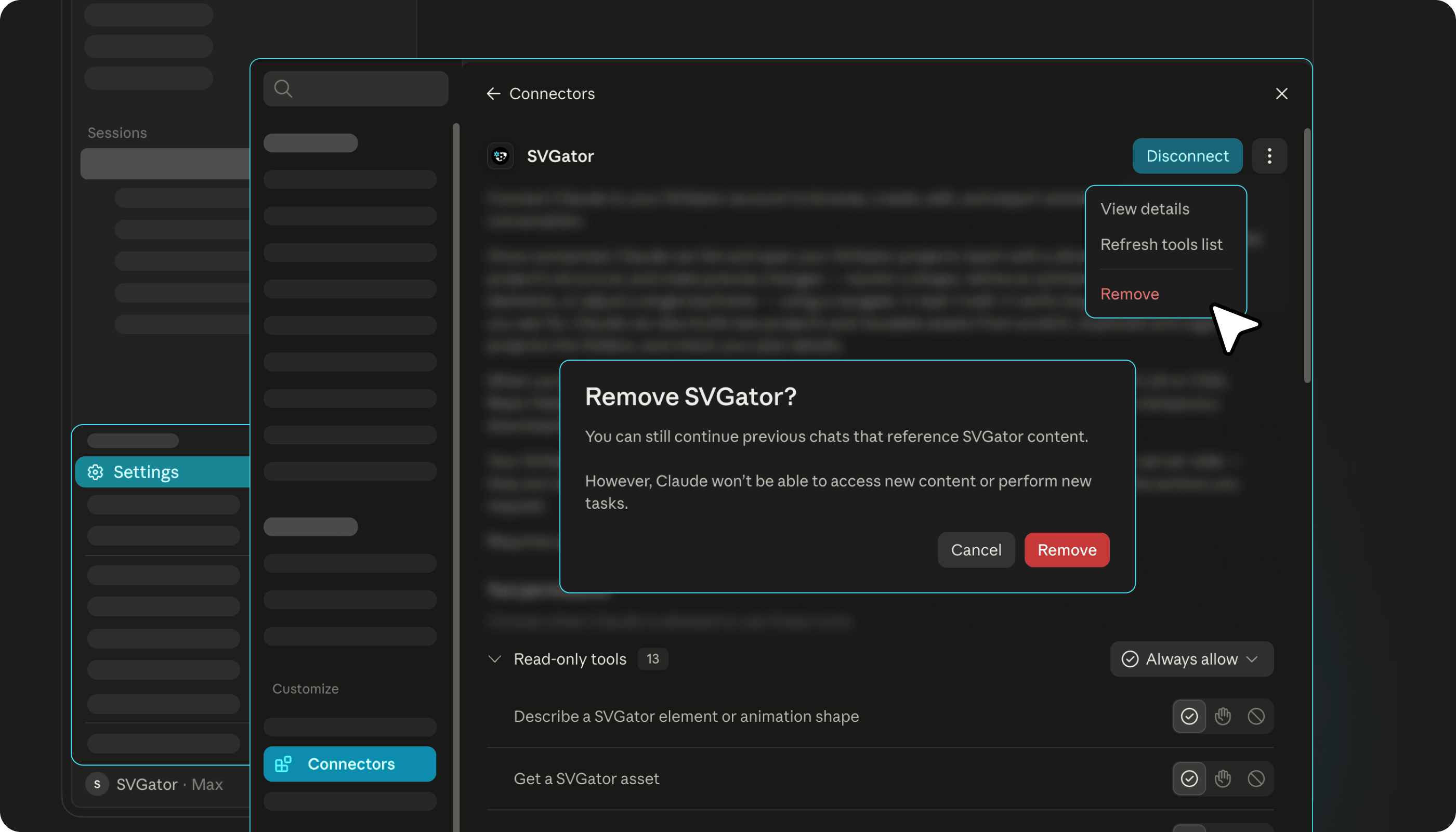
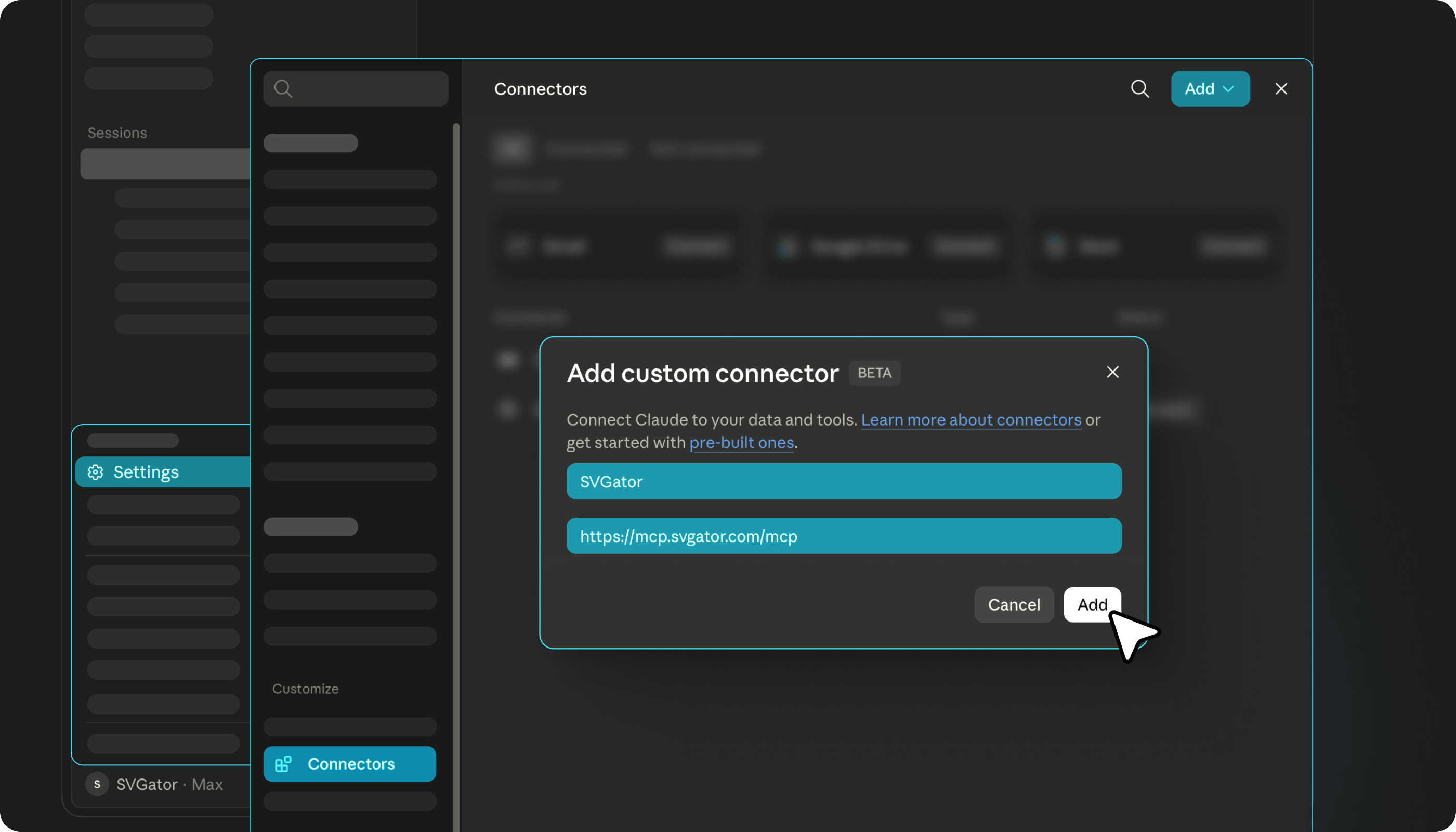
If a tool says you are not authenticated, or the connection gets stuck, remove the SVGator connector from your assistant's settings, add it again with the same details, and approve access once more. Your projects are unaffected by any of this.