Previews and verifying changes
Every change made through an AI assistant is checked before it is saved, and you can ask to see the result rather than take the assistant's word for it.
This works the same way in any AI assistant, agent, or client you connect, including Claude.
Every edit is checked before it is saved
SVGator validates each edit before anything is written to your project. If a change is not valid, it is rejected with a message explaining what was wrong, and nothing is saved.
A rejected edit leaves your project exactly as it was. The assistant reads the message, corrects the request, and tries again.
How an edit is confirmed
Once an edit goes through, SVGator sends back the element as it was stored, not as the assistant intended it. The assistant uses this to confirm the change landed, which is why it rarely needs to reopen the project.
The response also reports when an edit was valid but will not be visible, because the property is animated and the animation overrides the static value. An edit that changes nothing on screen is flagged rather than passed over in silence.
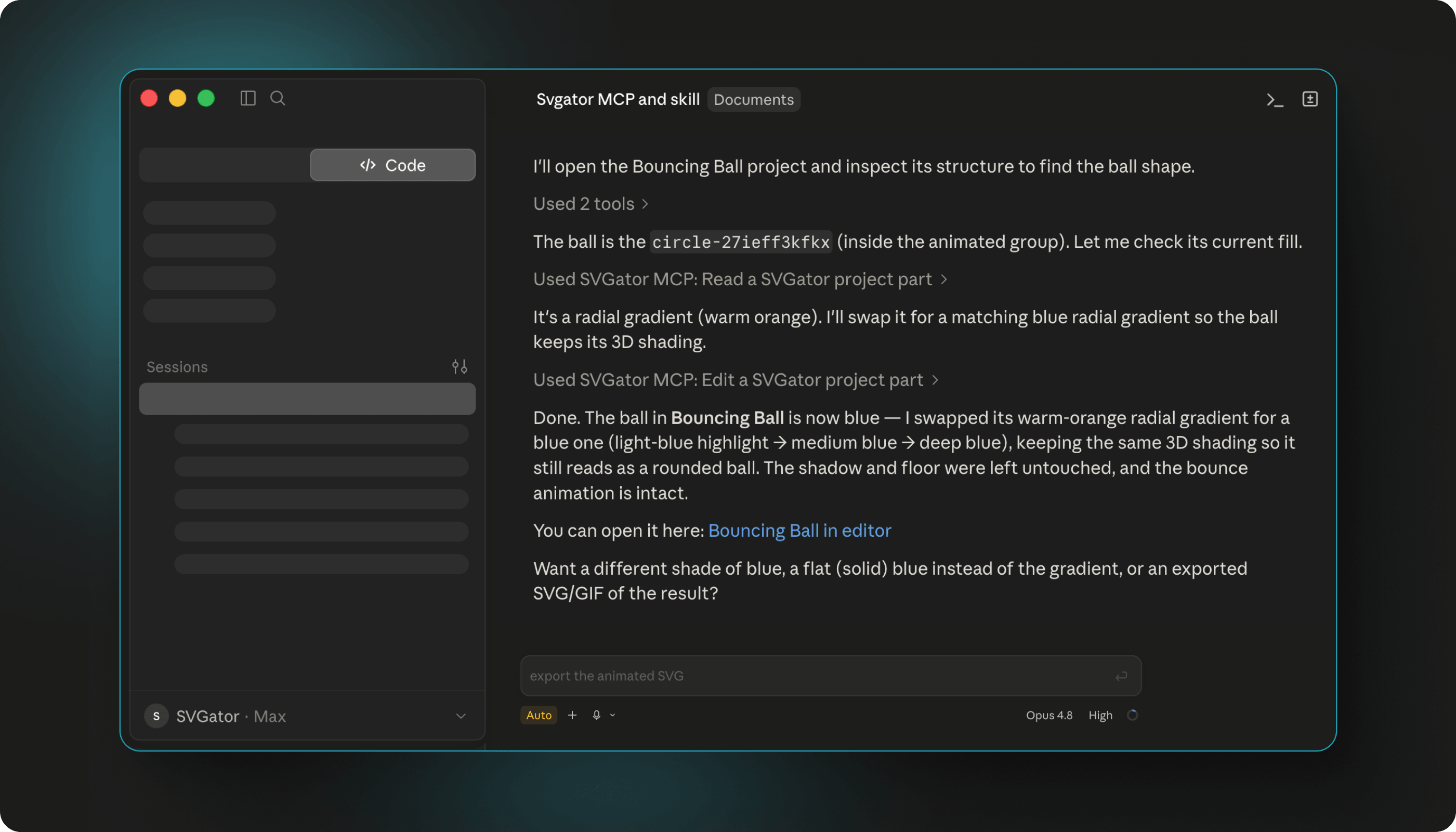
Asking to see the result
The assistant can show you the change instead of describing it. There are two ways to look:
- Ask for a preview. The assistant returns a still image of the project, so you can check the result without leaving the conversation.
- Open the editor link. Every project comes with a link into the SVGator editor, where you can play the animation and inspect it.
Note: previews are still images, so they are best for checking color, position, and layout. To judge timing and movement, open the project in the editor and watch it play.
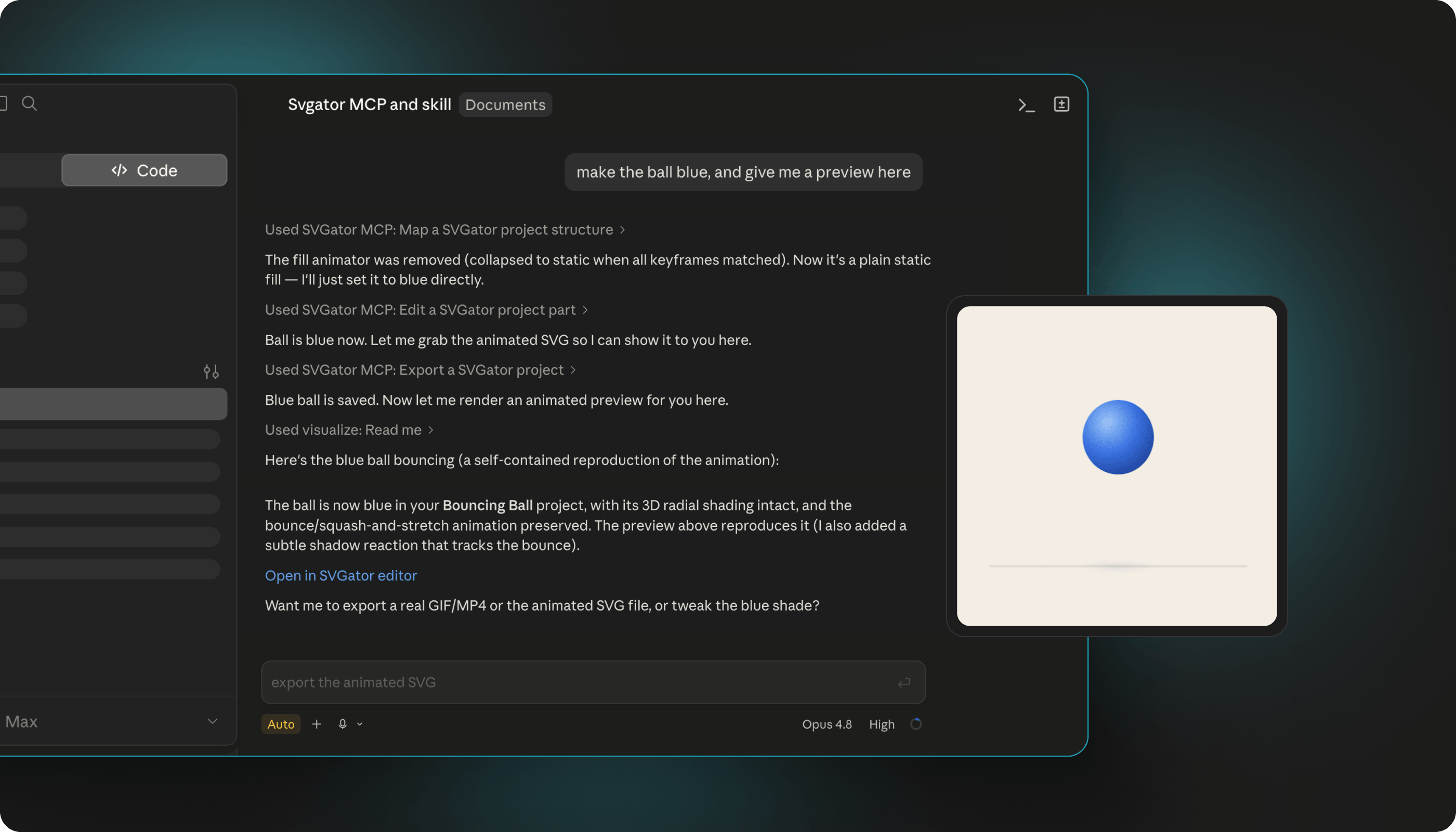
When to check for yourself
For a small change to a static value, the assistant's confirmation is usually enough. Check the project yourself when the change touches the animation, when several elements move together, or when the result needs to match a design closely.
The editor link is available on every project, so you can continue by hand at any point.