Prompting tips
You do not need special wording to work with your projects. Plain language is enough, and the assistant picks the right tools on its own. A few habits will get you closer to what you pictured on the first try, though.
Start simple
Short requests work. Asking the assistant to list your SVGator projects, or what is inside one of them and which parts are animated, is enough to get going.
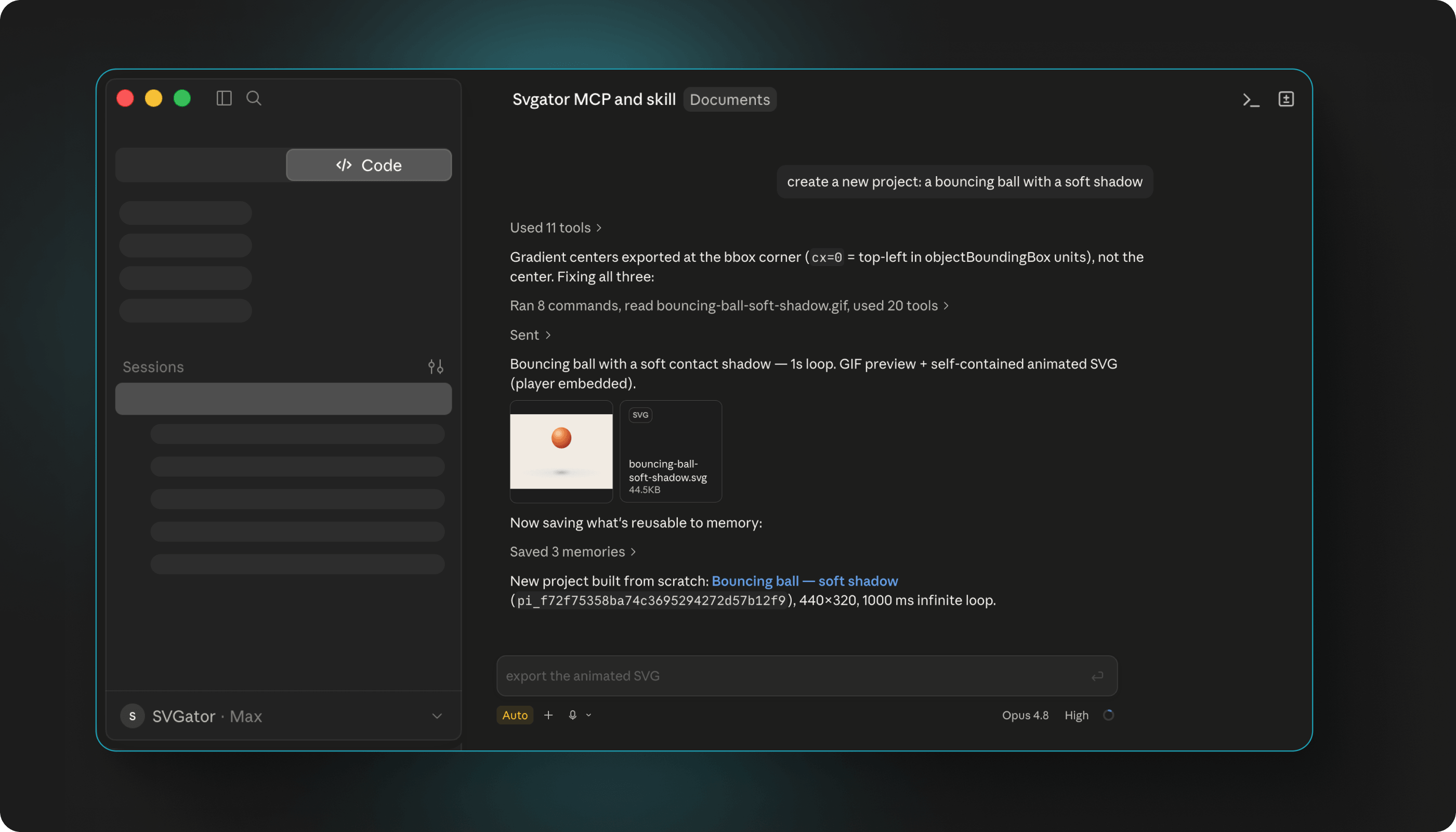
From there you can go straight to the work, like “make the heading in project X fade in instead of sliding” or “create a new project: a bouncing ball with a soft shadow.” Say what you want to happen, and let the assistant work out how.
Say which project you mean
If you have a large library, name the project you are working on, or ask the assistant to search for it by title. That saves it from listing everything before it finds the right one.
Be specific about the result
The more precisely you describe the outcome, the less guesswork there is. Size, colors, timing, and the feel of the movement are all worth saying out loud, as in “a pastel loading spinner, 200 by 200, with a smooth loop.”
Timing matters most when a project is already animated. Asking for a shape to be red the whole time is clearer than just asking for red, because it tells the assistant the change should hold across the animation rather than at one moment. If only part of the animation should change, say when.
Ask for one thing at a time
The assistant edits in small steps, checking each one, and you get the best results by working the same way. Make a change, look at it, then ask for the next.
If something is not quite right, say what to adjust rather than starting over. Smaller corrections are quicker and easier to follow than a fresh description of the whole animation.
Ask to see the result
You can ask for a preview at any point, and the assistant can show you how the project looks after a change.
Every project also comes with a link that opens it in the SVGator editor, so when you want to check the timeline or fine-tune something by hand, that link is there.
Say where the animation is going
Naming the destination helps the assistant pick the right export. Asking to “export project X as an animated SVG that plays on hover” or “as a GIF with a transparent background” describes both the file and how it should behave, so there is nothing left to guess.
Note: export settings control how a project plays, not what is in it. If the artwork or the animation itself needs to change, ask for that first, then export.
Ask for what you need, not the settings
You do not have to know the export options by name. Describing the result is enough: a transparent background, a loop that never stops, a specific size in pixels, or an animation that starts when someone hovers.
If something you asked for does not work with the format you picked, the export comes back naming the exact problem, so you can adjust and ask again.