How the SVGator MCP server works
Whatever you ask the SVGator MCP server to do, it follows the same short loop underneath. Once you know that loop, the rest is just variations on it.
The mental model
Every request runs through the same short loop. You describe what you want in plain language, like "make the logo fade in" or "export this as a looping GIF," without ever picking tools or menus yourself. The assistant then lists your projects, opens the right one, and maps its structure to see which parts are already animated.
From there it makes the change one edit at a time, checking each edit so a bad one is rejected instead of breaking your project. When it finishes, you get a preview of the result and a link to open the project in the SVGator editor, where you can finish by hand.
What people use it for
People reach for the SVGator MCP server in a few main ways:
- Generate from a prompt. Describe an animation and get a finished project or file back.
- Edit an existing project. Create compositions, set keyframes and timing, apply effects, and rename or rearrange elements.
- Retrieve assets from your library. Browse your projects and pull the one you need, and add it to an existing project, or start a new project based on it..
- Generate variants. Spin up color variations, brand-consistent versions, or A/B style options from a single source.
- Ask questions as you work. Get animation guidance without leaving your assistant.
- Export and implement. Turn one project into the formats you need and drop the result straight into your work.
Generating an animation from a prompt
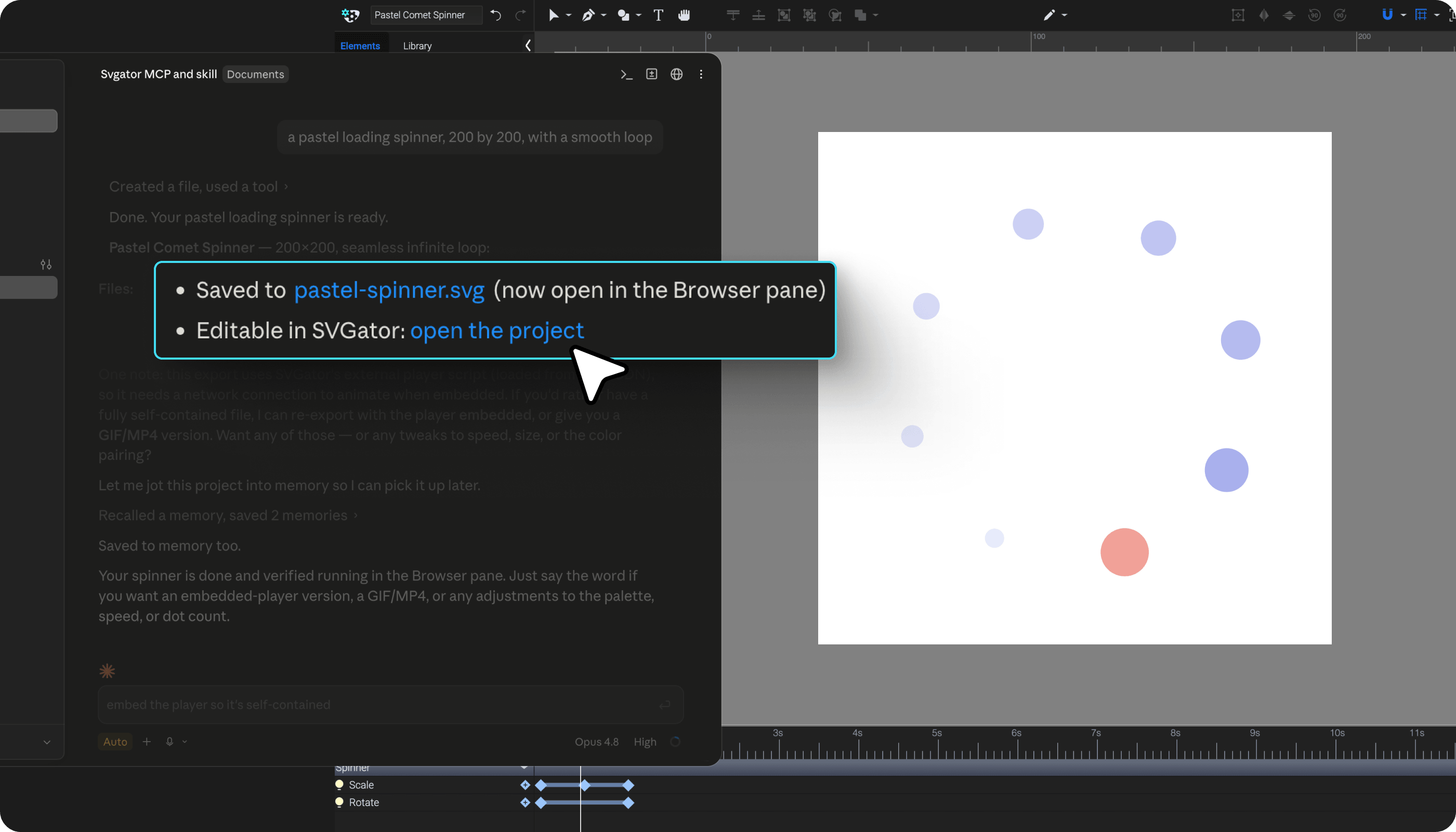
When you want something new, describe it and let the assistant build it. Give it the specifics that matter, like size, style, motion, and timing, for example "use SVGator's motion skills to create a pastel loading spinner, 200 by 200, with a smooth loop."
The assistant builds a new project from your description, following its motion-design guidance so the result feels intentional rather than generic. It hands back a link that opens the project in the SVGator editor, where you can review the animation and make any final tweaks by hand.
Editing an existing project
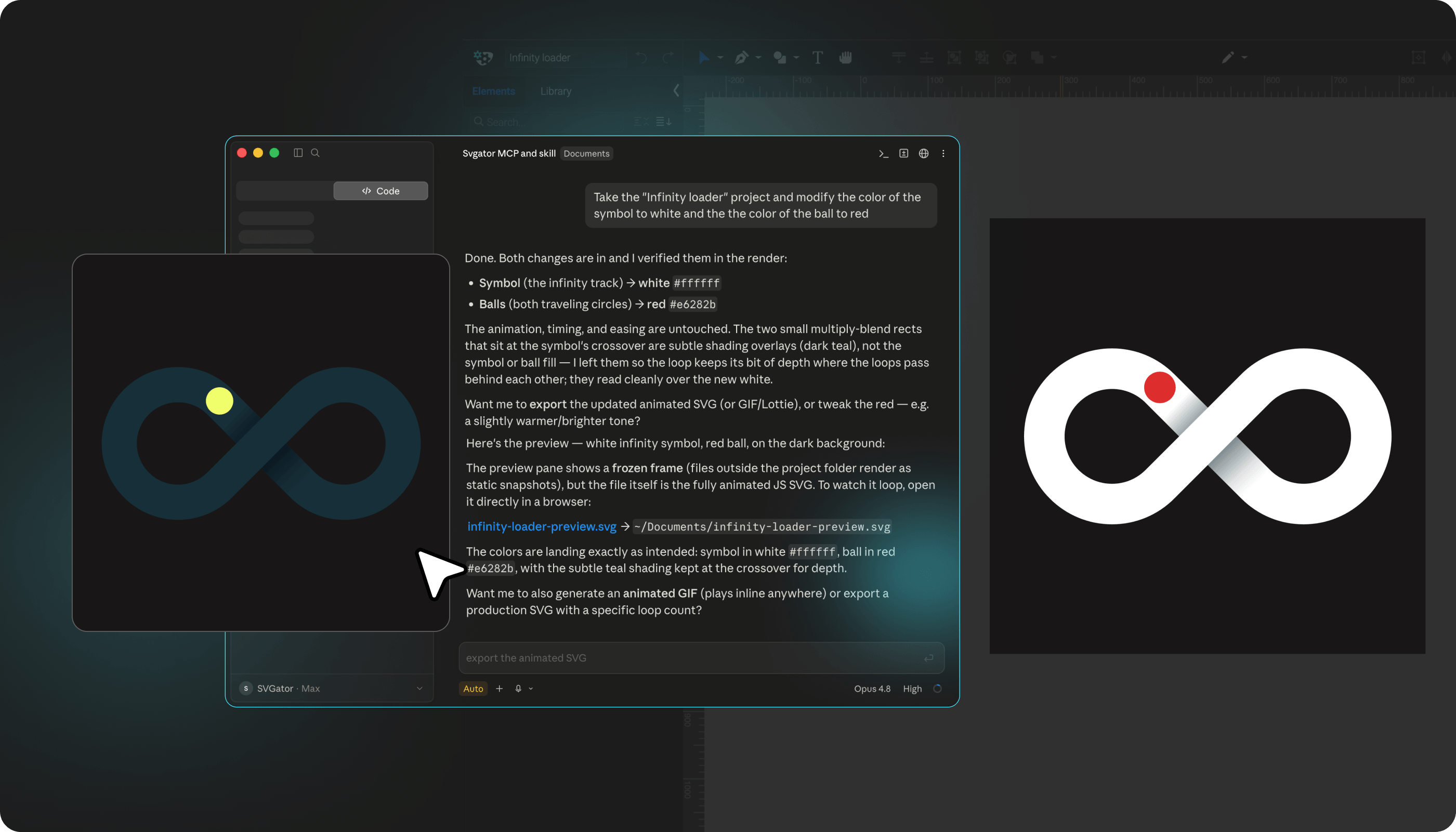
To change a project you already have, point the assistant at it with a link or project title, and describe the change. Tell it which project to open, or ask it to list your projects so you can pick the one you mean. Then describe the change in plain language: you can create new compositions, set keyframes and timing, apply effects, or rename and rearrange elements in the element tree. The assistant will give you a preview to review, and an editor link so you can keep working on the project yourself if you'd like.
Retrieving an asset from your library
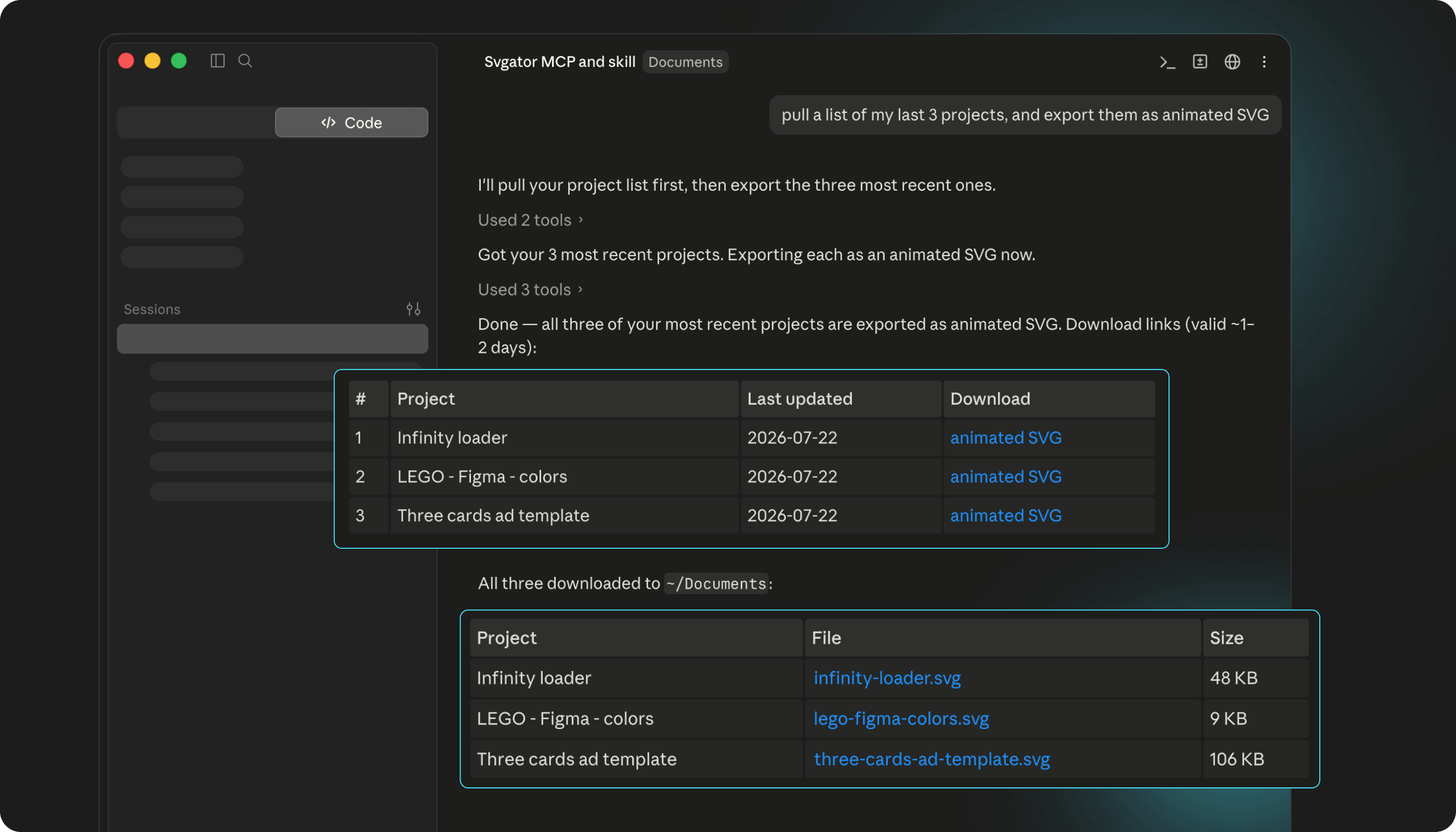
The assistant can reach the animations you already have, much like the SVGator Figma plugin does inside Figma. Ask it to list your projects or search by name, and it can identify the asset you mean and pull it up. From there, it can add that asset somewhere specific inside an existing project, like replacing or swapping an asset in a template, or start a new project with that asset as the starting point.
Exporting your work
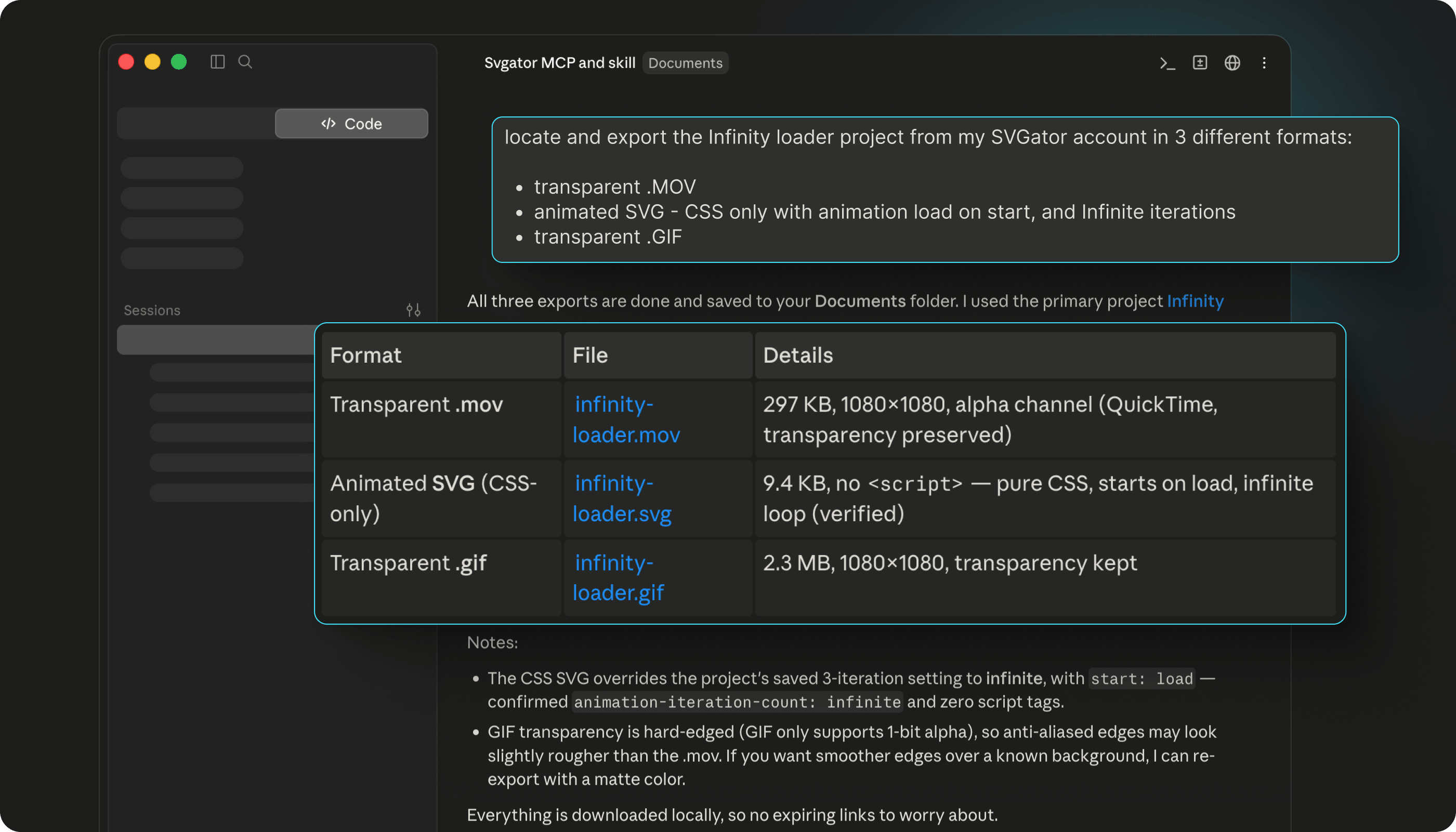
When a project is ready, ask for it in whatever format fits where it is going: an animated SVG for the web, a Lottie file for developers, an MP4 or other video, or a GIF. Need it in several formats? Ask for all of them, and the assistant exports each one. You can also set the details that matter, like size, transparency, or a looping playback, and the assistant applies them.
Note: exporting to video or GIF needs an animated project, since a still design has nothing to render.
Adding it to your site
The files the assistant exports are ready to use, so putting the animation live is a short final step.
For the web, export an animated SVG that runs in the browser and is ready to embed. For apps or a developer handoff, export a Lottie file or framework source for React Native or Flutter. And if you work in a coding assistant, the export lands in the same window as your code, ready to drop into your project.