Export and deliver your animation
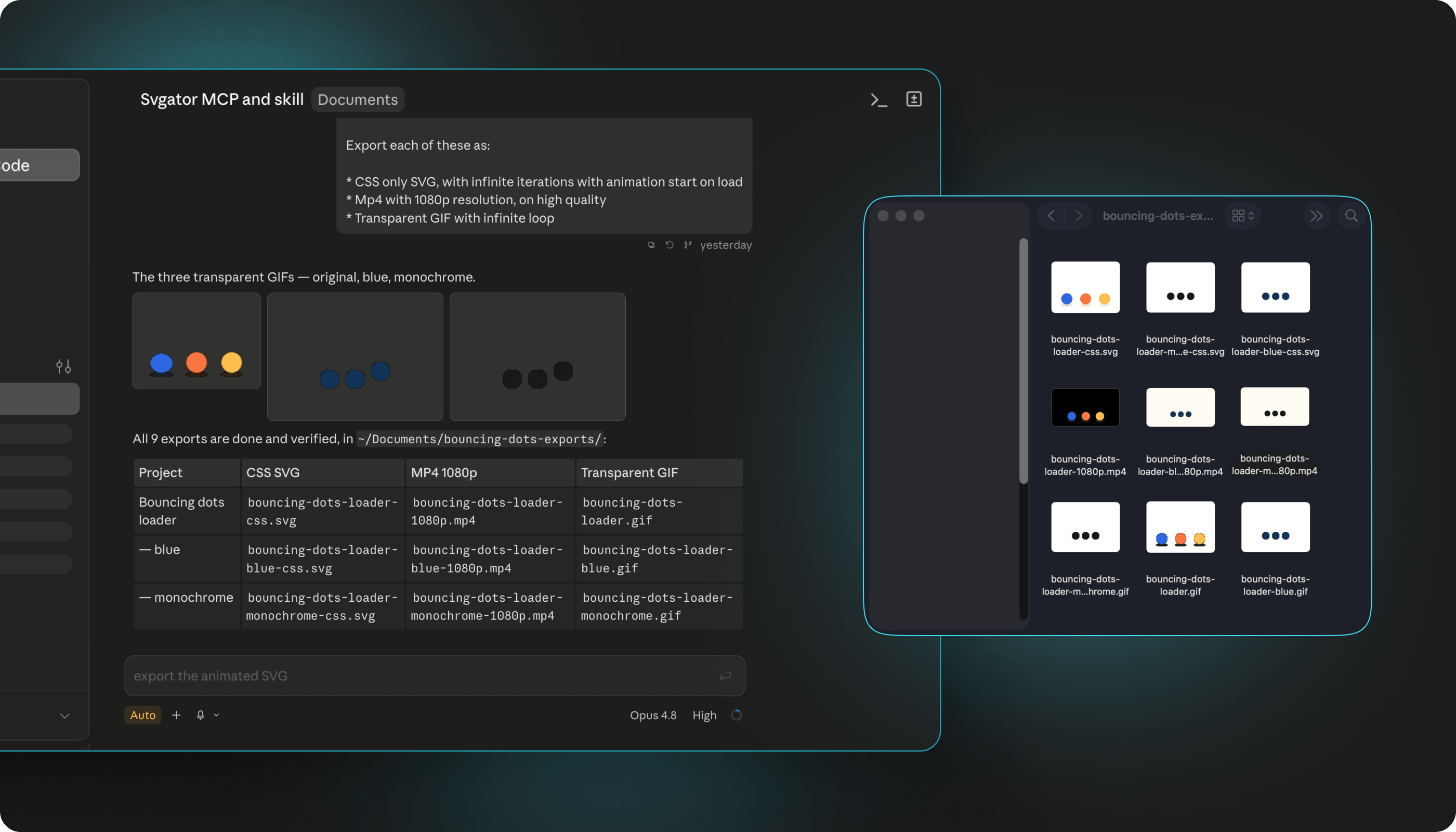
When a project is ready, you can ask the assistant to export it in the format you need. There are several formats to choose from, and a couple of things worth knowing about how the files reach you.
Choosing a format
For the web, ask for an animated SVG. It plays in the browser and can be driven by JavaScript or CSS, so it is the one to pick for a landing page, an icon, or a hero graphic.
For a handoff to developers, ask for a Lottie file, which comes back as JSON. If the animation is heading into a mobile app, React Native and Flutter exports wrap it as source for those frameworks.
For anywhere that cannot take a vector file, like social posts, email, or a video edit, ask for video or a GIF. Video covers MP4, MOV, AVI, MKV, and WebM, and the GIF export can also produce WebP, a PNG sequence, or a ZIP.
How the files reach you
The four web and mobile formats come back right away. By default the assistant hands you a temporary link to the file rather than pasting the file itself into the chat, which keeps the conversation light. That link stays valid for a limited amount of time, so download the file rather than saving the link for later. If you want the file contents in the chat instead, for example so the assistant can embed the animation in code it is writing, just ask for it inline.
Note: the temporary link is for the exported file only. Your project stays in your SVGator account, and the assistant also gives you a link that opens it in the editor.
Video and GIF rendering
Video and GIF work differently, because they have to be rendered frame by frame. The assistant starts the render, and the job runs in the background on SVGator's servers.
While it runs, the assistant checks on it and can tell you the progress as a percentage. When the render finishes, it gives you the download link.
That download link is short-lived: it stays valid for about five minutes. If you step away and it stops working, you do not need to render again, just ask the assistant to check the render once more and it will hand you a fresh link.
Note: a video or GIF export needs an animated project. If the project is still a static design, the assistant will tell you to animate it first.
Export settings you can ask for
Every export starts from the settings saved on the project, and you can override the ones that matter for this particular file.
You can change how the animation plays: how many times it loops, whether it loops forever, whether it plays in reverse or ping-pongs back and forth, and whether it holds on the last frame.
Speed and frame rate can be set on any format, while the loop and direction settings apply to every format except Lottie, whose playback is fixed.
For the web and mobile formats you can also set what starts the animation, such as page load, hover, click, or scroll, and what happens on a second click or when the pointer leaves. An animated SVG can additionally be driven by JavaScript or CSS, and wrapped in a link.
For video and GIF you can set the file type, the quality, and the output size in pixels. A GIF can keep its transparent background, and you can adjust its color palette. Video can keep transparency too, as long as you pick a file type that supports it, like MOV or WebM. You can also override the canvas background or make the export responsive.
If you ask for something the format cannot do, like a GIF-only setting on a video export, the export comes back with a message naming the exact problem, so you can adjust and try again.
Changes to make in the editor first
Export settings only control how a project plays and how the file is produced. They never change what is inside the project.
So if the logo should be a different color, the text should read differently, a shape needs moving, or the timing of the animation itself is off, that is a change to the project, not to the export. Ask the assistant to make the change first, or open the project in the SVGator editor and do it by hand, then export.