Example workflows
Here are a few complete jobs, from the first request to the finished file. Each one follows the same pattern, so once you have done one, the rest will feel familiar.
Recolor a logo
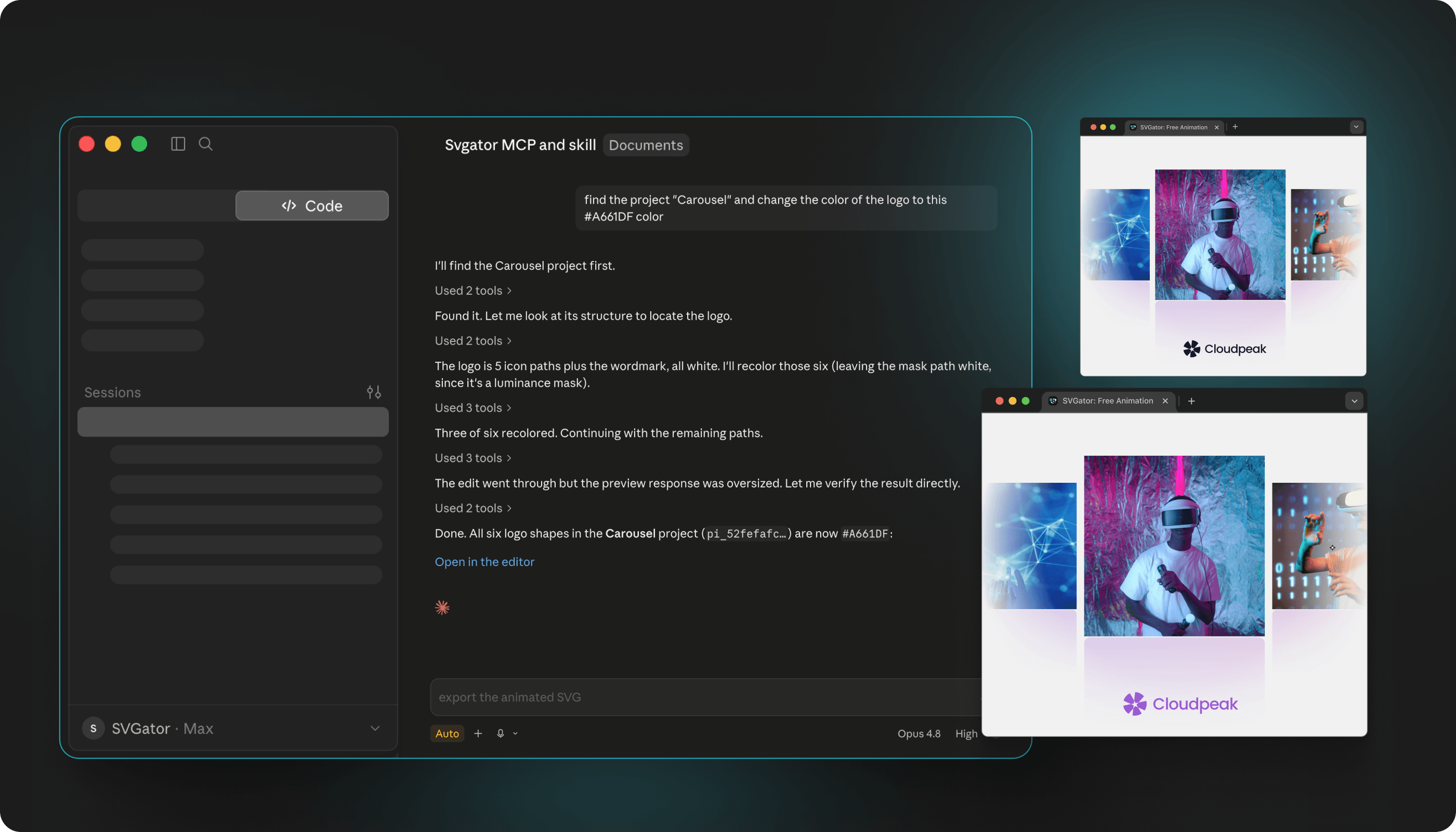
Start by pointing the assistant at the project, then describe the color change you want. Say which part should change, so it does not have to guess between the mark, the text, and the background.
The assistant looks through the project, finds that element, and checks whether its color is animated. If the color is animated, it changes the keyframes rather than the plain value, so the new color actually shows up while the animation plays.
Ask for a preview to check the result. If the shade is not quite right, say so and let the assistant adjust it, rather than describing the whole logo again.
Retime an animation
Timing changes come in two kinds, and it helps to know which one you are asking for.
If you want the whole animation to run faster or slower, or to loop a set number of times, that is a playback setting. Every export starts from the settings saved on the project, and you can override them for a particular file when you ask for the export. Nothing inside the project changes either way.
If the movement itself is wrong, like an element that should start later or a transition that drags, that is a change to the project. Describe what should happen and when, for example an element that starts halfway through instead of at the beginning, and the assistant adjusts the keyframes.
Note: if you are not sure which one you need, describe the result you want and let the assistant work out where the change belongs.
Export for the web
Ask for the project as an animated SVG. That is the format that plays in a browser, and it is ready to embed on a page.
Say how it should behave while you are at it: whether it plays once or loops forever, and what starts it, such as page load or hover. Those go into the same request, so you get the file you want the first time.
The assistant hands you a link to the exported file. Download it rather than saving the link, since the link is temporary.
Add interactivity
An animated SVG does not have to start on its own. You can have it play when someone hovers over it, clicks it, or scrolls it into view.
Say what should trigger it and what should happen next. A common one is an animation that plays on hover and reverses when the pointer leaves, which suits an icon or a button. On click, you can have it restart, reverse, or freeze where it is.
You do not need to worry about how that is wired up. The assistant sets it when you ask for the behavior, and the richer triggers, like click, scroll, or reversing when the pointer leaves, are driven by JavaScript. A plain animation that starts on load or on hover can run on CSS instead.
Export one project in several formats
A single animation often has to go to more than one place: the site, the app, and a social post.
Ask for each format you need and the assistant exports them one after another, since each export produces one file. Name the settings that matter for each, because they are not the same everywhere. A GIF for social might need a transparent background and a fixed pixel size, while the web version needs a hover trigger, and the developers just need the Lottie file.
If a setting does not apply to the format you asked for, the export comes back naming the exact problem, so you can adjust and ask again.
Note: video and GIF take longer, because they render in the background. The assistant tells you how far along the render is, then gives you a download link when it finishes. That link is only valid for a few minutes, so if it lapses, ask the assistant to check the render again for a fresh one.