Edit your projects
Once the assistant knows which project you mean, you can change it by describing what you want. That covers the artwork, the animation, and everything in between, from a quick color swap to a full set of client variations.
Change the artwork
Ask for the change in plain language and the assistant finds the right element and applies it. Recoloring is the most common request, and it works the same way for a fill or a stroke.
Resizing and moving work just as directly. You can also reorder elements, move one inside a group, or take it out again.
Beyond that, you can add a new shape to a project or delete one entirely. Swapping a shape for a different one is the same idea: remove what is there and add the replacement in its place.
Change the animation
Timing is just as editable as the artwork. You can move a keyframe to a different moment, change the value it holds, add keyframes to a property that needs more of them, or remove one that is in the way. The assistant handles the mechanics, so you describe the result you want and it works out which keyframes to touch.
Easing is set per keyframe, so you can ask for a softer start or a sharper finish on a specific moment rather than the whole animation.
If you want a property to stop moving altogether, ask the assistant to remove its animation and the element settles on a fixed value again.
Note: speed, loop count, and playback direction are export settings rather than edits to the project. You set those when you export, which means one project can ship as a single play in one place and an endless loop in another.
Small edits or a full rebuild
Most of the time, one change at a time is the right approach. The assistant edits precisely, checks each change, and a request that does not work is refused instead of applied, so your project stays intact.
Rebuilding the whole project is the other option, and it suits a redesign or a sweeping change across everything at once. It is all or nothing: the entire project is checked before anything is saved, so if one part is wrong, nothing changes and the version you have is untouched.
As a rule of thumb, describe individual changes for anything targeted, and ask for a rebuild only when you genuinely want to start the artwork over.
Create variations of the same project
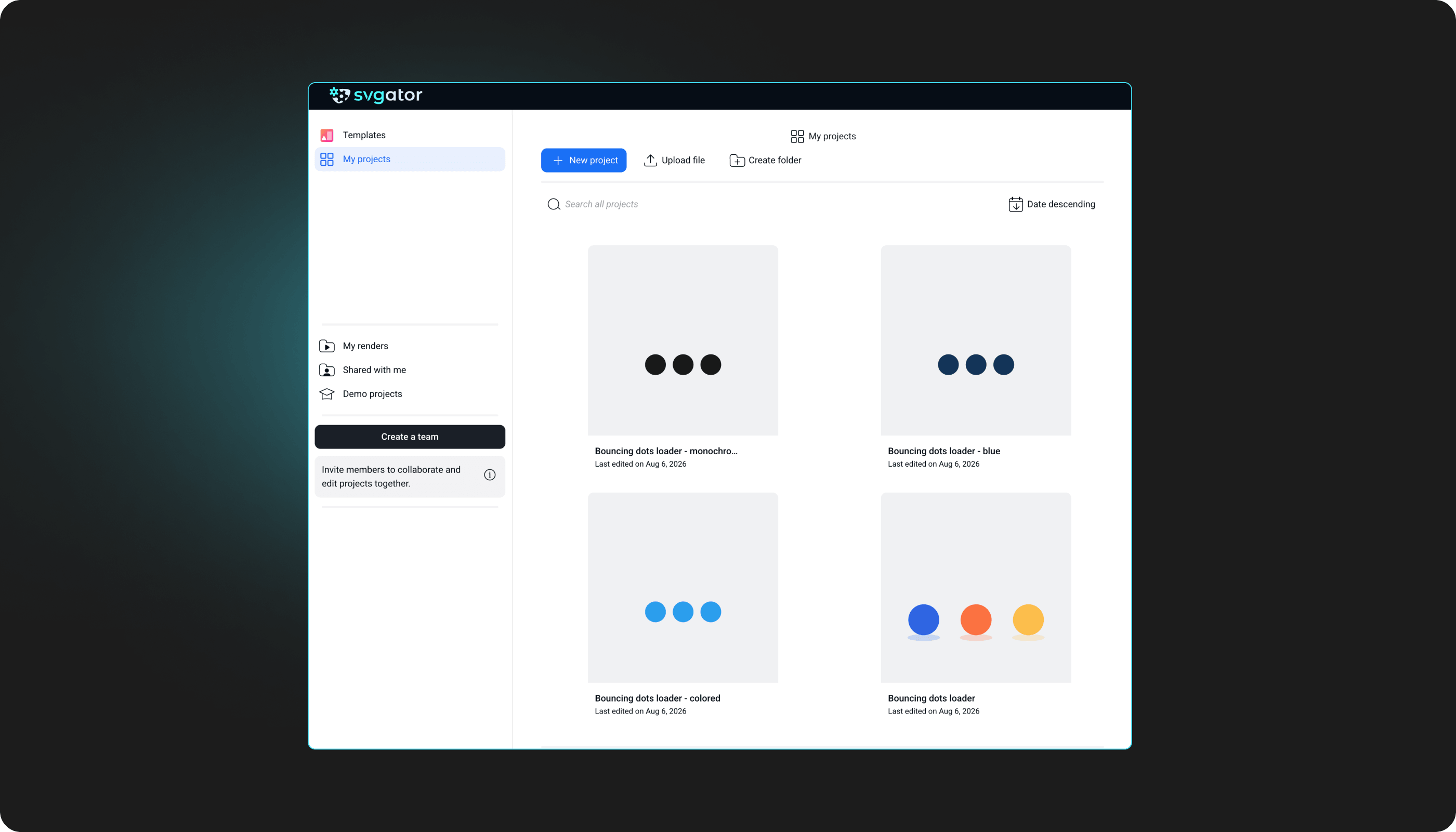
This is where the assistant saves the most time. Instead of editing one project into a new version and losing the original, ask it to build a copy and change the copy.
Color variants are the obvious case. Hand over a brand palette and ask for a version of the same animation in each set of colors, and you get a separate project for every one, all matching the original in structure and timing.
The same works for anything else that changes between versions: different text, a different size for another placement, a shorter or longer timing, or an element that appears in one version and is dropped from another. A concept you want to show a client two ways becomes two projects rather than one project you keep undoing.
Because every version is its own project with its own editor link, you can review them side by side, refine any one of them by hand, and export each in whatever format that particular channel needs.
Note: keep the original as your master. Ask for copies to work on, and you always have a clean version to branch from the next time a client wants something different.