Figma Plugin Feature Overview
Figma → SVGator (No Plugin Required)
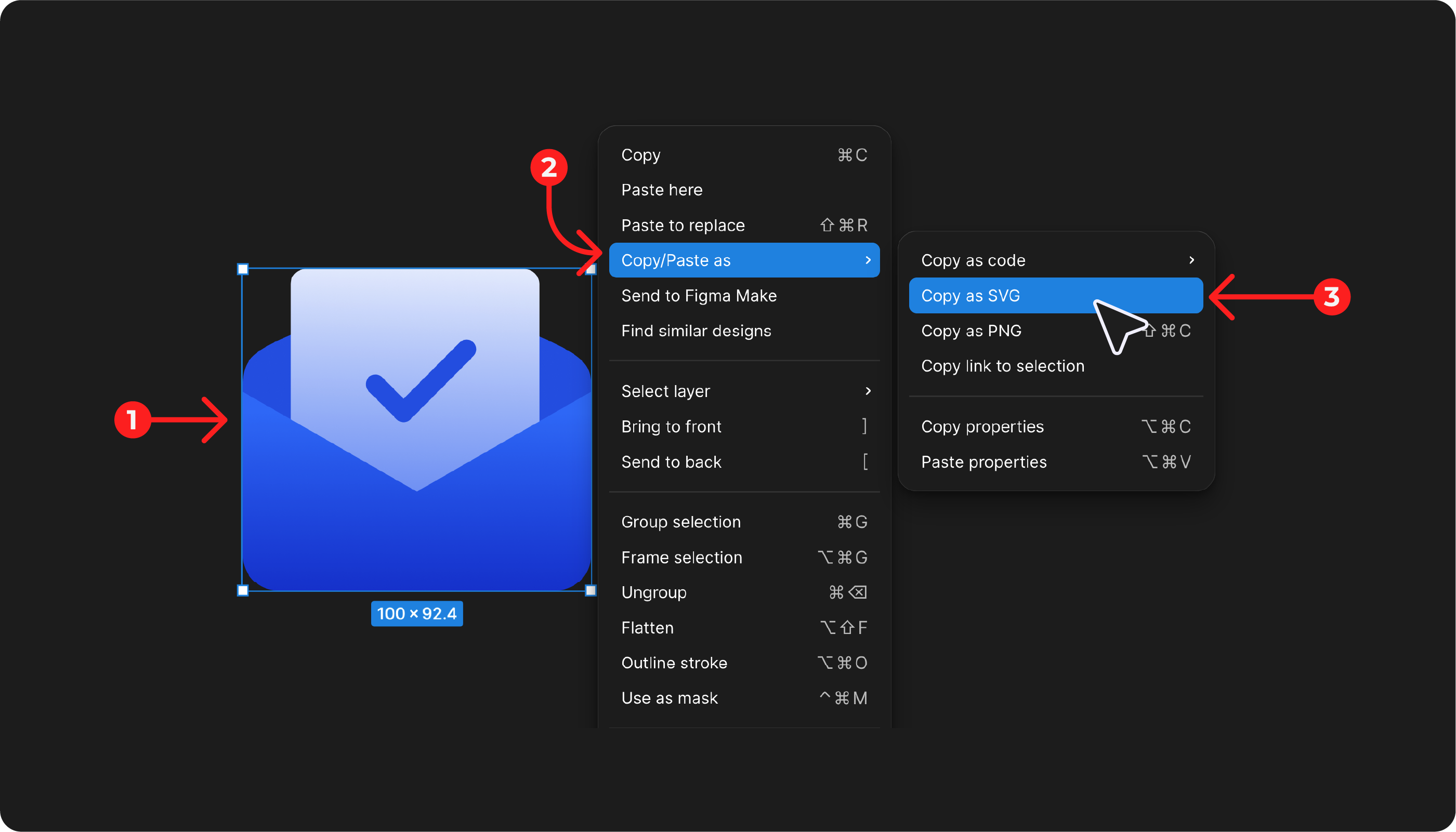
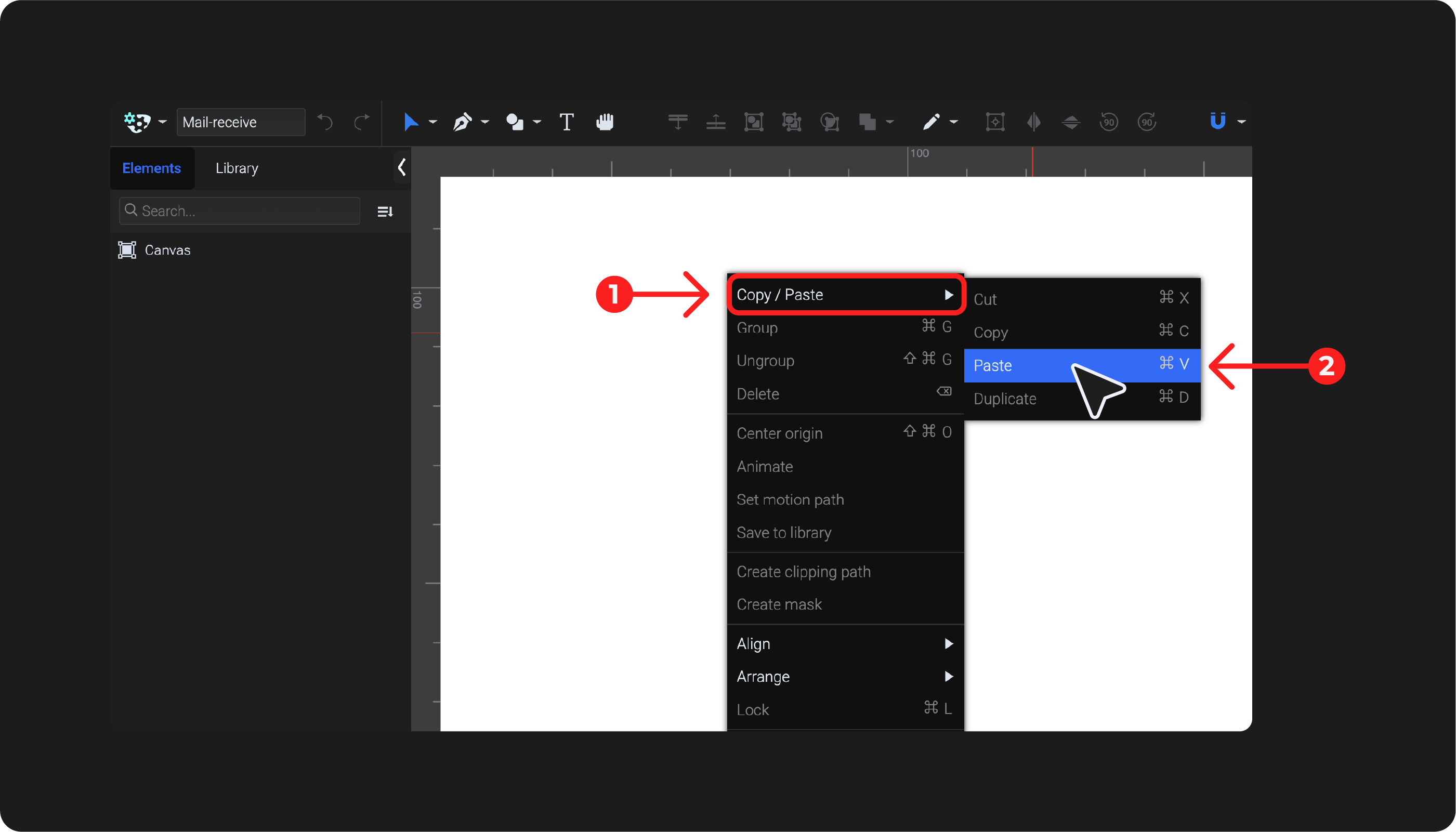
Select the SVG or PNG you want to copy from Figma, right-click the element, choose Copy → Copy as SVG or Copy as PNG, then go to your SVGator project and paste it by right-clicking and choosing Copy/Paste → Paste (or by pressing Command/Ctrl+V)
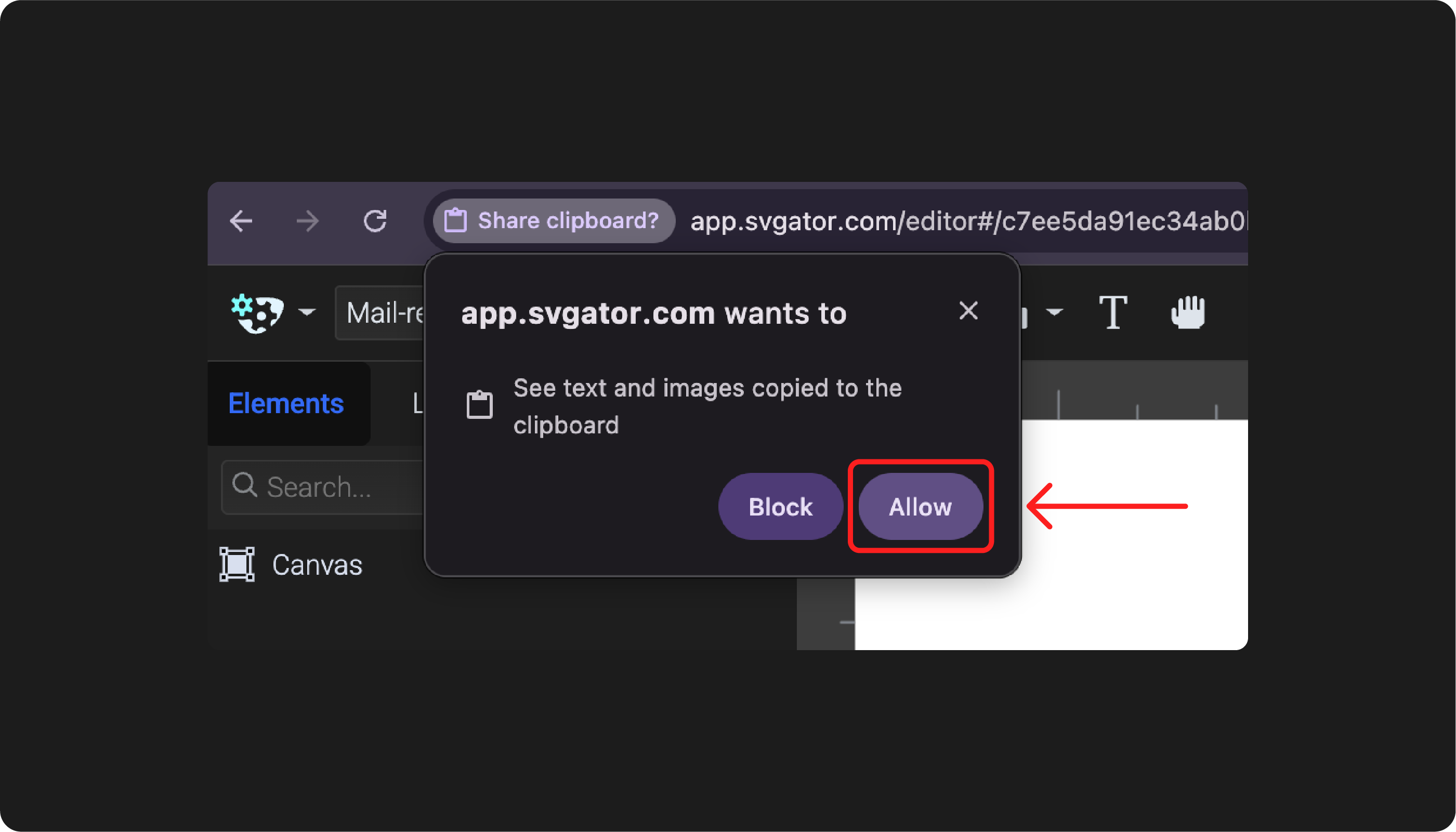
Note: The first time you paste something from Figma into the SVGator editor, a pop-up will appear. Make sure to choose Allow for the paste action to work.
SVGator → Figma
Open the SVGator plugin in Figma and authorize it to connect to your SVGator account. Once authorized, you can access your projects directly in the plugin.
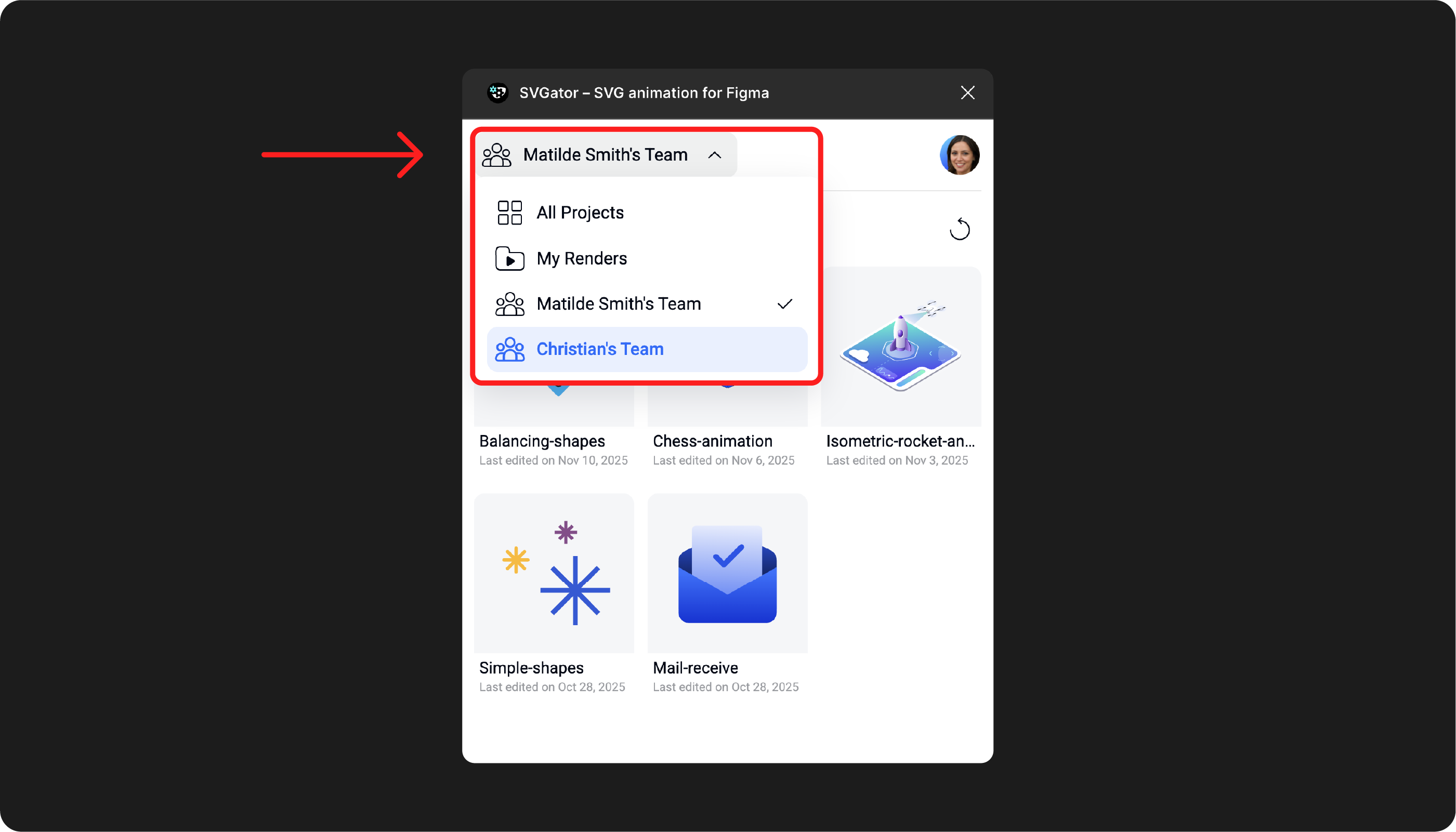
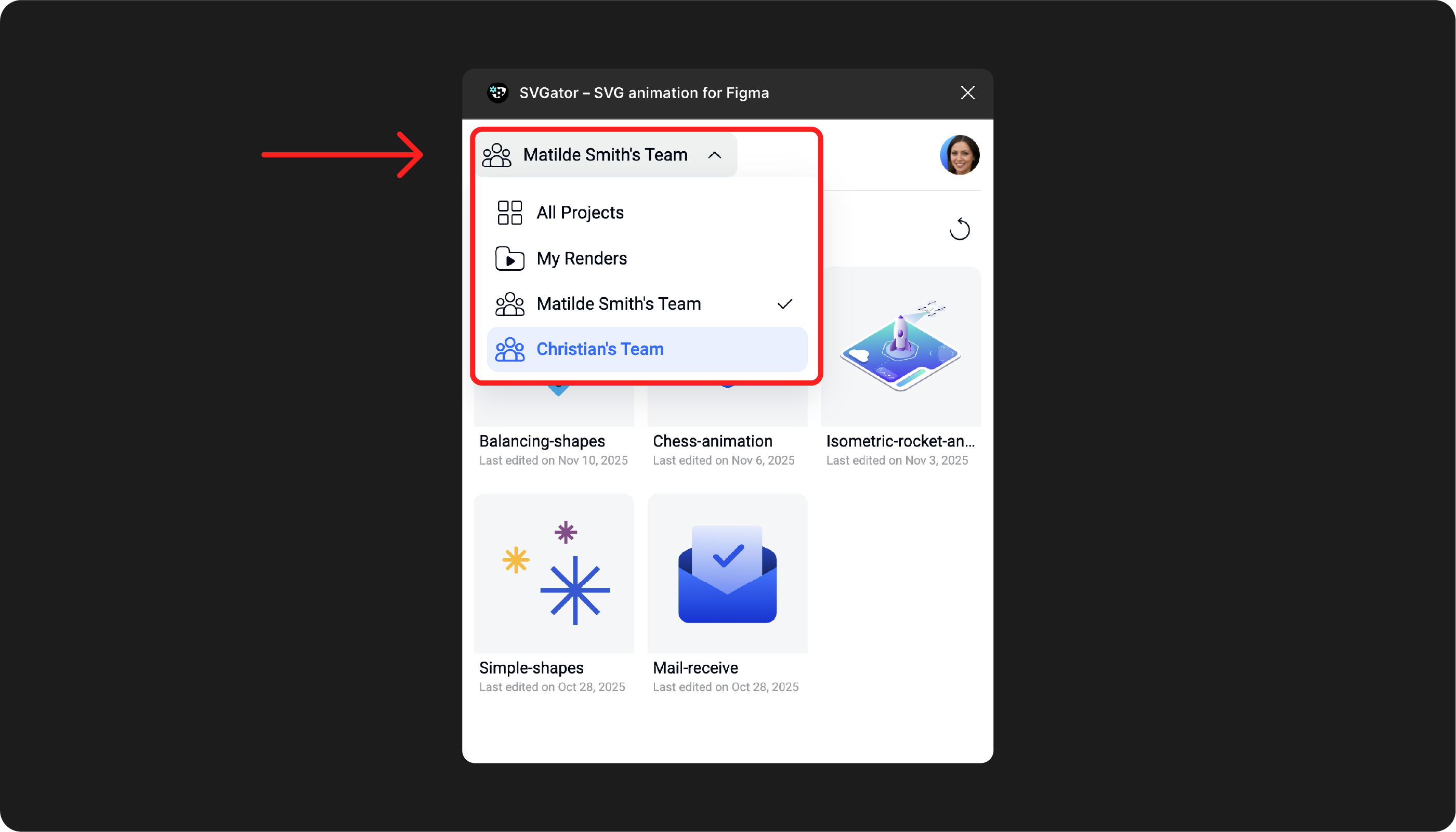
Note: Rendered files and projects shared within a Team plan are also available in the plugin.
Choose your export option:
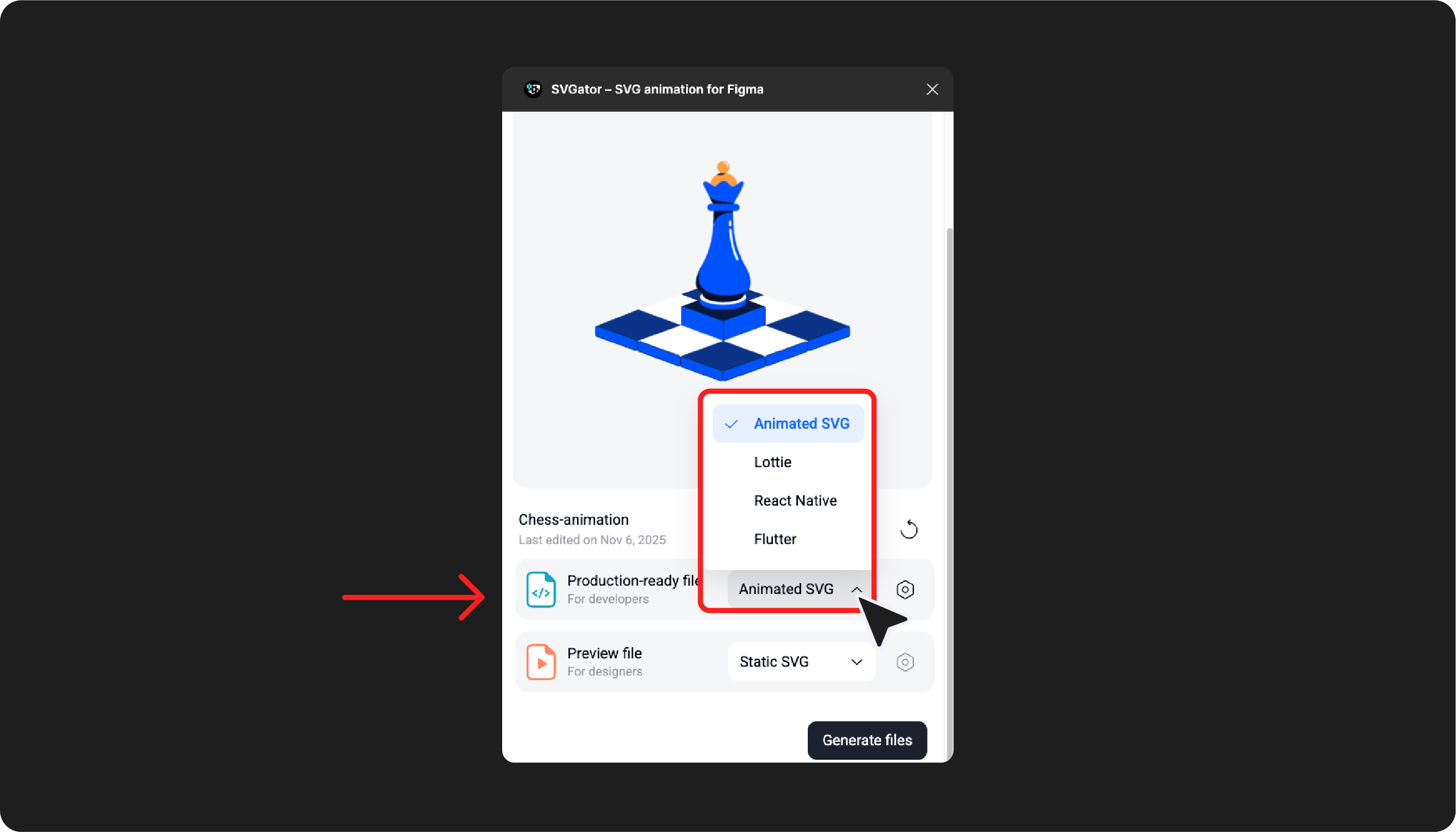
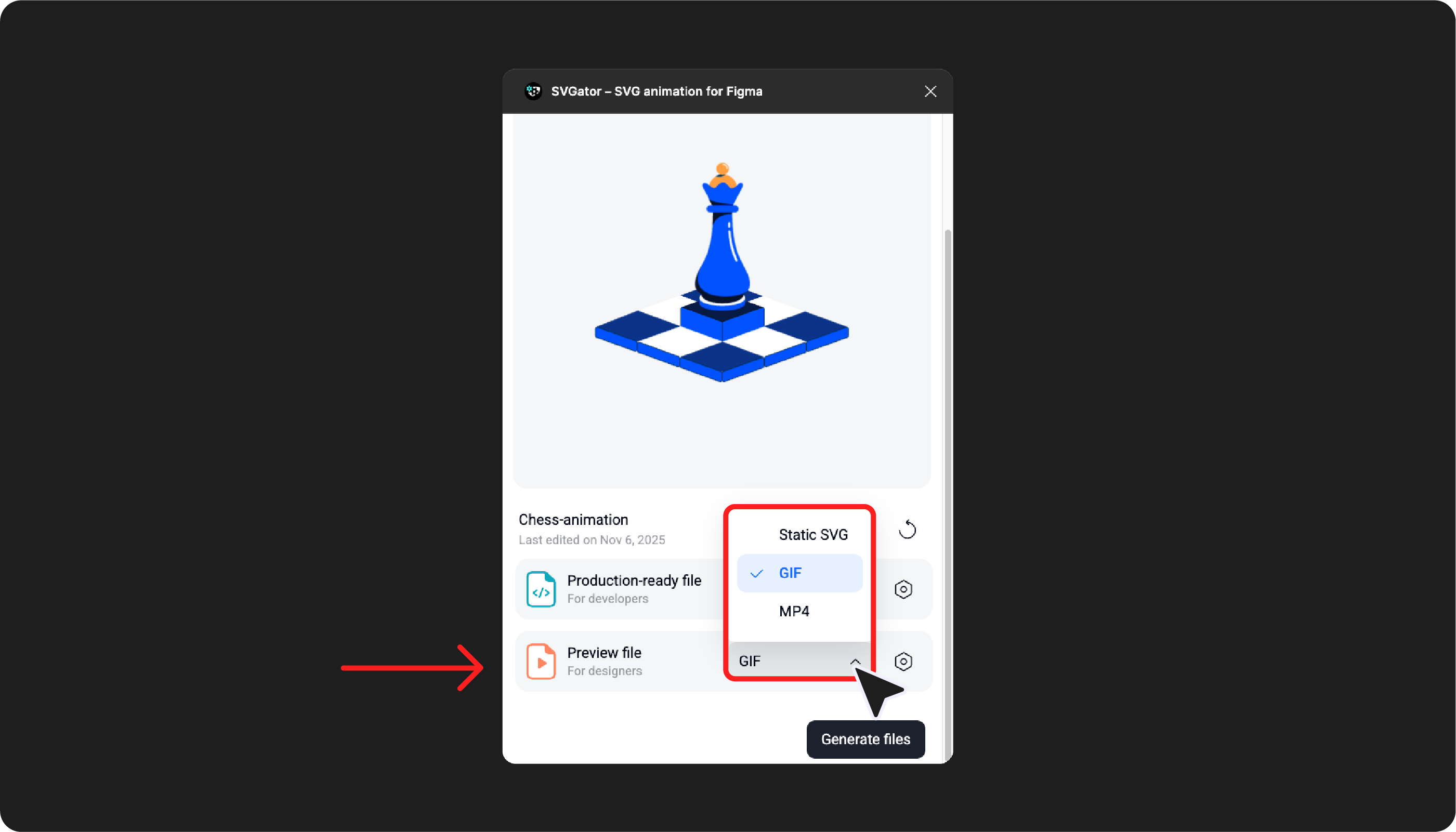
After selecting a project, you have two main options:
- Production-ready file – Download animated SVG, Lottie, Flutter, or React Native files for implementation
- Preview file – Generate a static SVG, GIF, or MP4 to view in Present or Preview mode
Update export settings:
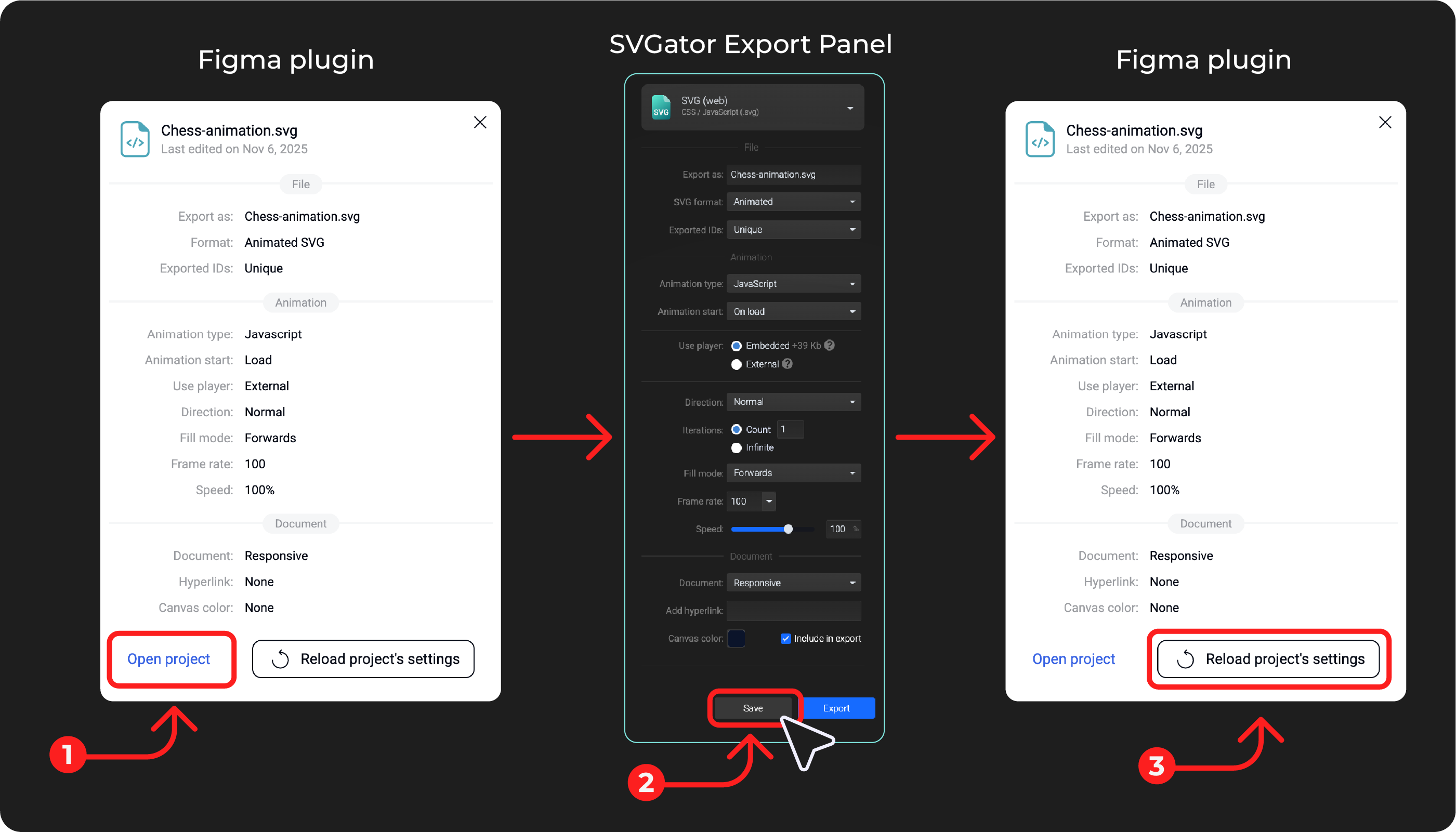
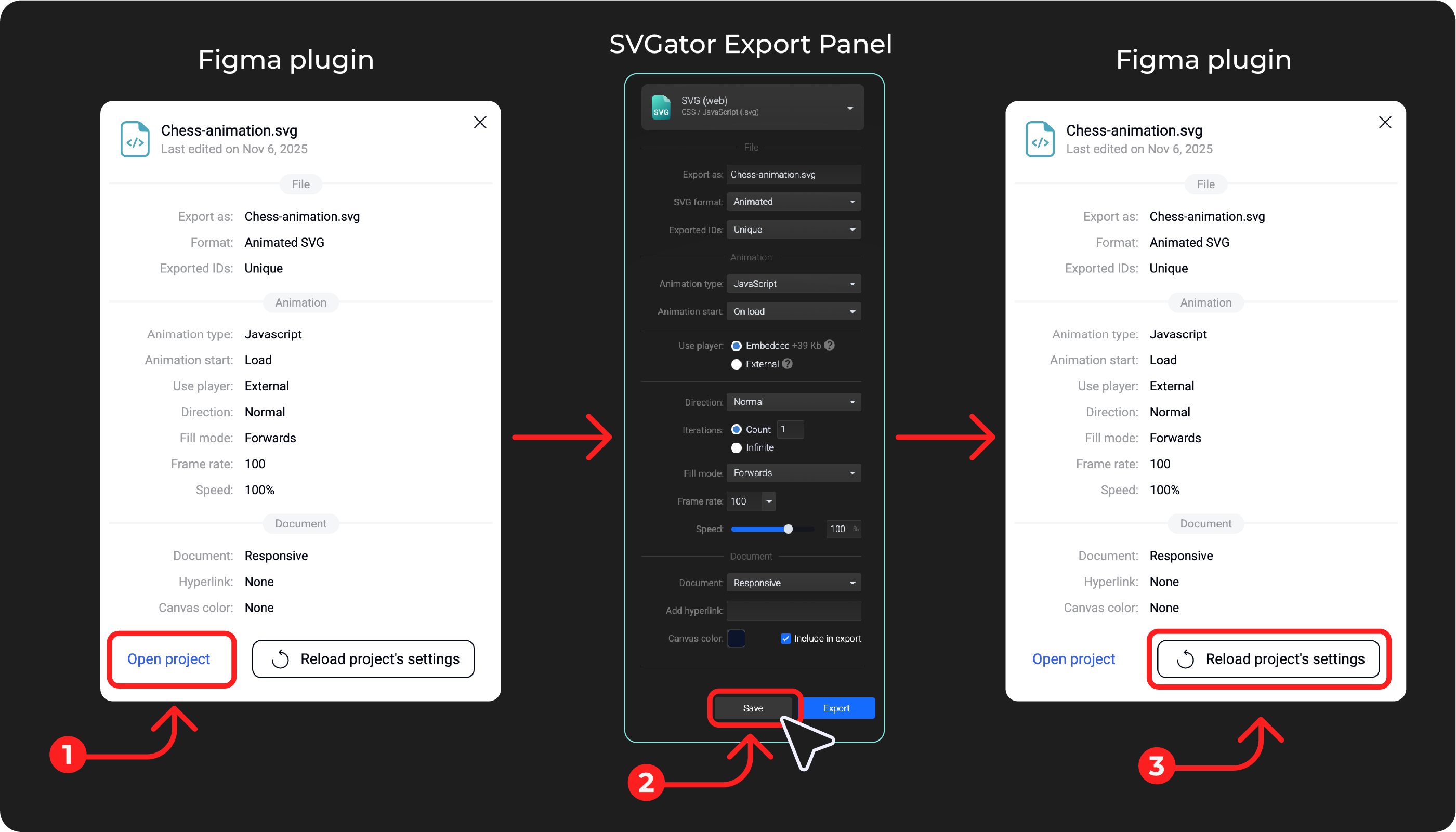
To modify export settings for production-ready files:
- Open the project in SVGator
- Make changes in Export settings and click Save
- Return to the plugin and click the gear icon next to Production-ready file
- Click Reload project's settings
Project's Export Settings In The Plugin
In the plugin, you can always review the current export settings for your files before exporting. To view the export settings:
- Select your project from the project list
- Click the gear icon next to Production-ready file or Preview file
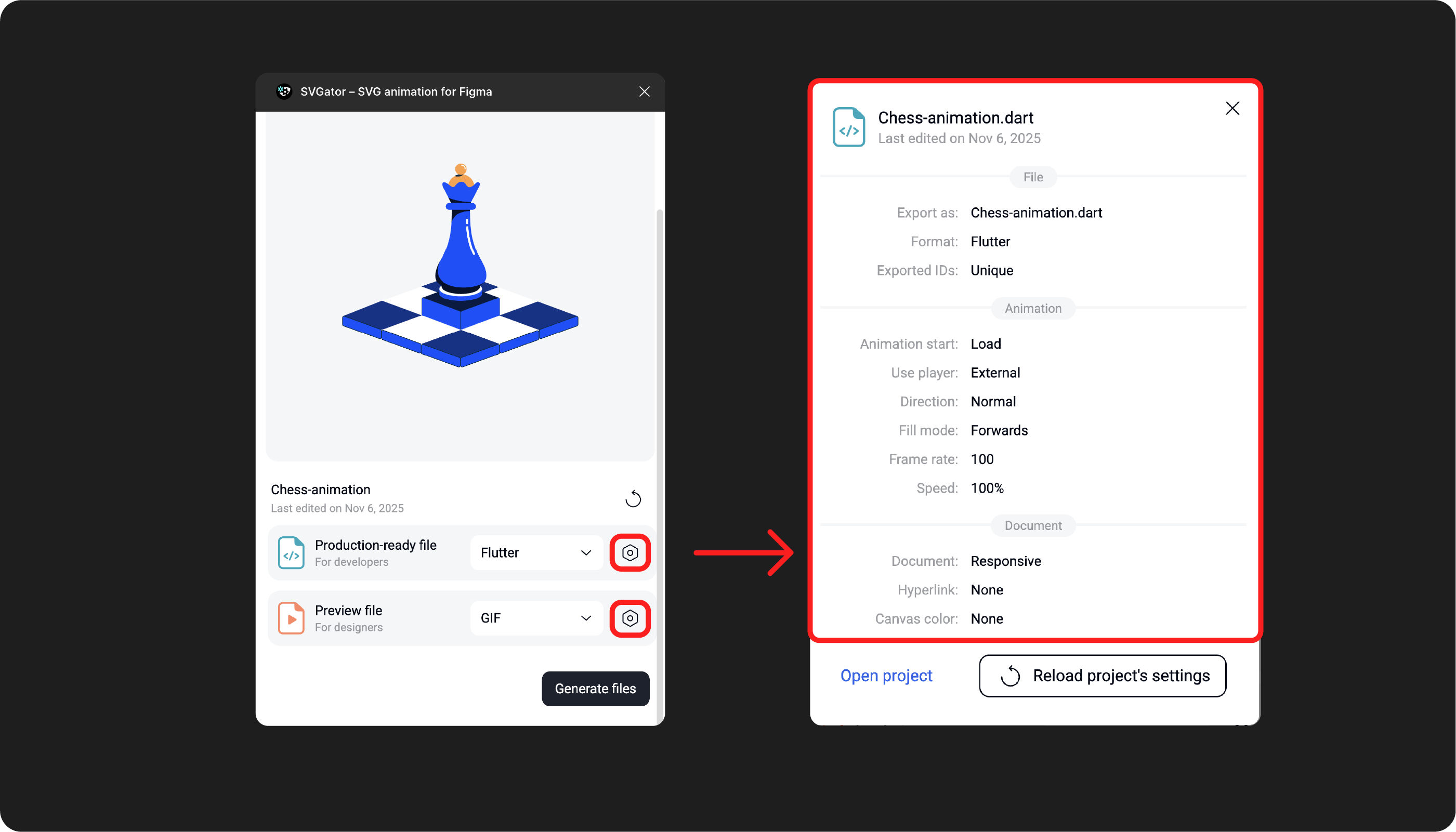
Modifying export settings:
- Production-ready file settings – Must be edited in SVGator's editor. After making changes and clicking Save, use Reload project's settings in the plugin to sync.
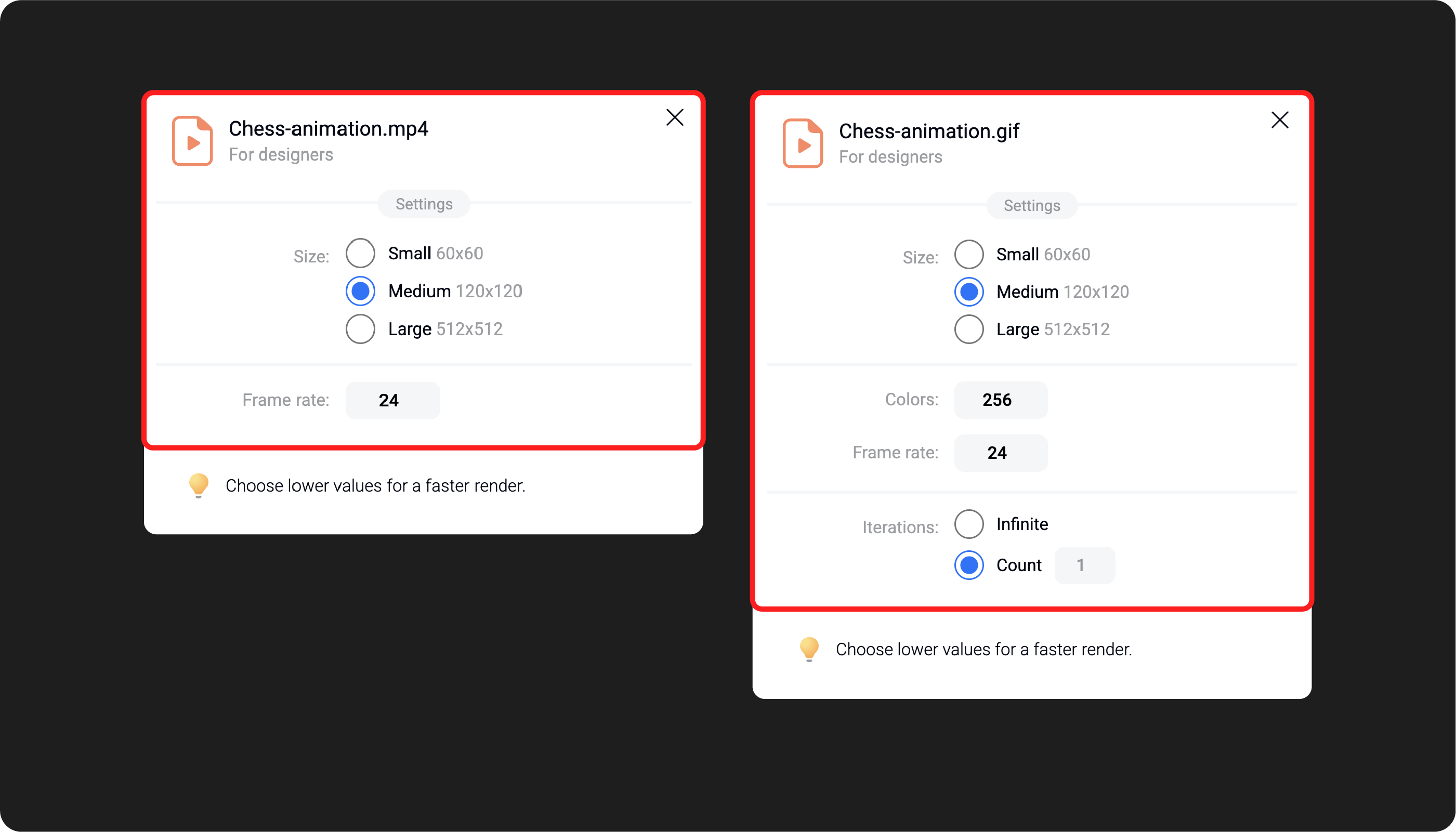
- Preview file settings – Some options can be adjusted directly in the plugin. For additional settings, open the project in SVGator's editor.
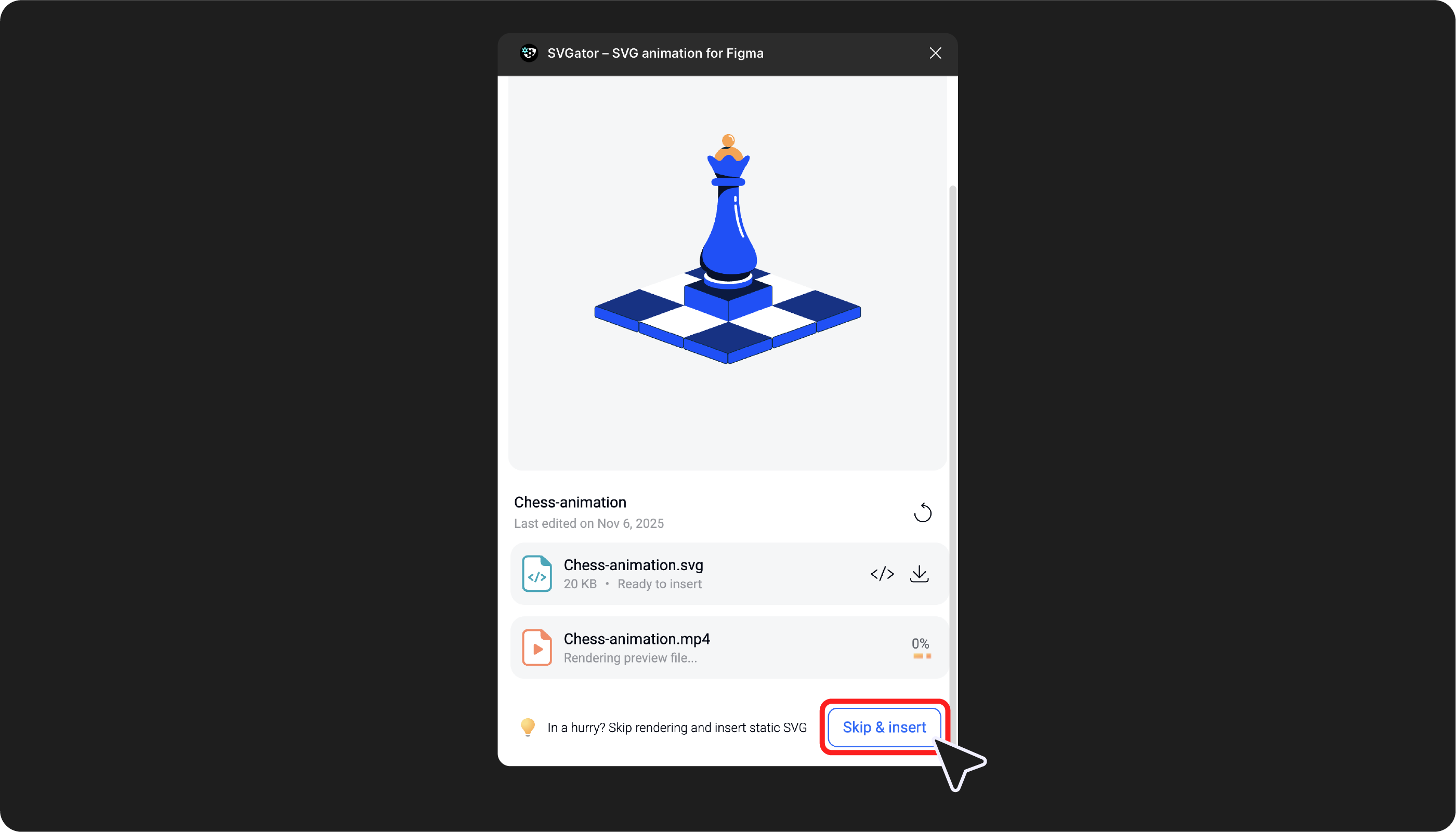
Skip & Insert
If you don't want to wait for the Preview file (GIF or MP4) to render, click Skip & insert to add a static SVG to your Figma project immediately. The static SVG will appear in the editor, and you can view it in Present or Preview mode.
Use existing rendered files:
If you've already rendered files in your SVGator account (GIF, MP4, or other formats), you can access them directly from the plugin's top bar and add them to your Figma project for viewing in Present or Preview mode.
Import Your Shared Team Plan Projects
You can also add shared projects from your SVGator Team. Access the top bar of the plugin, select your team, and you'll see all shared projects available for use.