Figma does not natively support creating or playing animated SVGs. It’s where most web-fluent designers spend their time, but when a project calls for web animation, the workflow has to move somewhere else. That gap trips up a lot of designers who know exactly what they want their design to do but aren’t sure how to get it there without writing code. According to SVGator’s February 2026 user survey, 43% of its users cited Figma integration as the feature they wanted most, which says something about how central Figma has become to this audience.
This guide covers how to use SVG animations in Figma: what the native animation tools actually do, the three main approaches to adding animation to a Figma design, a head-to-head comparison of the most relevant animation plugins including the SVGator Figma plugin, and everything you need to know about getting an animated SVG from your Figma canvas to a live website without writing a line of code.
Table Of Contents
What Figma Can (And Can't) Do For Animation
No-code vs Code-based: Choosing Your Animation Path
Figma Animation Plugins Compared
How To Animate SVGs With SVGator's Figma plugin
FAQ
What is the best plugin to animate SVGs in Figma?
It depends on what you’re building. For full animation capabilities, interactivity (hover, click, scroll), and a single-file SVG output with no dependencies, SVGator is the most complete option. For stroke-only animations, SVG Motion (DAVV) is a focused choice. For Lottie-first teams, Motion or Figmotion are worth considering.
Do I need to know how to code to animate SVGs from Figma?
No. Tools like SVGator generate clean, production-ready code from visual controls: a keyframe timeline, easing curves, and property panels. Interactive triggers (hover, scroll) are configured inside the tool as well, without writing event listeners or CSS keyframe rules.
Why is SVG better than Lottie for web animation?
SVG is a web-native format that browsers render without additional JavaScript. A CSS-animated SVG is a single self-contained file with no dependencies, which means faster page loads and no player library to maintain.
What Figma Can (And Can’t) Do For Animation
Smart Animate And Prototype Mode
Smart Animate is Figma’s built-in motion feature, found inside Prototype mode. It works by interpolating between two design frames. When you link two frames with a Smart Animate transition, Figma automatically calculates the in-between state and plays it as a smooth visual change in Present mode. For UX prototyping and flow demos, this works well. You can simulate a button changing state, a card expanding, or a menu sliding in.
What Smart Animate is not is a timeline-based animation tool. There are no keyframes, no easing curves you can edit over time, no sequencing of multiple properties across a timeline, and no exportable animation output. The animation exists only inside Figma’s Present mode and cannot be exported as an animated file. It won’t produce an animated SVG, a Lottie file, or any other format you can embed on a website. Figma’s official Smart Animate documentation describes the feature accurately as a prototype transition tool. That’s the ceiling.
Where Figma Stops And Animation Tools Begin
The practical question isn’t whether Figma can animate, but what the most efficient path is once you’ve decided your designs need to move. Figma has no timeline, no way to export animation data, and no way to attach interactivity to a motion file. For those capabilities, the workflow has to step outside Figma, either to a dedicated animation tool that accepts SVG input or to a Figma plugin that builds the animation layer on top of your design work. Which one makes sense depends on your output format, your team’s stack, and your animation complexity. The next section covers the tradeoffs in detail.
Why SVG Is The Format You Want
Before comparing tools, it’s worth establishing why SVG is the right output format for web animation. If you’re new to the format, this blog post covers the basics. SVG files are vector-based, which means they scale to any resolution without quality loss. A single SVG file with embedded animation typically weighs under 50KB, requires no external JavaScript library for CSS animations, and is fully readable by search engines. SVG accounts for 80.6% of all exports on SVGator’s platform as of August 2025, which reflects how consistently web designers choose it when producing animations for live sites.
The main alternatives are Lottie (a JSON format requiring a JavaScript player library at runtime) and GIF (a raster format with limited color depth and no scalability). The table below summarizes the key differences. For a more in-depth look, here's a direct breakdown of the tradeoffs.
| Format | File size | Scalability | Dependencies | Best use case |
| SVG | Very small | Infinite (vector) | None (CSS mode) | Web animation, UI, icons |
| Lottie | Small to medium | Good | Player library required | Cross-platform, mobile |
| GIF | Large | None (raster) | None | Universal sharing, email |
No-code vs Code-based: Choosing Your Animation Path
Three distinct approaches exist for adding animation to a Figma design. Which one makes sense depends on your technical skills, your delivery timeline, and the complexity of what you’re trying to build.
The Code-based Approach (CSS, JavaScript, GSAP)
Coding SVG animations directly gives you maximum control over timing, sequencing, and interaction. Libraries like GSAP (GreenSock Animation Platform) are powerful and widely used by developers. The tradeoff is obvious: this path requires writing code, debugging CSS keyframe rules or JavaScript event handlers, and iterating without a visual preview of your design. For designers who want to stay in a design context, this approach adds significant friction. It’s the right choice if you’re a developer who also designs, but it’s not a practical no-code workflow. This SVG animation tutorial is a good example of just how technical this path gets: excellent work, but not for designers who don’t code.
The External Tool Approach (After Effects To Lottie)
The traditional industry path runs through After Effects. A designer exports their Figma work, brings it into After Effects, animates it, and uses the Bodymovin plugin to export as Lottie JSON. The output is versatile, and the animation capabilities are rich, but the tradeoffs are substantial. After Effects requires a paid Creative Cloud subscription, has a steep learning curve, and operates in a completely separate ecosystem from Figma. The output format is also Lottie JSON rather than native SVG, which means a JavaScript player library must be loaded on any page that displays the animation.
The Plugin Approach
Figma plugins that handle animation keep your workflow inside the Figma ecosystem. You design in Figma, launch the plugin, and animate. This approach requires no coding knowledge and typically reduces iteration time significantly. A good plugin produces a production-ready file you can hand off to a developer or embed on your site without additional setup, but capabilities, output formats, and dependencies vary significantly between options. The next section covers those differences in detail.
Figma Animation Plugins Compared
Six plugins are worth examining for designers who want to add animation to Figma designs. Each takes a different approach to what Smart Animate can’t do: timeline-based animation, SVG or Lottie output, and interactive triggers. The comparison below covers output format, dependencies, interactivity support, pricing, and best-fit use cases.
SVGator
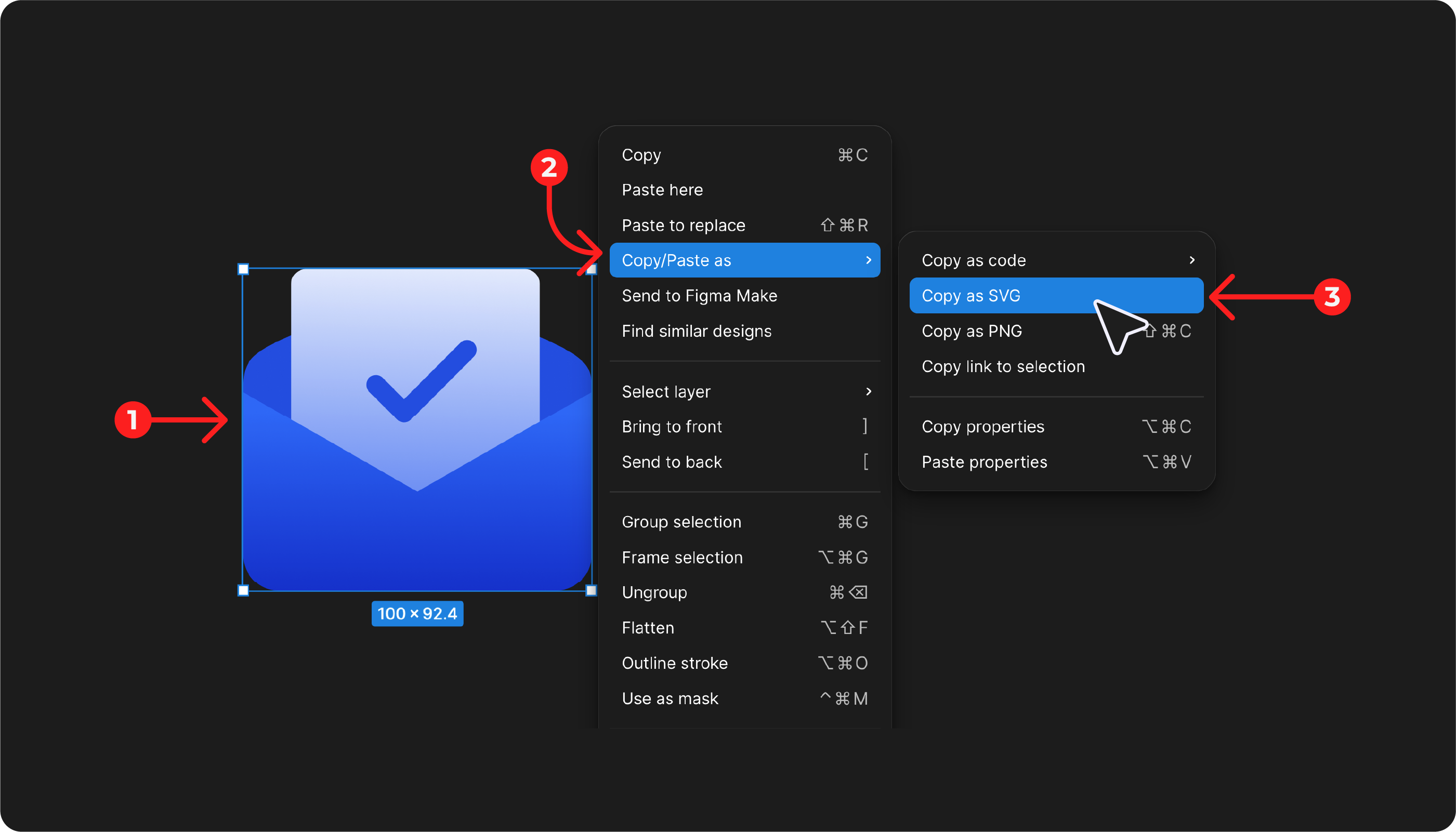
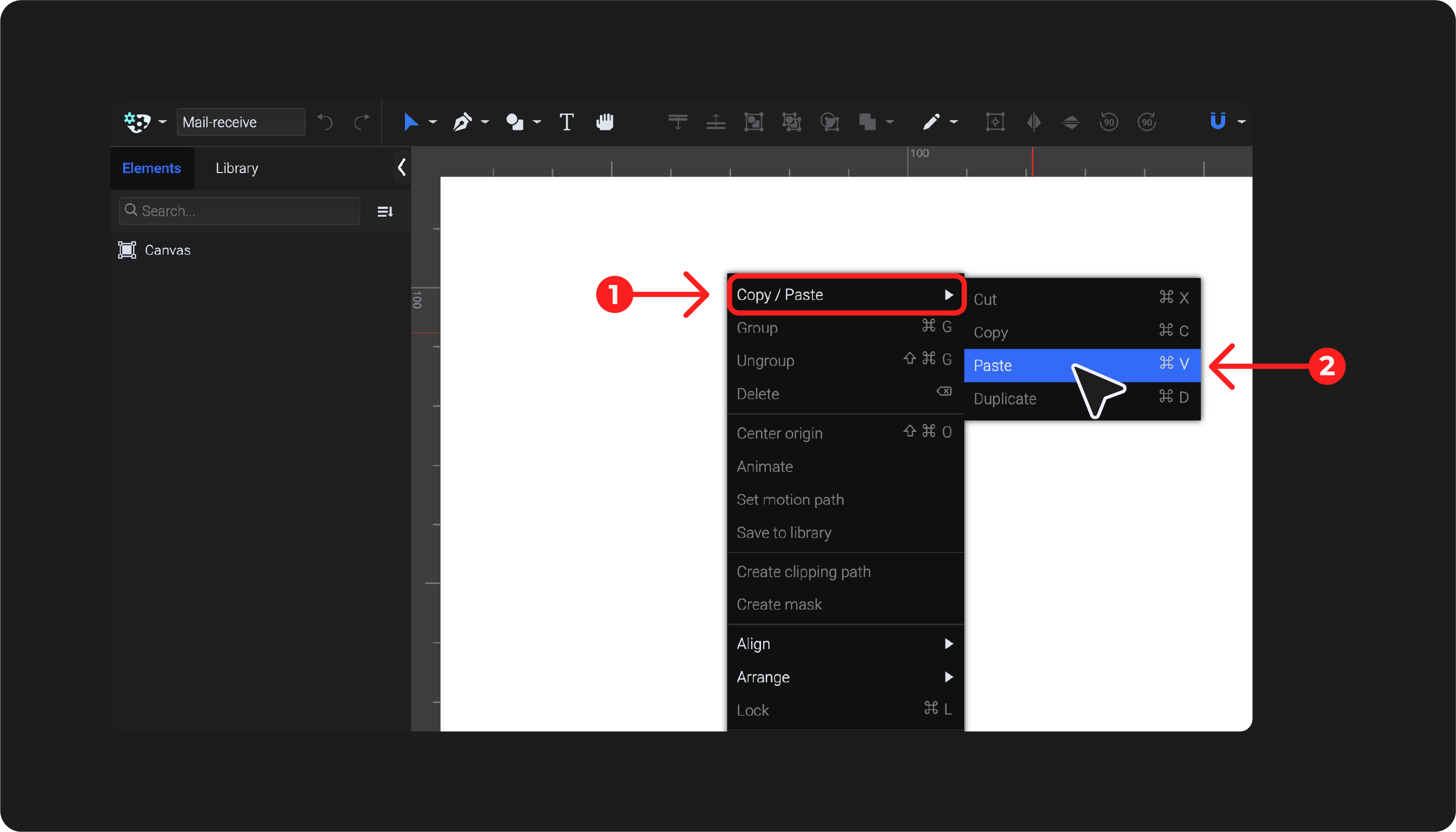
SVGator is a full-featured, professional SVG animation tool with a dedicated Figma plugin that creates a two-way workflow between the two applications. You design in Figma, copy elements as SVG, paste them into SVGator’s browser-based editor, and animate using a visual keyframe timeline. The output is production-ready: a single-file SVG with no external dependencies that works in every modern browser without a player library. SVGator supports interactive triggers, including hover, click, and scroll-based animations, configured without writing JavaScript. A free tier is available. Learn more about the SVGator Figma plugin.
Best for: Designers who want full animation capabilities, SVG-first output, and a no-code workflow connected to Figma.
SVG Motion (DAVV)
SVG Motion focuses on a specific type of animation: stroke drawing effects and path-based animation. If your project calls for lines that draw themselves onto the screen, SVG Motion handles that well. It cannot animate position, scale, opacity, color, or other standard motion properties, which makes it a narrow tool rather than a general-purpose one. It outputs SVG, GIF, and WEBM, carries no JavaScript dependencies, and is available as a one-time purchase rather than a subscription.
Best for: Stroke and draw-on animations. Not suitable for general motion design.
SVG Animate (Figmania)
SVG Animate offers timeline-based element animation with an SVG output, but the exported file depends on GSAP (GreenSock Animation Platform) to function. This means the animation won’t run without the GSAP library present on the page, which introduces a JavaScript dependency and a licensing consideration for commercial projects. A free tier is available.
Best for: Developers already using GSAP who want a visual authoring interface.
Motion
Motion is a timeline-based Figma animation plugin built with Lottie-first teams in mind. It exports Lottie, GIF, MP4, and CSS/SVG, and its interface will feel familiar to teams with After Effects experience. Lottie exports require a JavaScript player library to run on the page.
Best for: Teams already working in the Lottie ecosystem.
Figmotion
Figmotion adds a timeline animation interface with expression support. It outputs Lottie and CSS, and Lottie exports require a player library. The expression support is a differentiator for more complex motion, but output depth is more limited than dedicated animation tools.
Best for: Simple UI transitions.
LottieFiles
LottieFiles is a Lottie ecosystem platform. The Figma plugin lets you import existing Lottie animations from its library into your designs. It doesn’t create new animations from your own Figma work, so if you want to animate something you’ve designed, you’ll need a different tool.
Best for: Teams browsing and reusing existing Lottie assets within Figma.
| Plugin | Output formats | Dependencies | Interactivity | Best for |
| SVGator | SVG, Lottie, GIF, MP4, APNG, React, Flutter | None | Yes (hover, click, scroll, and more) | Full workflow, SVG-first |
| SVG Motion | SVG, GIF, WEBM | None | No | Stroke/draw-on only |
| SVG Animate | Animated SVG | GSAP required | Limited | GSAP-based dev teams |
| Motion | Lottie, GIF, MP4, CSS/SVG | Lottie player | Limited | Lottie-first teams |
| Figmotion | Lottie, CSS | Lottie player | Limited | Simple in-editor transitions |
| LottieFiles | Import only | Lottie player | Source-dependent | Reusing existing Lottie assets |
Limitations And Workarounds
Every approach described above operates within certain constraints. Knowing them before you commit to a workflow saves a lot of frustration.
Figma Can’t Play Animated SVGs
Figma displays static SVGs correctly, but any animation data embedded in the file is ignored. This is a Figma platform limitation that applies regardless of which animation tool you use. It means you can’t preview your finished animated SVG by dragging it back into Figma. The practical workaround is to use the SVGator Figma plugin’s preview, which generates a GIF or MP4 file that can be inserted into your Figma canvas. That file plays back in Figma’s Present mode, giving stakeholders and reviewers a way to see the animation in context without needing to open a browser.
Interactivity Only Works In The Browser
Hover, click, and scroll-triggered animations require a live web environment to function. They don’t activate in Figma, they don’t activate inside animation tool editors, and they don’t show up in video or GIF previews. This isn’t a bug in any particular tool. It’s a fundamental property of web interactivity: event listeners respond to user input on a rendered web page. For internal review and stakeholder approval, use non-interactive formats (GIF, MP4) as your preview format. For testing interactive behavior, embed the SVG on a development page and review it in a browser.
How To Animate SVGs With SVGator’s Figma plugin
SVGator’s Figma plugin doesn’t just bridge two tools. It creates a workflow that stays connected from design to production.
Design In Figma, Animate In SVGator
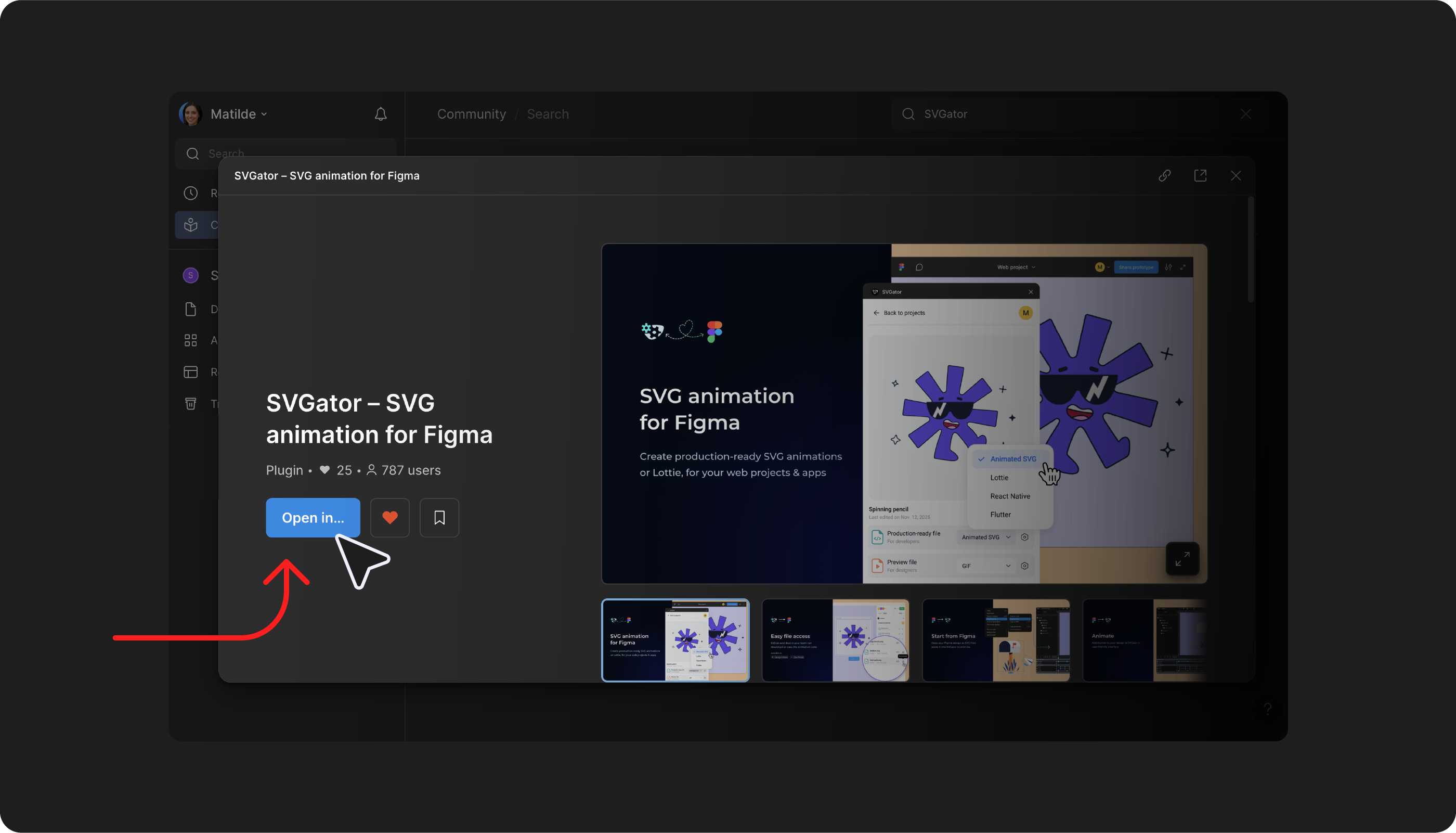
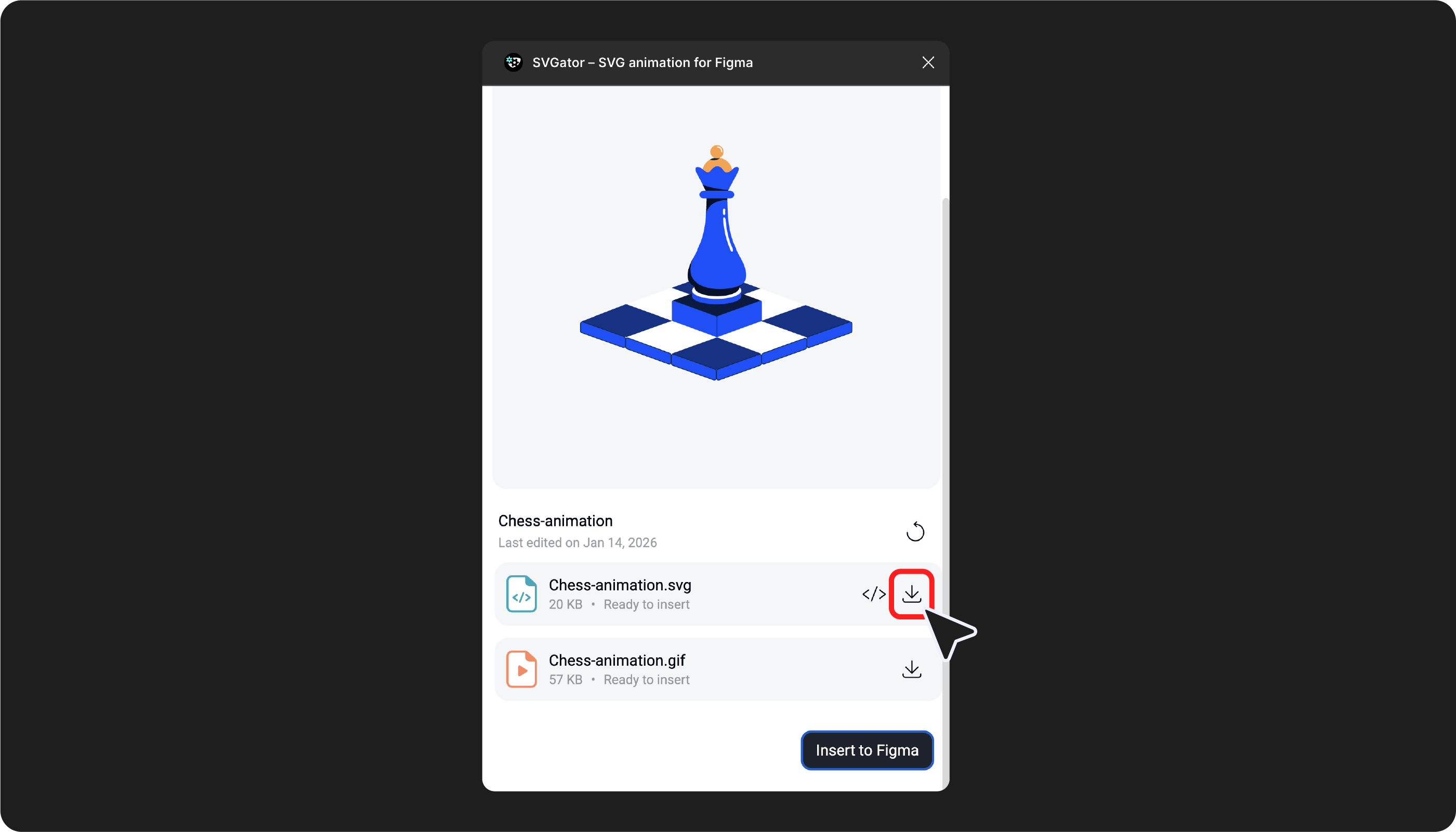
The core workflow has four steps. You design your element in Figma, select it, and copy it as SVG, paste it into SVGator’s browser-based editor, and animate it using the visual keyframe timeline. The SVGator Figma plugin lets you insert the animated project directly back into your Figma canvas.
The speed improvement this workflow delivers is well documented. Front-end developer Petro Kutuzov reduced his animation production time from 15 hours down to 75 minutes after switching to SVGator’s Figma workflow (January 2026). Johannes Kristjansson, a product manager and UI designer, brought a project that previously took hours down to 10 to 40 minutes (March 2026). Neither user was a dedicated motion designer.
What Makes This Workflow Different
Two capabilities separate SVGator’s Figma integration from other plugins. The first is the two-way workflow: animations you build in SVGator can be added back into Figma via the plugin. The plugin also generates GIF and MP4 preview files that insert directly into your Figma canvas, so stakeholders can review the animation in Figma’s Present mode without opening a browser.
Developers can download the final SVG directly from Figma without a separate SVGator account, removing a step from the handoff process.
The second is the single-file SVG project with no dependencies. Unlike tools that output Lottie JSON (which requires a JavaScript player library on every page that displays the animation), SVGator’s CSS SVG output is a self-contained, production-ready file that browsers render natively. For interactive animations, the JS SVG format handles hover, click, and scroll triggers without requiring you to write any event listener code. Both output types produce faster-loading pages with fewer HTTP requests.
For The Full Step-by-step Setup And Workflow
If you want a detailed walkthrough covering installation, Figma layer prep, SVGator’s interface, and the Dev Mode handoff process, this article covers all of it. It’s the companion piece to this overview and goes further into the specifics of getting from design to production.
Implementation And Handoff
Embedding Animated SVGs On Your Website
The inline SVG method pastes the SVG code directly into your HTML. This gives you full access to CSS styling and JavaScript interaction, and it’s the only method that supports scroll-triggered animations, which rely on an intersection observer watching the SVG’s position in the DOM. The img tag method is the simplest embed: reference the SVG file like any image. It’s clean and fast, but it can’t support interactive triggers. The object or embed tag method encapsulates the SVG in its own browsing context, which is useful for legacy support situations and allows fallback content to be specified. Use inline SVG for interactive animations, the img tag for simple looping animations, and the object tag when backward compatibility is a priority.
Site Builder Integration (Webflow, WordPress, HTML)
In Webflow, you can embed an animated SVG using a custom code block or an HTML embed component. Inline SVG paste works well for interactive animations, and the file reference method works for simpler ones. In WordPress, SVG uploads are blocked by default as a security precaution. The easiest path is to enable SVG support using a dedicated plugin, after which SVGs can be uploaded and embedded through the media library. SVGator also maintains a WordPress plugin that handles this directly.
In plain HTML, you paste inline SVG code or reference the file with an img tag with no additional setup required. Squarespace and similar builders support code injection for inline SVG.
Responsive Behavior And Browser Support
SVG animations are inherently responsive because of the viewBox attribute. The graphic scales to fill its container without any media query required. Browser support for SVG animation is universal across modern browsers, including Chrome, Firefox, Safari, and Edge. For email environments and some older browsers, animated SVG support is more limited, and a static fallback or GIF alternative should be considered. This article includes a dedicated Dev Mode section covering how developers can download final production files directly from Figma and choose between CSS and JS SVG based on how the file will be embedded.
Final Thoughts
The path from Figma design to animated SVG no longer requires writing code or learning After Effects. With the right plugin, the workflow is visual, fast, and production-ready by default. For designers who want a tool that outputs a single clean SVG file, handles interactive triggers without code, and keeps the Figma workflow connected rather than replaced, the options covered here give you a clear map.
Understanding the distinction between what Figma handles natively and what needs a dedicated animation tool makes the decision straightforward: Figma is where you design, and the animation work happens one step after that. SVGator’s Figma plugin covers the full range, from simple looping icons to scroll-triggered interactive animations. Get started for free and test the workflow before committing.