
GIF is nearly four decades old and still everywhere. Messaging apps, email campaigns, social media, and banner ads. No other animated image format has that kind of reach.
But GIF files get heavy fast, and quality suffers if you don't know which settings to adjust. This guide walks through the specific export settings that control GIF file size and image quality: resolution, frame rate, speed, colour count, transparency, and dithering. It also covers GIF stickers, playback direction, the format's pros and cons, and how it compares to newer alternatives like WebP, APNG, and AVIF.
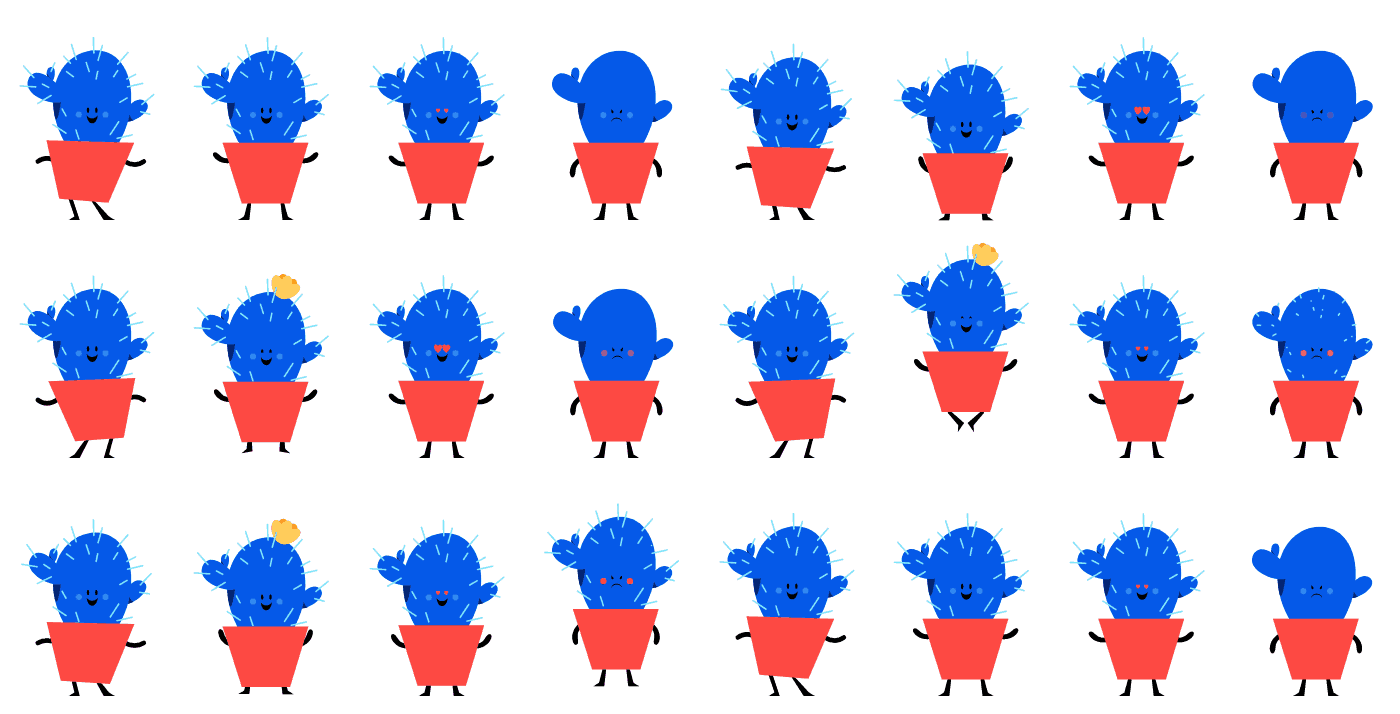
Table Of Contents
Common Use Cases For GIF Images
GIF Optimization: The Four Settings That Control File Size
GIF Direction And Playback Settings
GIF Advantages And Disadvantages
GIF Alternatives: When To Use A Different Format
FAQ
What is the best file size for a GIF?
The ideal GIF file size is between 15 KB and 1 MB for web use. For email marketing, aim for under 200 KB because emails need to load quickly on mobile devices. For social media platforms, most services accept files up to 8 MB, but smaller GIFs load faster and play more smoothly in feeds and chat threads.
What is the maximum resolution for a GIF?
There is no hard maximum in the GIF specification. In practice, most platforms recommend keeping GIF dimensions under 1200×900 pixels. The average GIF on the web is 640×480 pixels (480p). Larger resolutions produce significantly larger files because more pixel data needs to be stored per frame.
What frame rate should I use for a GIF?
Between 12 and 24 fps for most use cases. 12 fps works well for simple vector animations and icon loops. 15 to 24 fps suits more complex motion. Giphy recommends between 15 and 24 fps with a total of fewer than 200 frames per upload. Going above 24 fps rarely produces a visible improvement in GIF quality, but increases file size noticeably.
What Is A GIF?
A GIF (Graphics Interchange Format) is a raster image file that can store both static and animated content. In practice, it is used almost exclusively for short, looping animations.
The format was introduced by CompuServe in 1987 and uses LZW (Lempel-Ziv-Welch) lossless compression to store indexed colour images with a maximum palette of 256 colours per frame.
An animated GIF works by storing multiple image frames inside a single file. The frames play in sequence, one after another, similar to a flipbook. Each frame can have its own delay time, and the sequence can be set to loop a specific number of times or repeat indefinitely. There is no audio support.
The current version of the format is GIF89a, released in 1989. This version added support for animation, transparency (1-bit), and text overlays. According to the W3C GIF specification, the format stores pixel data as colour indices that map to a palette table, with each frame compressed independently using LZW encoding.
GIF is supported by every major web browser, email client, messaging app, and image viewer. That level of compatibility is its biggest advantage, and the main reason it continues to be used despite its technical limitations.
Common Use Cases For GIF Images
GIF files serve two broad categories of use. The first is social communication: reaction GIFs, memes, and animated stickers shared through platforms like Giphy and Tenor. These are typically short (under 6 seconds), low-resolution loops designed for quick consumption in chats and comment threads.
The second is digital marketing and web content. Animated GIF images are used in email campaigns, banner advertisements, product showcases, placeholders for prototyping, and tutorial walkthroughs. In this context, file size and quality matter more because heavy GIFs slow down page loads and can hurt search engine rankings.
SVGator supports GIF export directly from its animation editor, which means you can design your animation with vector tools and keyframes, then export as GIF with full control over resolution, frame rate, speed, and colour settings.
GIF Optimization: The Four Settings That Control File Size
Every GIF’s file size is determined by four variables: resolution, frame rate, duration, and colour count. Adjusting any one of these will change the output size. The trick is knowing which ones to adjust for your specific use case, and how far you can push them before quality drops below an acceptable level.
The general target for a well-optimized GIF is between 15 KB and 1 MB. For email marketing, most clients recommend staying under 200 KB because emails need to load quickly on mobile networks. For web content, keeping the file under 1 MB is a good rule of thumb. Social platforms like Giphy and Tenor have their own upload limits, but generally accept files up to 8 MB (though smaller is always better for playback performance).
GIF Resolution
GIF resolution is the pixel dimensions of the image (width × height). More pixels means more data per frame, which directly increases file size. A 1080p GIF will be several times larger than the same animation at 480p, even with identical frame rate and colour settings.
The average GIF resolution across the web is 480p (640×480 pixels). Giphy recommends uploading at 480p or lower for most content. For email GIFs, keeping the width under 600 pixels is standard practice, since most email clients display content within a fixed-width container.
If you are creating GIFs in SVGator, you can set the exact pixel dimensions in the export panel. The tool also provides scaling options (Fill, Fit, or Stretch) when the export size differs from your canvas size, which saves you from needing a separate GIF resizer tool.
GIF Frame Rate
Frame rate is the number of frames displayed per second (fps). A higher frame rate produces smoother motion but adds more frames to the file, which increases its size proportionally. A 10-second GIF at 30 fps contains 300 frames. The same animation at 12 fps contains 120 frames. That difference has a direct impact on file size.
For most GIF use cases, a frame rate between 12 and 24 fps is the sweet spot. Giphy recommends between 15 and 24 fps, with a total of fewer than 200 frames per upload. Many traditional animators work at 12 fps for hand-drawn animation, and the same rate works well for vector-based GIF animations where motion is relatively simple.
| Frame Rate | Approximate File Size |
| 4 fps | ~50 KB |
| 12 fps | ~143 KB |
| 24 fps | ~283 KB |
| 30 fps | ~353 KB |
GIF Speed And Duration
GIF duration is the total length of the animation before it loops. Shorter GIFs produce smaller files because there are fewer frames to compress. Giphy recommends a maximum duration of 6 seconds and does not accept uploads longer than 15 seconds.
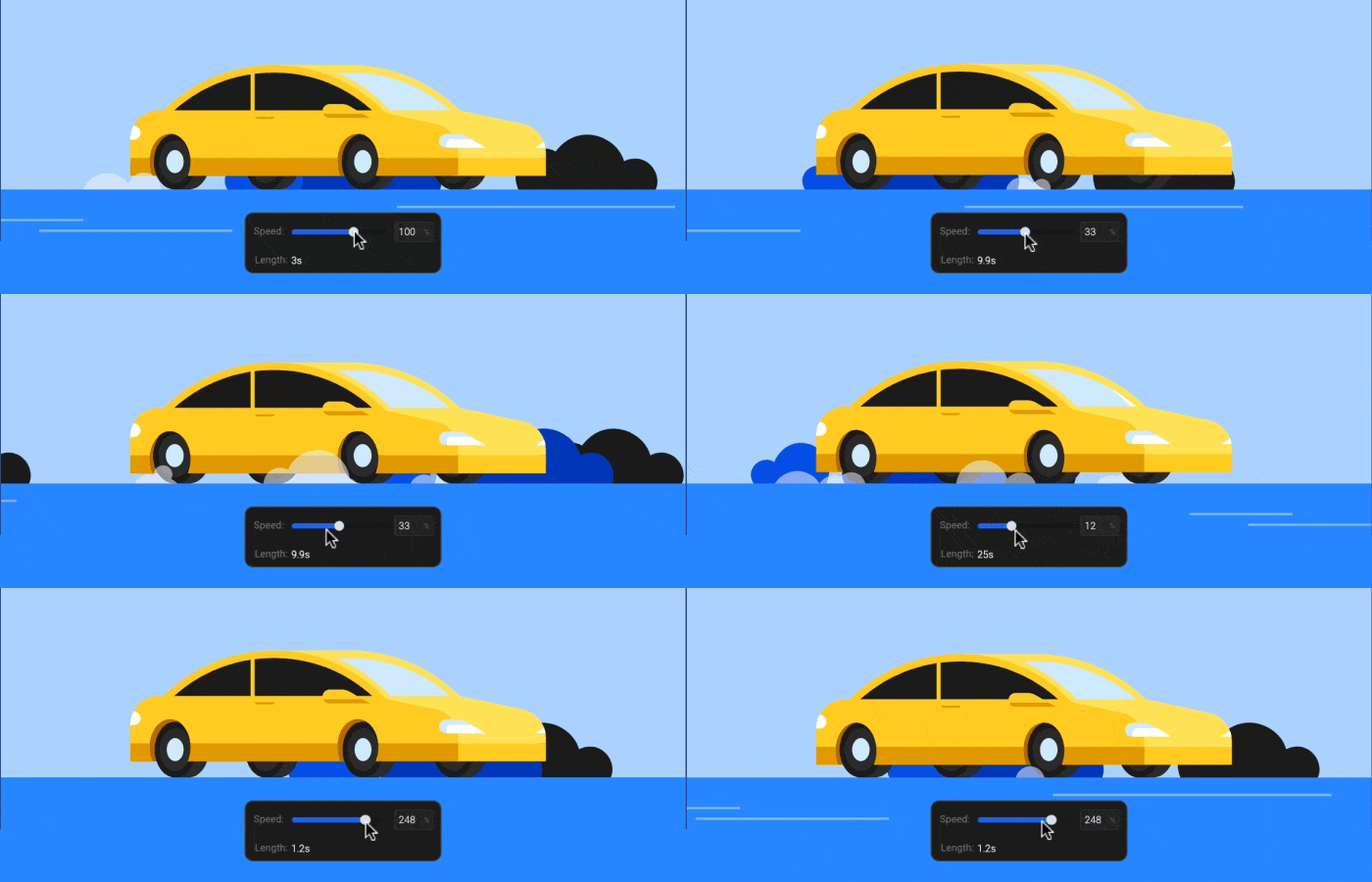
Speeding up a GIF is one of the most effective ways to reduce file size without changing resolution or frame rate. A 10-second animation at 30 fps contains 300 frames. If you speed it up to 200%, it becomes a 5-second animation with 150 frames, cutting the file size roughly in half.
One important detail: the number of loop iterations does not affect file size. Whether a GIF loops once, ten times, or infinitely, the stored data is the same. Only the length of the animation sequence itself matters.
In SVGator, you can control GIF speed with percentage values (from 1% to 1000%), which gives you precise control over the final duration and, by extension, the file size.
GIF Colours
The GIF format supports a maximum of 256 colours per frame. That is an 8-bit indexed colour palette, compared to the 16.7 million colours (24-bit) available in formats like SVG, WebP, and APNG. This colour limitation is the main reason GIF files look grainy or banded when used with photographic content or complex gradients.
Reducing the number of colours in your GIF is one of the simplest ways to reduce file size. The fewer colours in the palette, the less pixel data changes between frames, and the more efficient the LZW compression becomes.

| Number Of Colours | Approximate File Size |
| 4 colours | ~19 KB |
| 16 colours | ~26 KB |
| 32 colours | ~36 KB |
| 128 colours | ~65 KB |
| 256 colours | ~92 KB |
When working with a low colour count (8 to 32 colours), keep your design simple. Use flat, solid-colour backgrounds instead of gradients. Limit the number of moving elements. Avoid colour transitions between keyframes. These choices compound with each other: a flat-colour icon animation at 16 colours and 12 fps will be a fraction of the size of a gradient-heavy illustration at 256 colours and 30 fps.
How To Improve GIF Quality
Optimizing for file size is only half the equation. The other half is making sure the GIF actually looks good at the settings you have chosen. Two settings specifically control GIF quality: transparency handling and dithering.
GIF Transparency
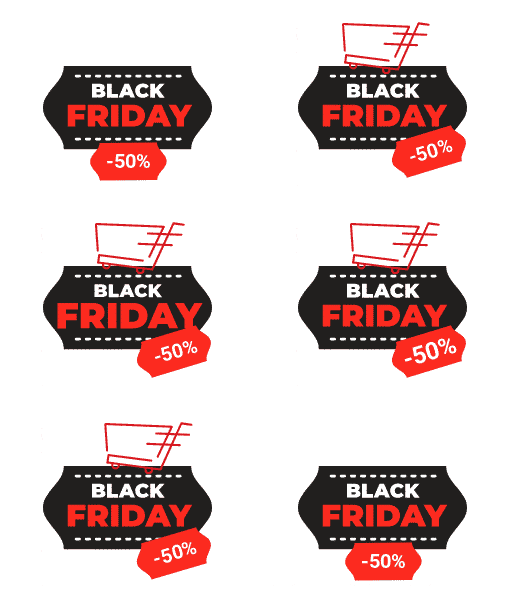
GIF supports 1-bit transparency. Each pixel is either fully visible or fully transparent. There is no partial (alpha) transparency. This means that GIF images with transparent backgrounds will have rough, jagged edges wherever curved or diagonal shapes meet the transparent area.
The fix for this is edge matting (also called matte colour). Matting blends the edges of your graphic with a specified background colour, so the jagged pixels become less visible against the intended background. When exporting GIFs from SVGator, the “Matte colour” option is enabled by default when you select a transparent background. You can set it to match the background colour of the page or container where the GIF will be displayed.
Matting works well when you know the destination background colour in advance. It does not work well if the GIF needs to appear on multiple different backgrounds, because the matted edges will show a visible halo against colours that do not match the matte setting.
GIF Dithering
Dithering is a technique that adds a noise pattern of coloured pixels to simulate colours that are not in the 256-colour palette. It makes gradients and colour transitions look smoother, at the cost of increased file size.
- When to use dithering: if your GIF contains gradients, photographic elements, or mixed media (vectors combined with raster images), dithering will improve how those areas render. Without dithering, these areas will show visible colour banding where the palette cannot represent the original tones.
- When to skip dithering: if your GIF is made entirely of flat-colour vector graphics (icons, logos, simple illustrations), dithering adds unnecessary file size without a visible quality improvement. Large areas of solid colour render cleanly without it.
A higher percentage produces smoother colour transitions but increases file size. Start with a low-to-medium setting and increase only if you see visible banding in the exported GIF.
GIF Direction And Playback Settings
GIF direction controls the playback order of the animation frames. There are four standard options:
- Normal: frames play forward (the default)
- Reverse: frames play backward
- Alternate: frames play forward, then backward (boomerang effect)
- Alternate Reverse: frames play backward, then forward
Direction settings do not affect file size. They change only how the browser renders the frame sequence. The Alternate setting is useful for creating a smooth looping effect without designing a separate return animation, since the playback automatically reverses at the end of each cycle.
Loop count (iterations) is a separate setting. You can set a GIF to play once, a specific number of times, or infinitely. Like direction, loop count does not change the file size.
What are GIF Stickers?
GIF stickers are animated GIFs with transparent backgrounds, designed for use as overlays in messaging apps, Instagram Stories, and TikTok videos. They are a specific subset of GIF images that follow additional formatting rules set by distribution platforms.
Giphy defines a sticker as a GIF file where at least 20% of pixels in the first frame are transparent. Their best practice guidelines also recommend setting the loop to infinite and using multiples of 4 for width and height dimensions. Tenor has similar requirements.
Because stickers display at small sizes and on varied backgrounds, the edge matting technique described earlier is especially useful here. Setting the matte colour to one of the dominant colours in your animation reduces fringing and keeps the sticker looking clean across different contexts.
GIF Advantages And Disadvantages
GIF has clear strengths and clear weaknesses. Understanding both helps you decide when GIF is the right format and when you should look at alternatives.
| Advantages | Disadvantages |
| Universal support across all browsers, email clients, and platforms | Limited to 256 colours per frame |
| No external player or library needed | No alpha transparency (1-bit only) |
| Lossless compression for indexed colour images | File sizes get large quickly with complex animations |
| Simple to share and embed anywhere | Difficult to edit after export (frame-based structure) |
| Auto-plays without user interaction | No audio support |
| Huge library of existing content (Giphy, Tenor) | Newer formats outperform it in terms of quality and file size |
The bottom line: GIF is the safest choice when you need guaranteed playback across every platform. It is not the best choice when file size, colour accuracy, or transparency quality are priorities.
For a detailed comparison of how GIF stacks up against other raster formats, see the full GIF vs PNG vs JPEG vs WebP format guide. And if you are deciding between raster and vector animation entirely, the raster vs vector comparison breaks down when each approach makes more sense.
GIF Alternatives: When To Use A Different Format
The formats that have emerged as practical GIF alternatives for web use:
- SVG is the best format for vector-based animations (icons, illustrations, UI elements, logo animations). SVG animations are resolution-independent, typically measured in single-digit kilobytes, and require no external player libraries. The trade-off is that SVG does not handle raster content (photographs, video frames). When you need raster animation, GIF, WebP, or APNG are the appropriate choices.
- WebP produces animated files that are 50 to 70% smaller than equivalent GIFs, with full 24-bit colour and alpha transparency. All major browsers support animated WebP.
- APNG is an extension of PNG that supports frame-based animation with 24-bit colour and full alpha transparency. APNG was officially standardised as part of the PNG specification in 2023. File sizes are typically smaller than GIF for equivalent quality.
Final Thoughts
GIF turned 38 in 2025, and it is still everywhere. The format has real limitations, but its universal support makes it the one animated image format you can use anywhere without worrying about compatibility.
The best approach is to stop treating GIF as a default and start treating it as a deliberate choice. When universal playback matters more than visual quality, GIF is the right pick. When transparency, colour depth, or file efficiency are priorities, SVG, WebP, or APNG will serve you better.
Impressive, huh? Give SVGator a try!
Create your own animated GIF using an easy & intuitive no-code animation tool.