
Learn how vector graphics work, why designers rely on them, and what makes them different from pixel-based images. They are essential for everything from interface icons to large-format displays, and their structure makes them exceptionally suitable for animation and interactivity.
In this guide, we explore how vector graphics are built, how they function internally, what advantages they offer, and where they fit into modern creative workflows.
Table of Contents
How Vector Graphics Are Constructed
Coordinate Systems And Transformation Logic
Paths, Nodes, And Bézier Geometry
How Rendering Engines Interpret Vectors
Workflow In Vector Design Tools
Using Vector Graphics In SVGator
What Are Vector Graphics?
Vector graphics are digital images composed of mathematically defined shapes rather than pixels. Instead of storing an image as a collection of colored squares, vector graphics describe visual elements using equations: lines defined by start and end points, curves shaped by control handles, and shapes determined by paths and fill rules.
Designers work with vectors because they scale infinitely without losing clarity. Whether you shrink an icon to 16×16 pixels or expand it to fill a billboard, the shapes remain perfectly crisp because the computer recalculates the geometry at every size.
Insert table with use cases
| Use case | Essential advantage |
| Logos and brand identity | Consistent across all sizes |
| User interface design | Sharp on any screen density |
| Web graphics | Small file sizes, responsive scaling |
| Animation | Smooth, editable motion |
| Print materials | Resolution-independent quality |
How Vector Graphics Are Constructed
Vector artwork is formed from a logical hierarchy of geometric and styling components:
Points (or nodes)
Points define exact positions in the canvas’s coordinate system. They serve as the anchors for paths, marking where lines begin, end, or change direction. Every modification to a point immediately reshapes the connected lines or curves.
Paths
Paths connect points to form linear or curved segments. A path may be open (a line) or closed (a shape). Each segment carries its own curvature, direction, and slope, determined by the control handles attached to its points.
Shapes
When a path is closed, it becomes a shape/region that can be filled, stroked, or both. Shapes can overlap, intersect, or combine using boolean logic, making them ideal for creating logos, icons, and detailed illustrations.
Groups
Groups organize multiple shapes into structured components. Designers use groups to keep artwork manageable, apply shared transformations, or prepare reusable assets for animation.
Styling attributes
Attributes define how shapes appear: their fill color, stroke width, stroke pattern, opacity, blending mode, or gradient. These properties can be modified independently from the geometry, giving vector graphics high flexibility.
Coordinate Systems And Transformation Logic
Every vector file relies on a 2D coordinate system, usually a simple Cartesian x/y plane. This coordinate space defines how shapes are positioned relative to one another.
Transformations modify how objects interpret their coordinates:
Translation (movement)
Translation shifts an object’s position on the x or y axis. Because vectors rely on formulas, moving an object doesn’t degrade its quality; it simply recalculates the geometry at the new location.
Scaling
Scaling increases or decreases an object’s size proportionally. Since vectors don’t depend on pixel grids, scaling is mathematically perfect: curves, corners, and lines remain sharp regardless of enlargement.
Rotation
Rotation turns an object around a defined pivot point. Rotation is computed purely through trigonometric equations, so even a complex shape maintains smooth edges at any angle.
Skewing
Skewing distorts an object along one axis, creating a slanted or italic effect. Designers often use skewing for perspective illusions or stylistic exaggeration.
Matrix transformations
Advanced vector systems allow multiple transformations, like rotation, scale, and skew, to be combined into a single matrix. This matrix can then be applied to groups or entire illustrations, enabling sophisticated animated movements.
Paths, Nodes, And Bézier Geometry
Most vector graphics rely on Bézier curves, mathematical curves defined by anchor points and directional handles.
Nodes (anchor points)
Nodes act as structural checkpoints along the path. They determine where the path bends, starts, or ends. Manipulating a node changes how the curve flows through that point.
- Corner nodes – creating sharp angles
- Smooth nodes – maintaining continuous curves
- Symmetric nodes – enforcing equal handle lengths for balanced curves
Handles (control points)
Handles extend from nodes and influence the tangents entering or exiting a curve segment. By adjusting handle length and angle, designers can sculpt curves with fine precision.
- Longer handles create gentler, wider curves
- Shorter handles create tighter bends
- Handle angle determines the curve's direction
Paths
A path is the continuous connection between nodes. Simple paths might connect just two points with a single curve. In complex illustrations, paths may contain dozens or hundreds of segments, each governed by its own curvature. Bézier paths combine flexibility and mathematical accuracy, making them ideal for both artistic and technical drawings.
How Rendering Engines Interpret Vectors
When a vector image is displayed, the computer must convert its mathematical instructions into pixels: a process called vector rasterization.
Rendering involves:
Parsing path commands
The engine processes instructions such as "move to coordinate (50, 100)," "draw a cubic Bézier curve to (200, 150)," or "close the path." These commands define the geometric skeleton.
Computing curves
The engine evaluates Bézier equations to determine the precise shape of curves, adjusting dynamically based on zoom level and display resolution.
Applying transformations
Scaling, rotation, and skews are evaluated mathematically and applied before drawing. The engine calculates the final geometry accounting for all transformations.
Filling and stroking shapes
Fill rules determine which regions count as “inside” the shape, while strokes are expanded outward from the path centerline according to specified width and style.
Rasterizing the result into pixels
Even though the source artwork is vector-based, the final output always becomes pixels on your screen. The key advantage is that this rasterization happens freshly at every size, ensuring perfect clarity.This is why a vector icon looks equally crisp on a standard 1× display and a Retina 3× screen; the rendering engine recalculates the geometry for the target resolution.
Vector Vs. Raster Graphics
Understanding the fundamental difference between these two image types helps you choose the right format for each project.
 SVGator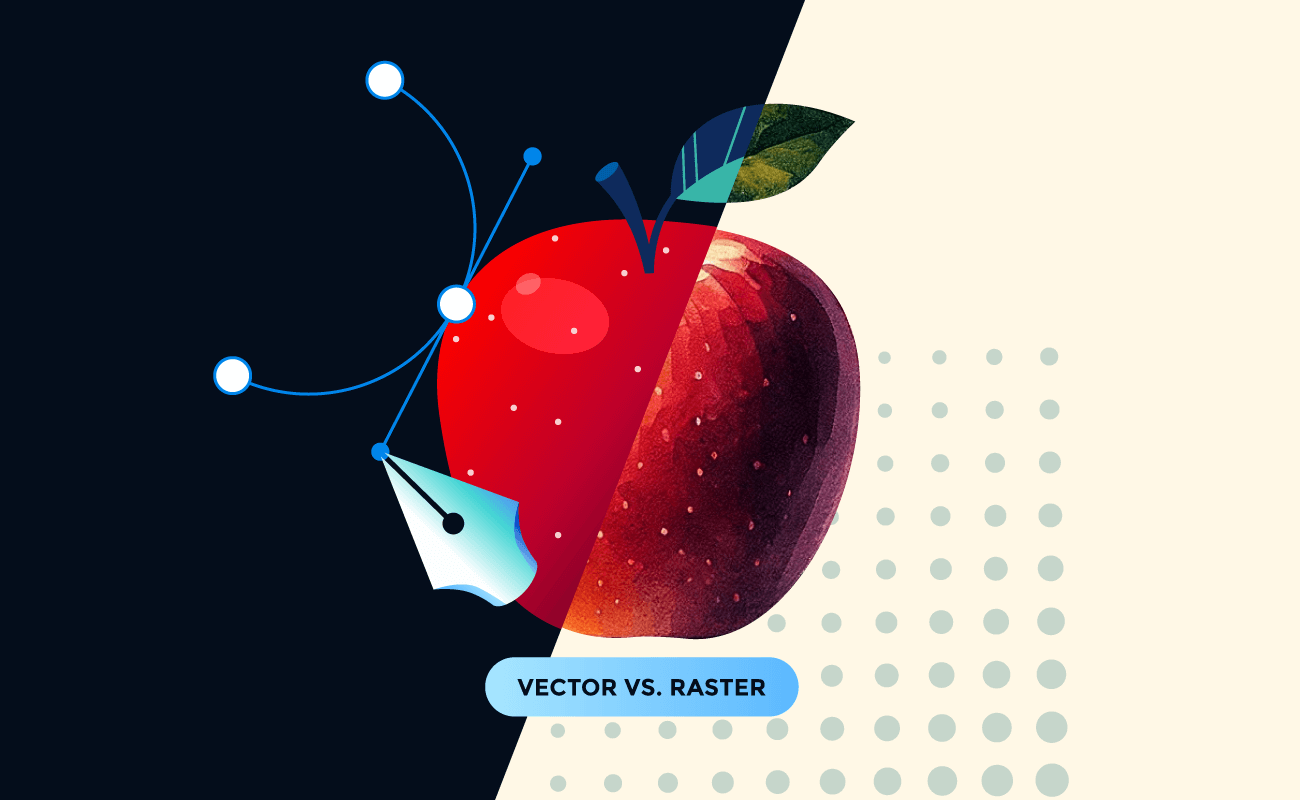
Vector graphics
Vector graphics rely on geometric descriptions. Their appearance is resolution-independent, meaning artwork looks identical on low-density displays and on high-density screens like Retina or 4K monitors. Vectors remain small in file size and can be animated efficiently using path-based techniques.
Raster graphics
Raster images store color information for each pixel. They excel at complex textures and photorealism but lose quality when scaled beyond their native resolution. Raster files grow quickly in size and aren’t ideal for interface icons or scalable illustrations.
Both formats are essential, but their strengths differ substantially.
When each format works best
| Use case | Recommended format | Why |
| Company logo | Vector | Needs to work from business cards to billboards |
| Photograph | Rasters | Captures complex color and texture detail |
| UI icons | Vector | Must stay sharp across different screen densities |
| Product texture | Raster | Photorealistic detail requires pixels |
| Infographic | Vector | Text and shapes need to scale cleanly |
| Digital painting | Raster | Brush textures and blending work at pixel level |
| Animated illustration | Vector | Smooth scaling and editable motion paths |
Workflow In Vector Design Tools
Vector graphics tools give designers a nondestructive editing environment where every adjustment recalculates shapes rather than permanently altering pixels.
Path and node editing
Designers manipulate curves by moving nodes or adjusting handles. The underlying formulas update instantly, so edits remain smooth and precise.
Boolean operations
Combining shapes through union, subtract, intersect, or exclude, lets designers build complex icons or abstract forms from simple primitives.
Gradient and pattern controls
Color transitions and pattern fills enhance visual richness. Unlike in raster graphics, gradients remain perfectly smooth regardless of zoom level.
Live transformations
Rotation, scaling, skewing, or mirroring operations are continuously recalculated, allowing exact placement and alignment.
Alignment and distribution
Snap objects to grids, align to other elements, or distribute evenly with mathematical precision. Vector tools excel at creating orderly, well-structured compositions.
Types Of Vector Elements
Vector graphics encompass several element categories, each serving specific design purposes.
Primitive shapes
Rectangles, ellipses, and polygons serve as foundational building blocks. These shapes maintain perfect geometry because they’re defined mathematically, not drawn manually.
Custom paths
Custom paths give designers full creative control, allowing them to sculpt detailed illustrations, letterforms, or organic shapes using Bézier curves.
Compound shapes
When multiple shapes combine through boolean operations, they form compound shapes, ideal for icons, logos, and layered artwork.
Outline text
Typography can be converted to path outlines, ensuring that the text remains consistent even without embedded fonts. This is especially useful for logos.
Clipping paths (masks)
A clipping path hides parts of a shape or image, revealing only the region inside the mask. This is key for complex compositions and animated reveals.
Gradient and stroke effects
Strokes define edges, while gradients add depth, light, or dimensionality. These styles contribute significantly to the visual language of vector illustrations.
Advantages Of Vector Graphics
Perfect scalability
Because vector graphics are defined by mathematical equations, they adapt seamlessly to any size, from tiny icons to large-format displays, without pixelation.
Efficient file sizes
Vector images consist of instructions, not pixel data, which keeps file sizes lightweight and ideal for responsive web environments. A complex illustration might be just 50KB as a vector while requiring several megabytes as a high-resolution raster image.
Smooth animation possibilities
Editable paths and shapes enable shape morphing, motion paths, and advanced transitions, making vectors especially suitable for web and interface animation.
Nondestructive editing
Designers can reshape paths or change styles at any time. Nothing is permanently “baked in,” giving full creative freedom during revision.
Device-independent consistency
Vectors render with consistent clarity across screens, operating systems, and resolutions.
Versatility across platforms
Vectors work equally well in print, UI design, technical diagrams, and interactive web elements.
Limitations To Consider
Not suited for photorealism
Vector graphics cannot match the nuance of photographs or texture-rich raster artwork. Complex gradients or shading must be approximated using stylized methods.
Performance overhead in complex scenes
Very detailed vector files, especially with filters like blur or large numbers of nodes, require more processing power to render.
Conversion challenges
Turning a raster image into a clean vector often requires manual tracing and refinement, particularly for organic or noisy images.
Browser and tool inconsistencies
Some vector effects behave differently across design tools or browsers. Designers must test animations and filters to ensure compatibility.
Common Use Cases
Animation and interactive design
Vectors can be animated with path transformations, strokes, masks, and filters. They work seamlessly with CSS and JavaScript. Add interactive triggers (hover, click, scroll) to create engaging experiences that remain scalable and performant.
User interface design
Icons and UI elements must scale across devices with different screen densities. Vectors maintain clarity and reduce the number of raster assets needed (at different resolutions).
Web graphics and illustrations
Responsive websites benefit from vector-based illustrations, which load quickly and adapt to screen size without losing fidelity.
Branding and identity
Logos rely on vectors to stay crisp at any size, from business cards to signage. Vector geometry ensures consistent reproduction across every medium.
Diagrams and schematics
Technical fields use vectors for maps, wiring diagrams, and engineering drawings due to precision and clarity.
Using Vector Graphics In SVGator
SVGator builds on the strengths of vector graphics by turning static geometry into dynamic movement without requiring writing code.
Edit vector paths and shapes directly
You can adjust curves, nodes, and groups inside the tool without switching between editors. Import static SVG or Lottie JSON files from any design tool and refine them within your animation workspace.
Animate vector properties with precision
Motion paths, shape morphing, strokes, opacity, and filters can all be keyframed. SVGator handles interpolation automatically between states.
Export lightweight SVG animations
Animations export as pure SVG, CSS, or JavaScript without requiring heavy libraries or rasterized videos.
Build interactive experiences
SVGator supports hover, click, and scroll-based triggers, allowing designers to create fully interactive vector animations for the web.
Collaborative workflow
Work with vectors from any design tool (Illustrator, Figma, Sketch). SVGator preserves your layer structure and makes animation accessible to designers who don't code, making vector animation accessible across teams.
Animate Stroke Loaders in Minutes | SVGator
Final Thoughts
Vector graphics combine mathematical precision with artistic flexibility, enabling designers to work at any scale and adapt artwork effortlessly across platforms. Whether you're building interfaces, animations, illustrations, or brand assets, understanding how vectors work gives you a creative and technical advantage.
Tools like SVGator extend these capabilities into the realm of animation, making it possible to create interactive, scalable, and performance-friendly graphics without writing a single line of code.
FAQ
Can you make photos into vectors?
You can convert photos into vectors through a process called tracing, but it rarely produces photorealistic results. Vector conversion works best for simple images with clear shapes and limited colours, like logos or cartoon illustrations. Complex photographs lose detail and subtlety when converted because vectors can't capture the nuanced colour gradients and textures that make photos realistic. Manual refinement is usually needed for quality results.
Why do designers use vectors for logos?
Designers use vectors for logos because they need to work perfectly at every size, from tiny website favicons to massive billboards, without losing quality. Vector logos stay crisp on any device, print beautifully at any resolution, remain easy to edit and update, and keep file sizes small for web use. This ensures brand consistency across all applications and makes logo files future-proof as screen resolutions continue improving.
Do vector graphics work on phones?
Yes, vector graphics work brilliantly on phones and actually look sharper than pixel-based images on high-resolution mobile screens. Modern smartphones support vector formats, especially SVG for web content, and vectors automatically adapt to different screen densities without requiring multiple file versions. This makes them perfect for responsive mobile interfaces where icons and graphics need to stay crisp across various devices and screen sizes.